How to Verify Google Search Console
How to Verify Google Search Console – Method 1: HTML File Upload
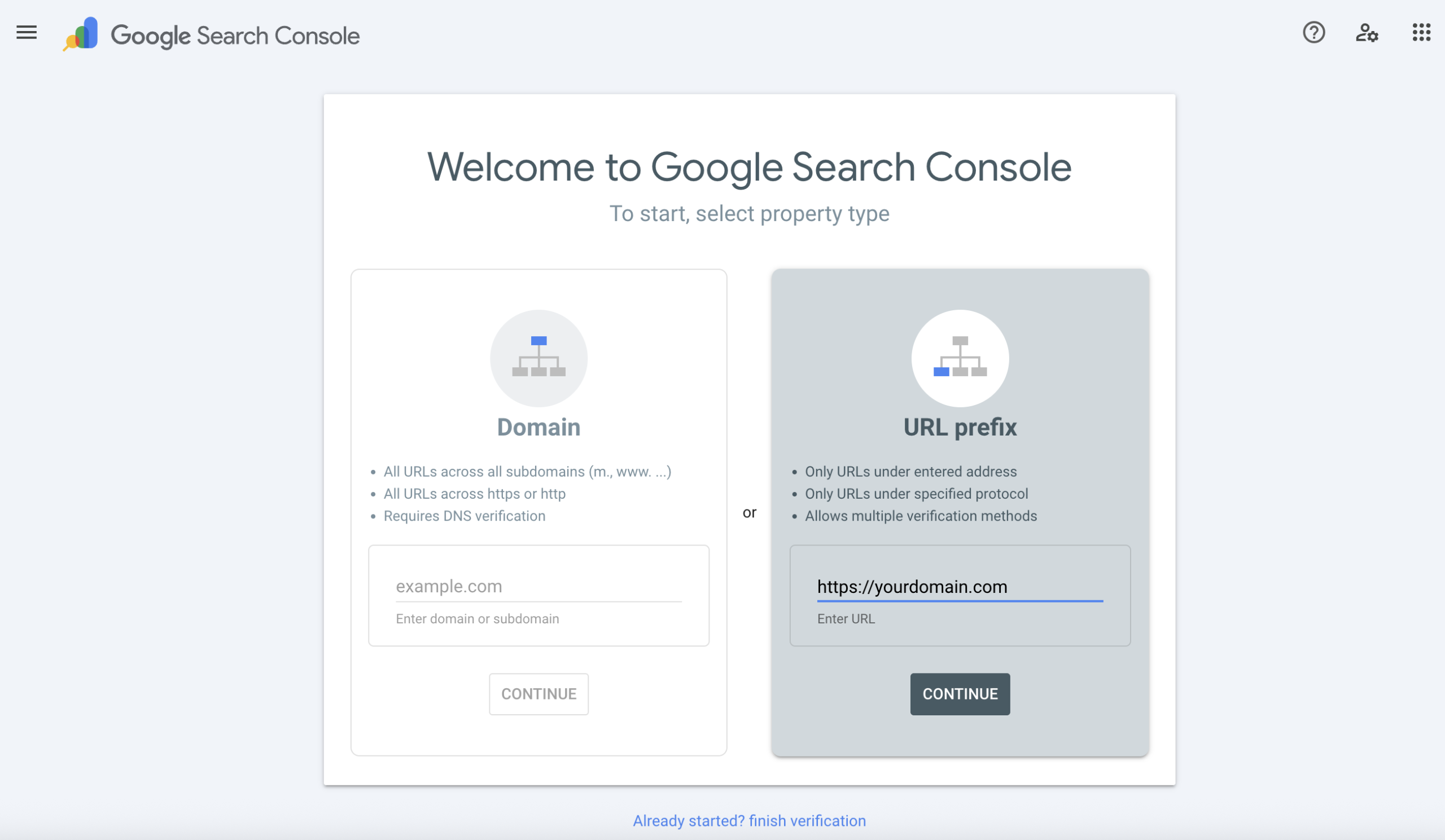
- Enter URL: In Google Search Console (URL Prefix method), enter the domain you wish to verify (including
https://) and click Continue.
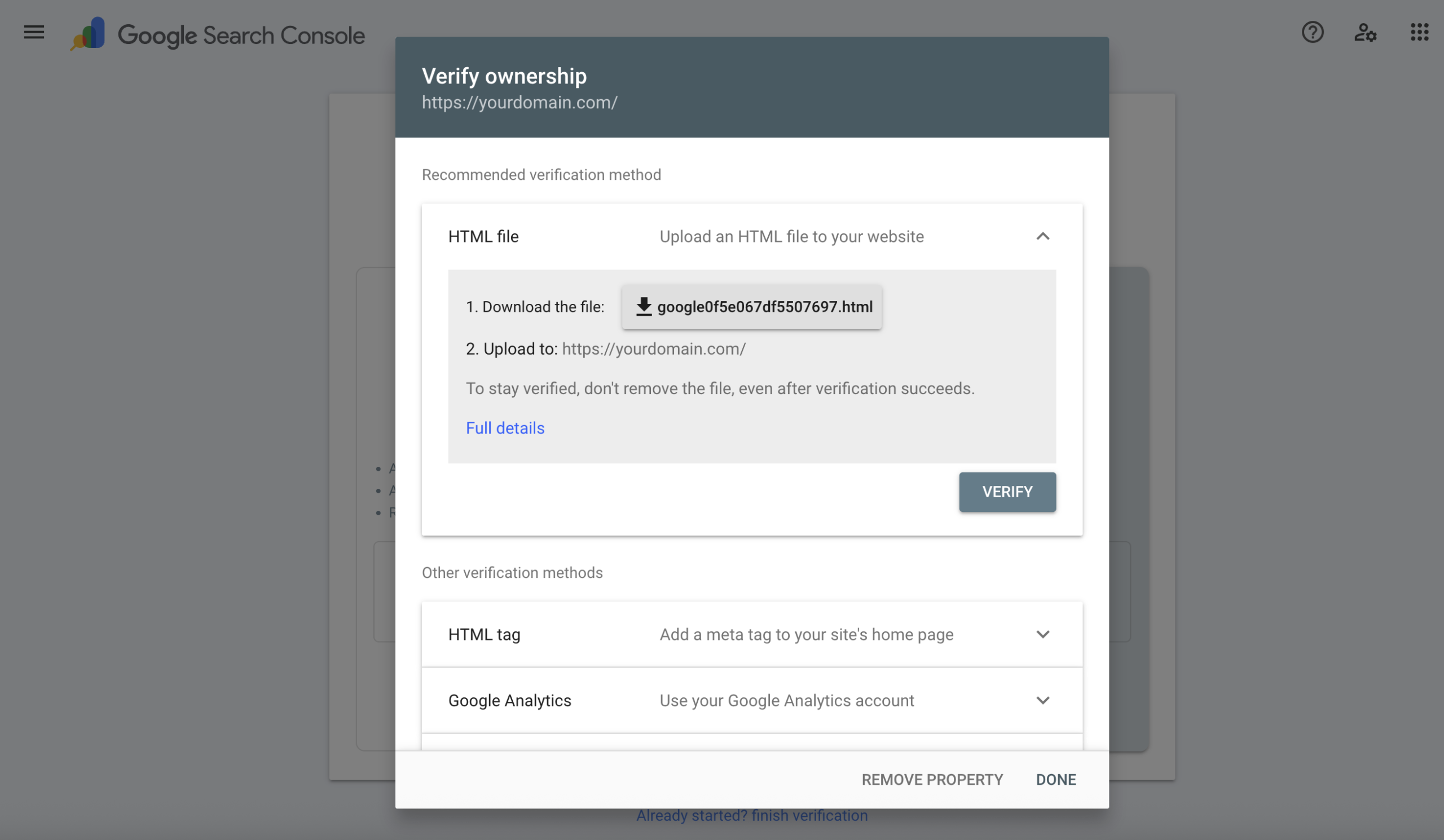
- Download File: Click to download the HTML verification file provided by Google.
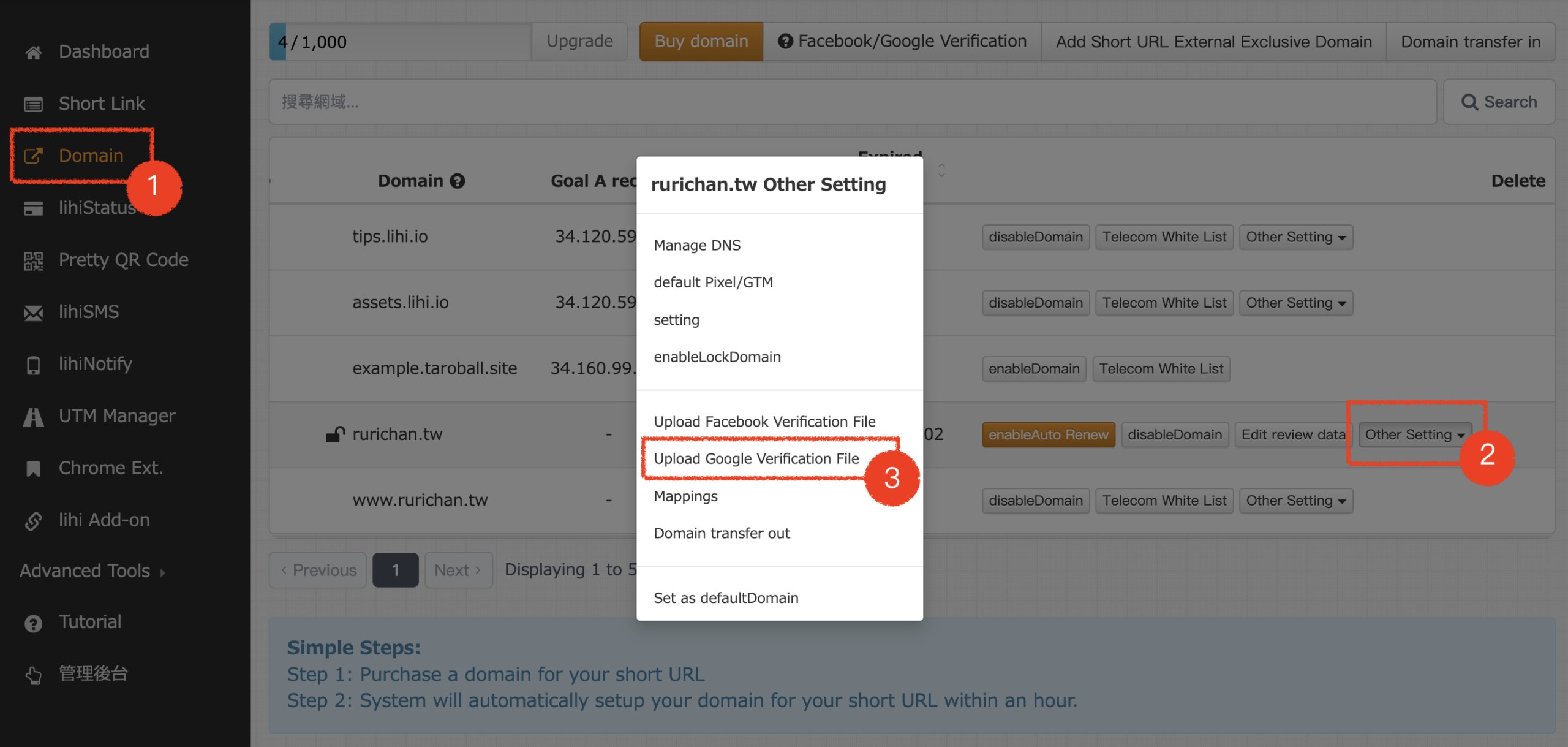
- Upload to lihi:
- Return to your lihi dashboard.
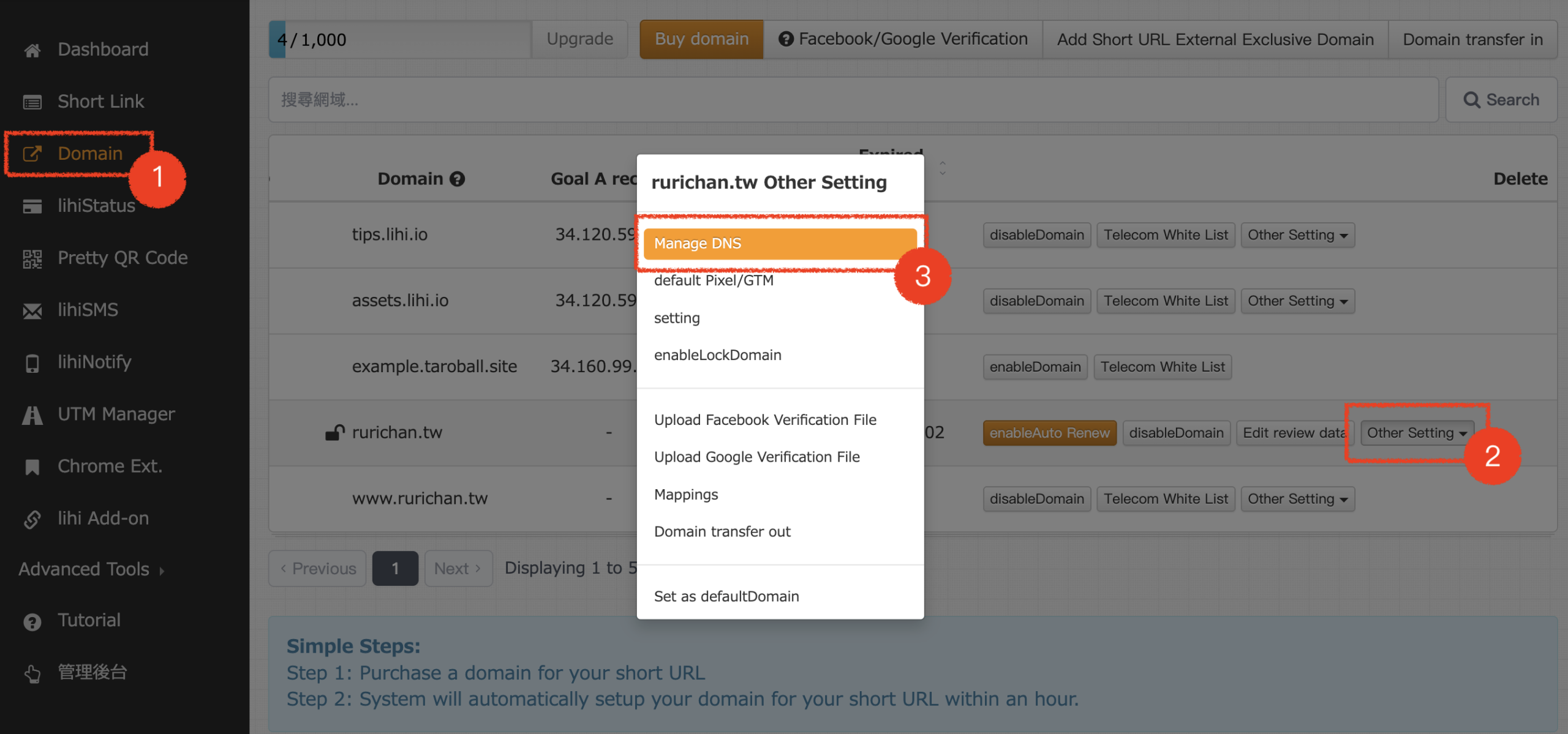
- Navigate to Domain and click Other Settings.
- Click “Upload Google Verification File” and upload the file you just downloaded from step 2.
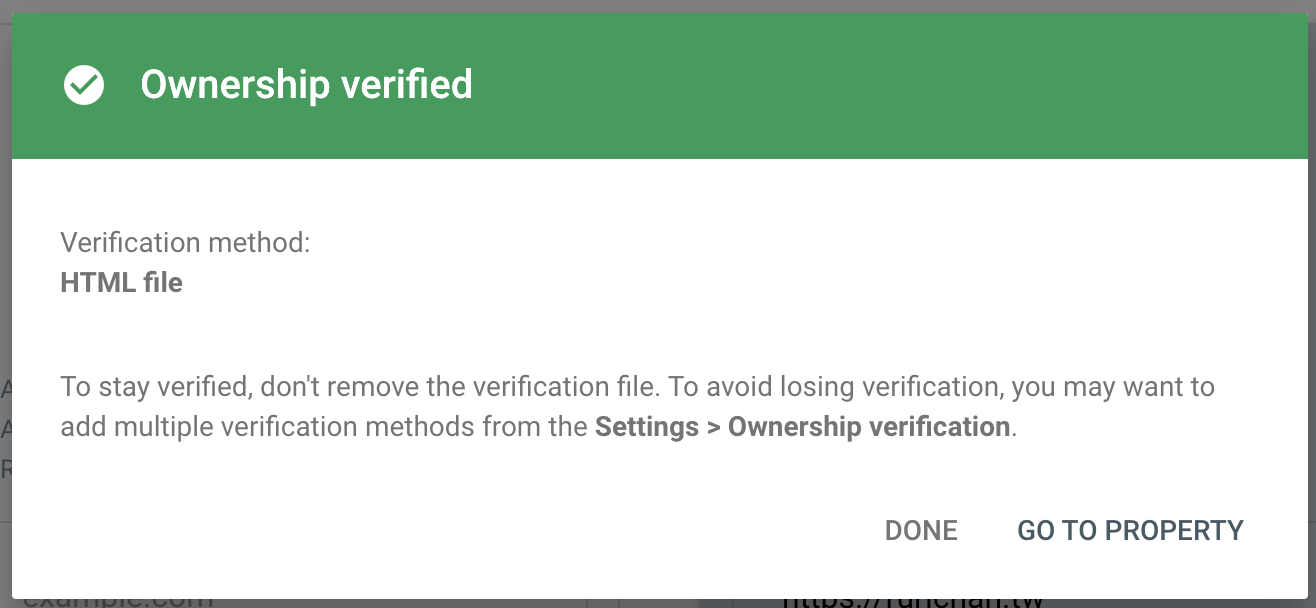
- Verify: Return to the Google Search Console screen and click Verify. Once the “Ownership verified” popup appears, the process is complete.
How to Verify Google Search Console – Method 2: TXT Record (DNS)
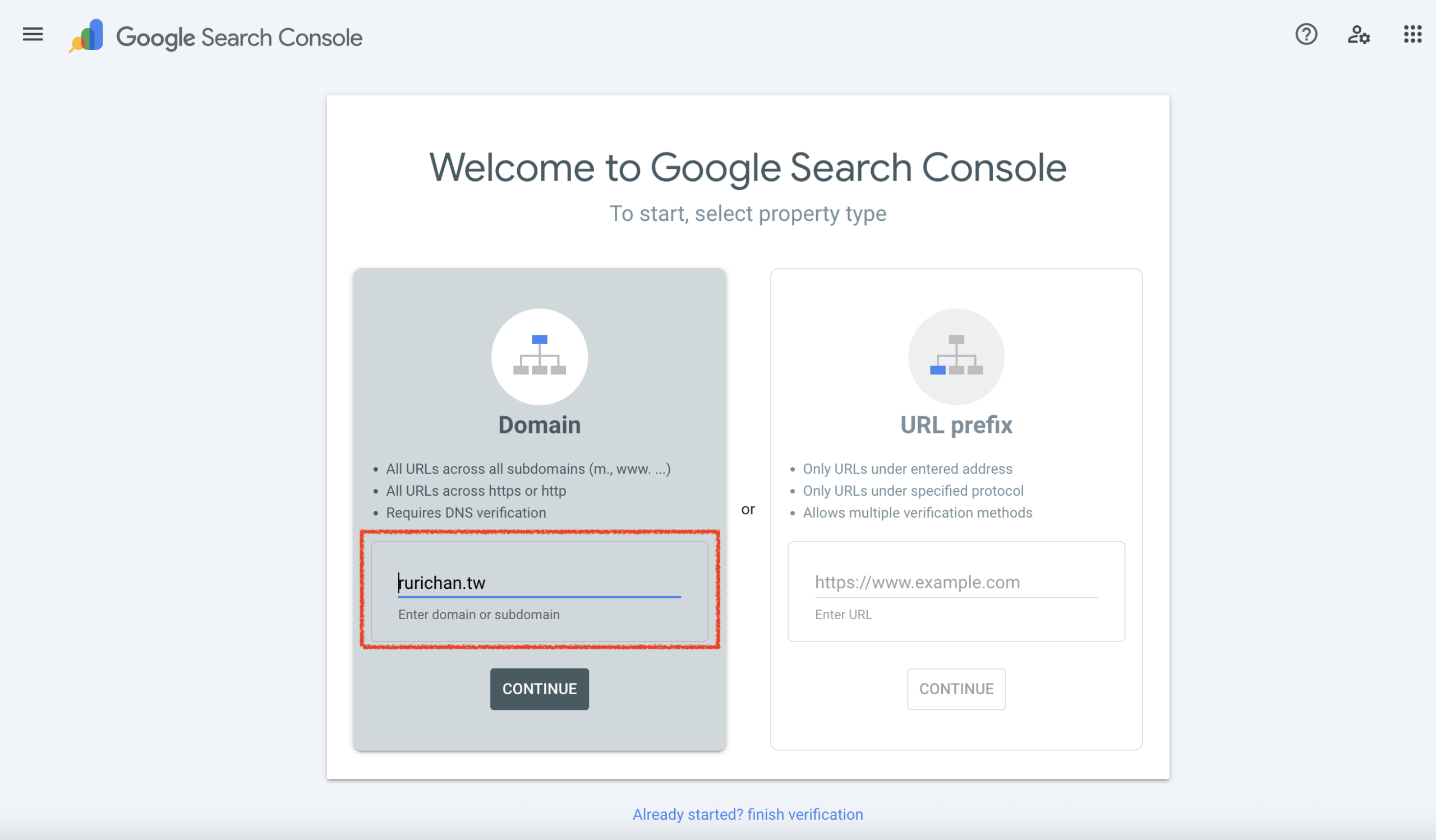
- Enter Domain: In Google Search Console (Domain property method), enter the domain name you wish to verify and click Continue.
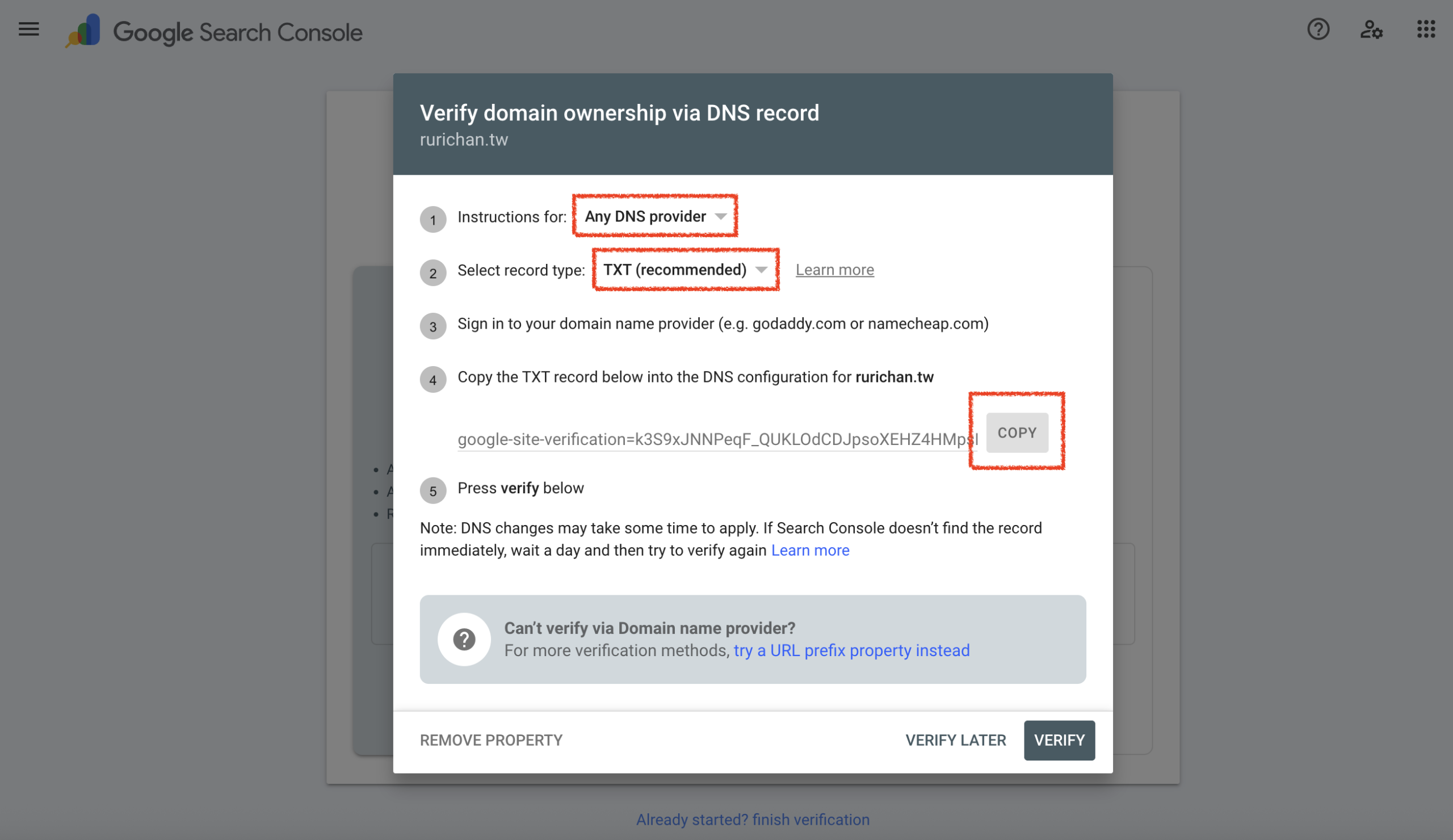
- Get Verification Code:
- In the dropdown menu, select “Any DNS provider.”
- Ensure the record type is set to TXT.
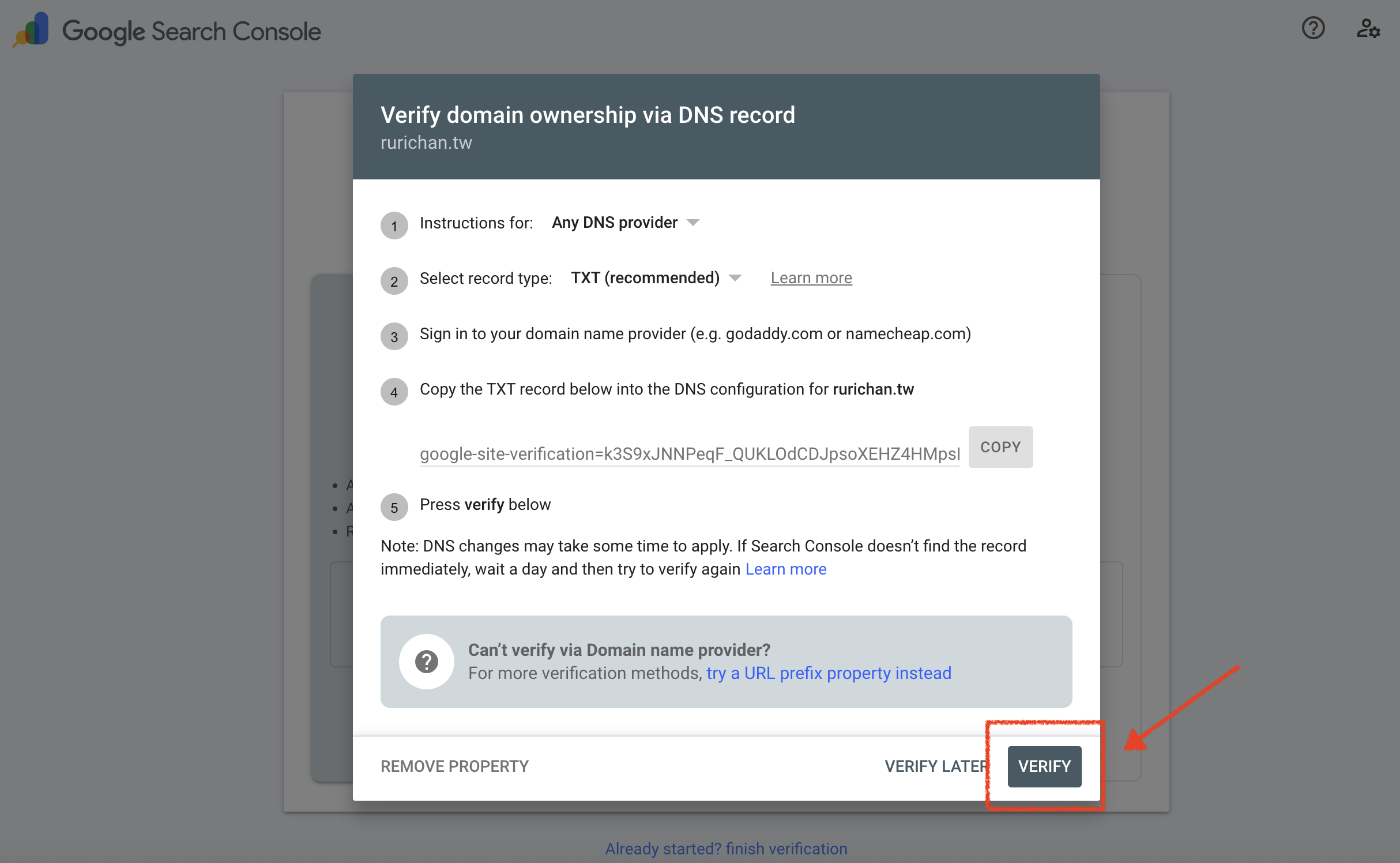
- Click Copy to copy the verification string.
- Access DNS Settings: Go to your domain registrar’s DNS management page. (Note: The following steps assume you are managing a domain purchased directly through the lihi dashboard.)
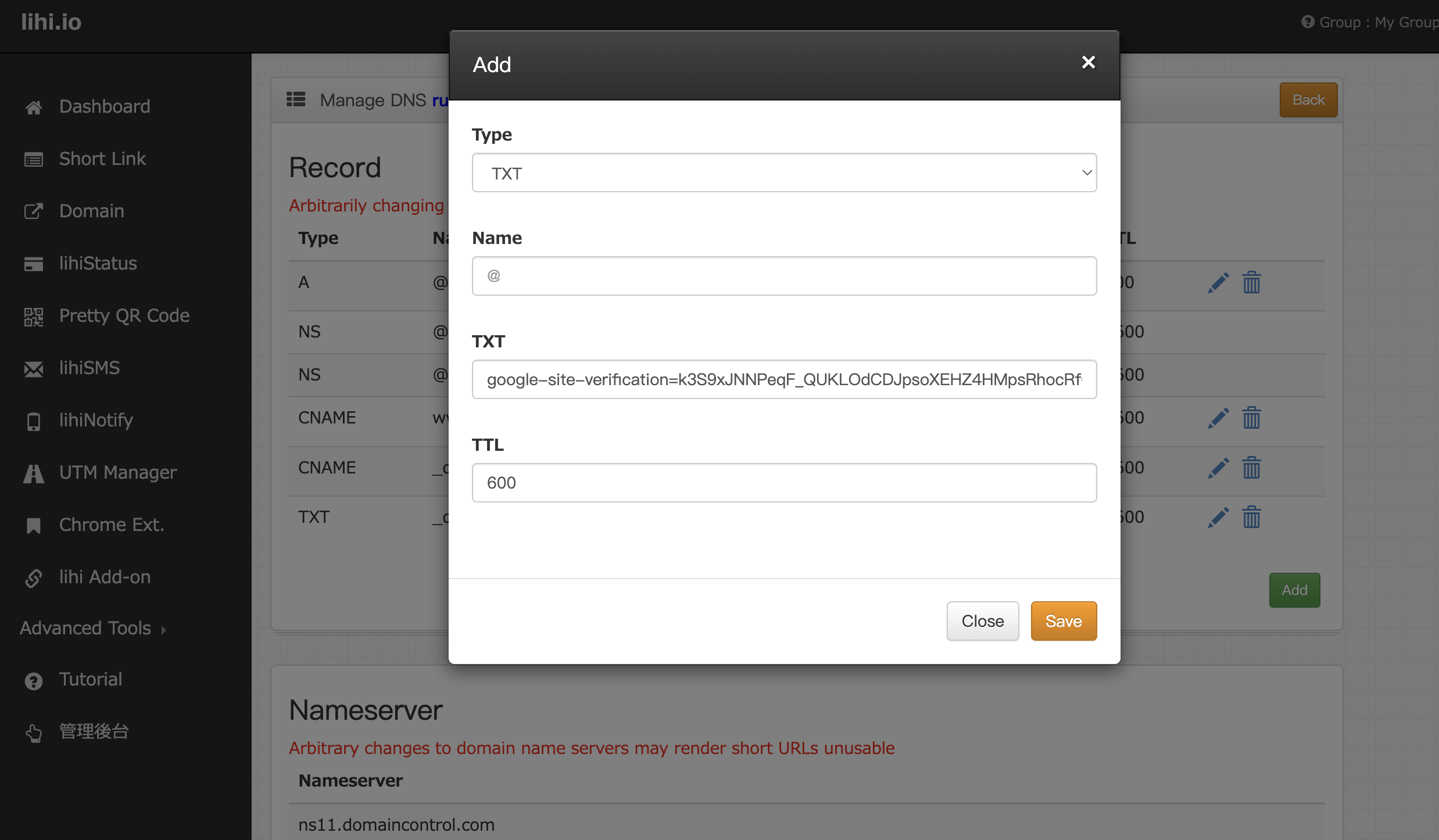
- Add Record:
- Click Add.
- Fill in the required fields (Type: TXT; Value: Paste the code copied from Google).
- Click Save.
- Confirm & Verify:
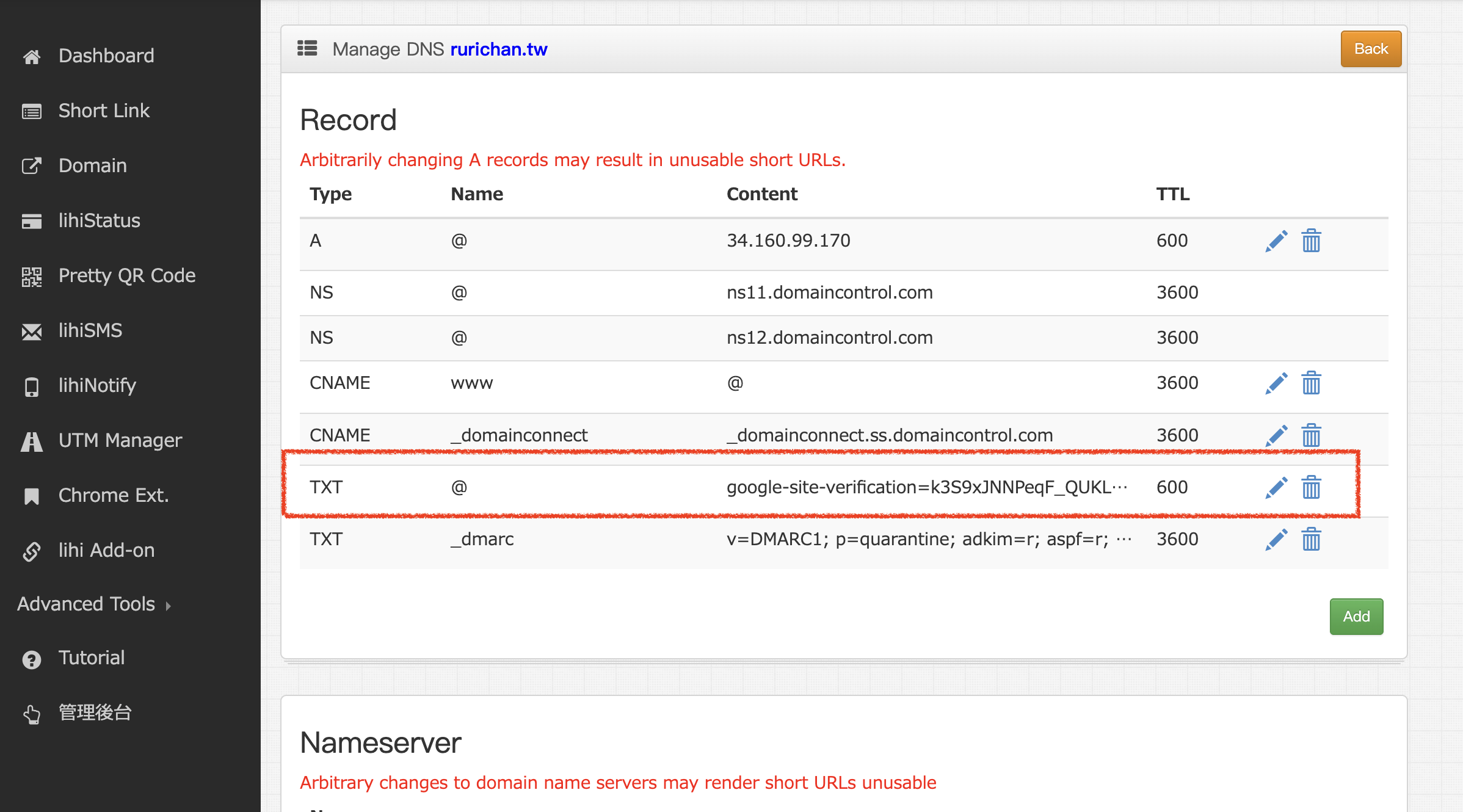
- Ensure the new record appears in your list.
- Return to Google Search Console and click Verify.
- Ensure the new record appears in your list.
- Completion: An “Verify domain ownership via DNS record” success pop-up window will appear. Click Verify to finish.
Start using lihi for free ⇒ Click Here!