How to Transfer Your Domain to lihi
If you want to manage your domain renewal through lihi, you must first transfer the domain into our system.
⚠️ Important Prerequisite: Your domain must have at least 1 month of validity remaining before its expiration date to be eligible for transfer.
Process Overview
- Enter Domain: Input the URL you want to transfer.
- Verify Identity: Enter the Transfer Password / Authorization Code / EPP Key.
- Payment: Pay for the renewal (Wait 5-7 business days).
- Completion: Transfer complete!
Step-by-Step Guide
Step 1: Initiate Transfer
- Log in to your lihi dashboard.
- Click Domains in the left sidebar menu.
- Select the Domain transfer in option.
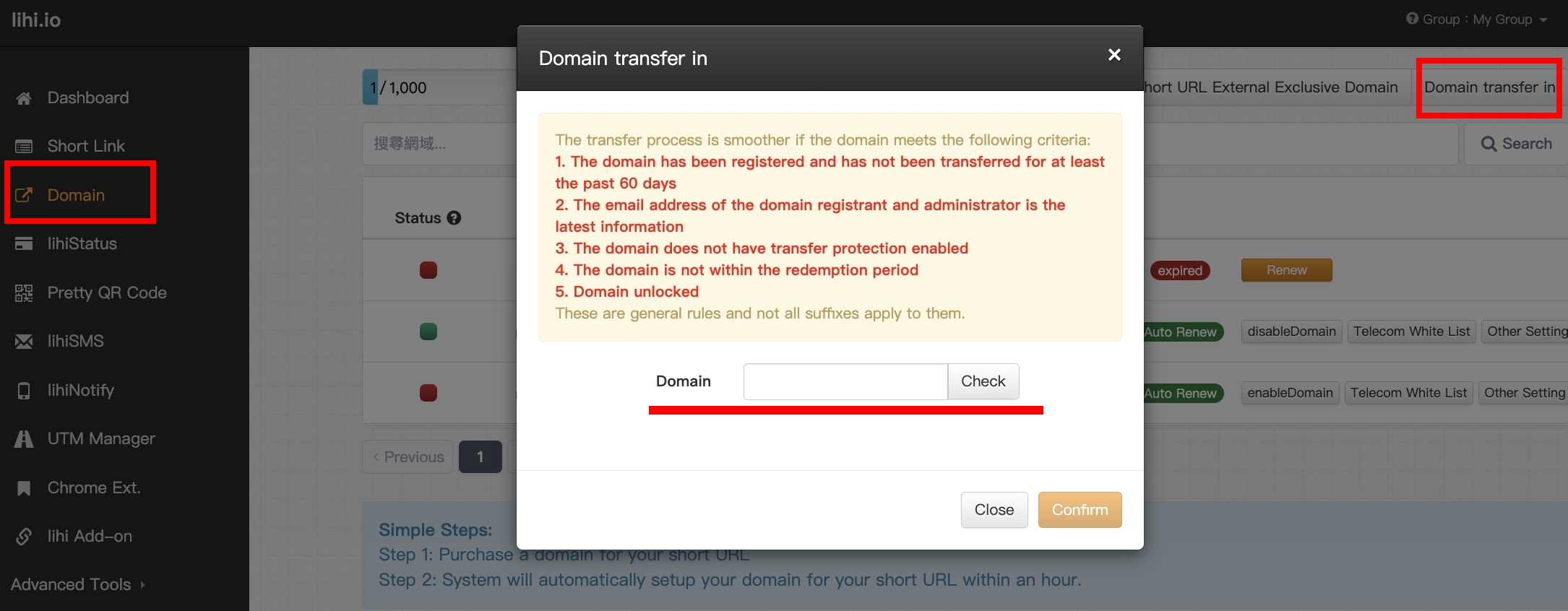
Step 2: Enter Domain Information
- Input Name: Type the domain name you wish to transfer.
- Check: Click the Check button.
- Auth Code: Enter the Auth Code (also known as Authorization Code, EPP Key, or Transfer Key) obtained from your current registrar. This is typically a 6-16 character code.
- Review Cost: The system will display the transfer fee.
- Note: Standard domain rules require you to pay for at least one year of renewal upon transfer.
- Confirm: Click the Confirm button.
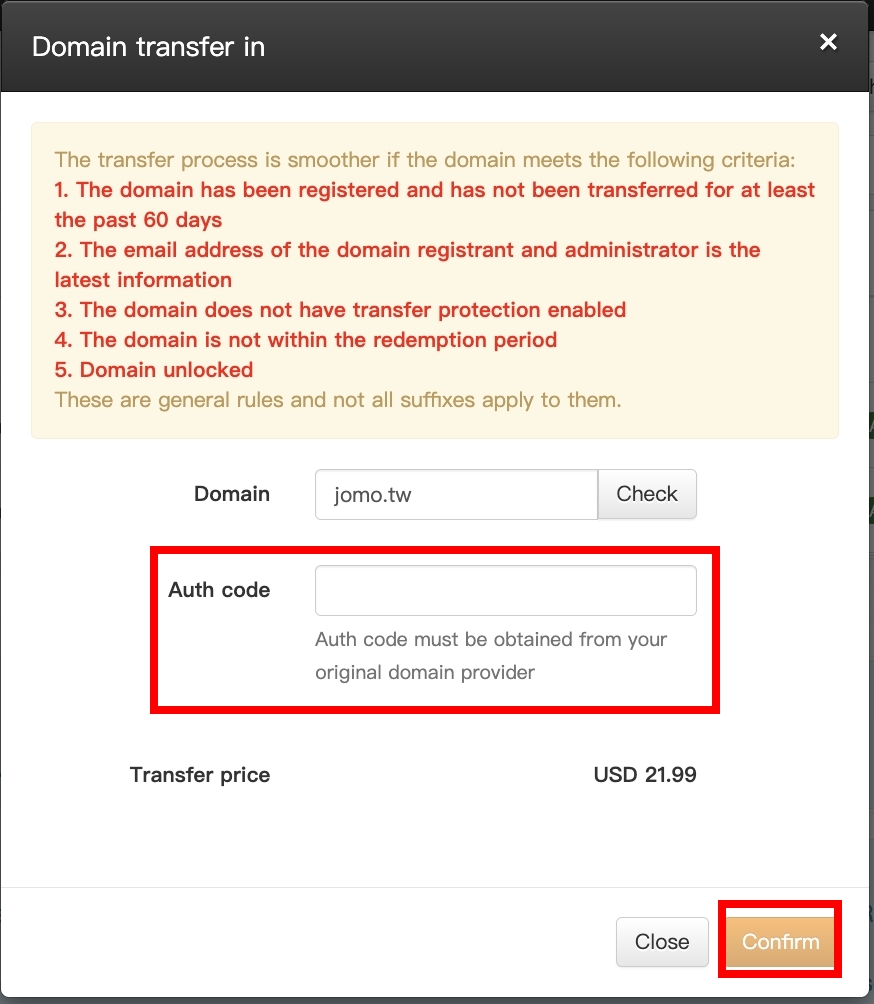
Step 3: Complete Payment
A payment pop-up will appear:
- Default Card: Simply click Confirm to proceed.
- New/Different Card: Use the dropdown menu to add or switch credit cards before confirming.
Step 4: Await Processing
After payment, you will return to the Domain page. The status will show “Transfer in Progress” . This typically takes 5 to 7 business days.
⚠️ Crucial Check – Is your domain unlocked? To ensure success, please verify that your domain is UNLOCKED at your previous registrar.
- GoDaddy Users: Refer to their guide on how to unlock domains.
- Net-Chinese (網路中文) / PChome Users: You may need to contact them via phone or fax to manually unlock the domain.
Step 5: Activate Domain
- Once the transfer is finished, the status will change to “Inactive” (Not Enabled).
- Click the Enable button.
- Wait for the status to change from “Activating” to “Active” .
Congratulations! Your domain has been successfully transferred and is ready to use.
Start using lihi for free ⇒ [Click Here!]