What is Meta Conversions API (CAPI)? How to Set Up?
Compared to the standard Meta Pixel, the Conversions API (CAPI) captures more detailed data. It allows you to track actions that happen off-site or aren’t captured by cookies, such as customer phone calls, membership registrations, or even offline (in-store) purchase data.
By uploading this data directly to the server, CAPI helps Meta calculate visitor behavior more accurately, optimizing the performance of your campaigns in Ads Manager and Events Manager.
⚠️ Important Limitation: lihi Short URLs only transmit the “View Content” (or PageView) event. To track deeper funnel actions (like “Add to Cart” or “Purchase”), you must install the Meta Pixel directly on your official website code.
How to Set Up Meta Conversions API
Follow these steps to generate your token and connect it to lihi.
Phase 1: Get the Access Token from Meta
- Access Events Management Tools: Log in to Meta Business Manager and click on Events Management Tools.
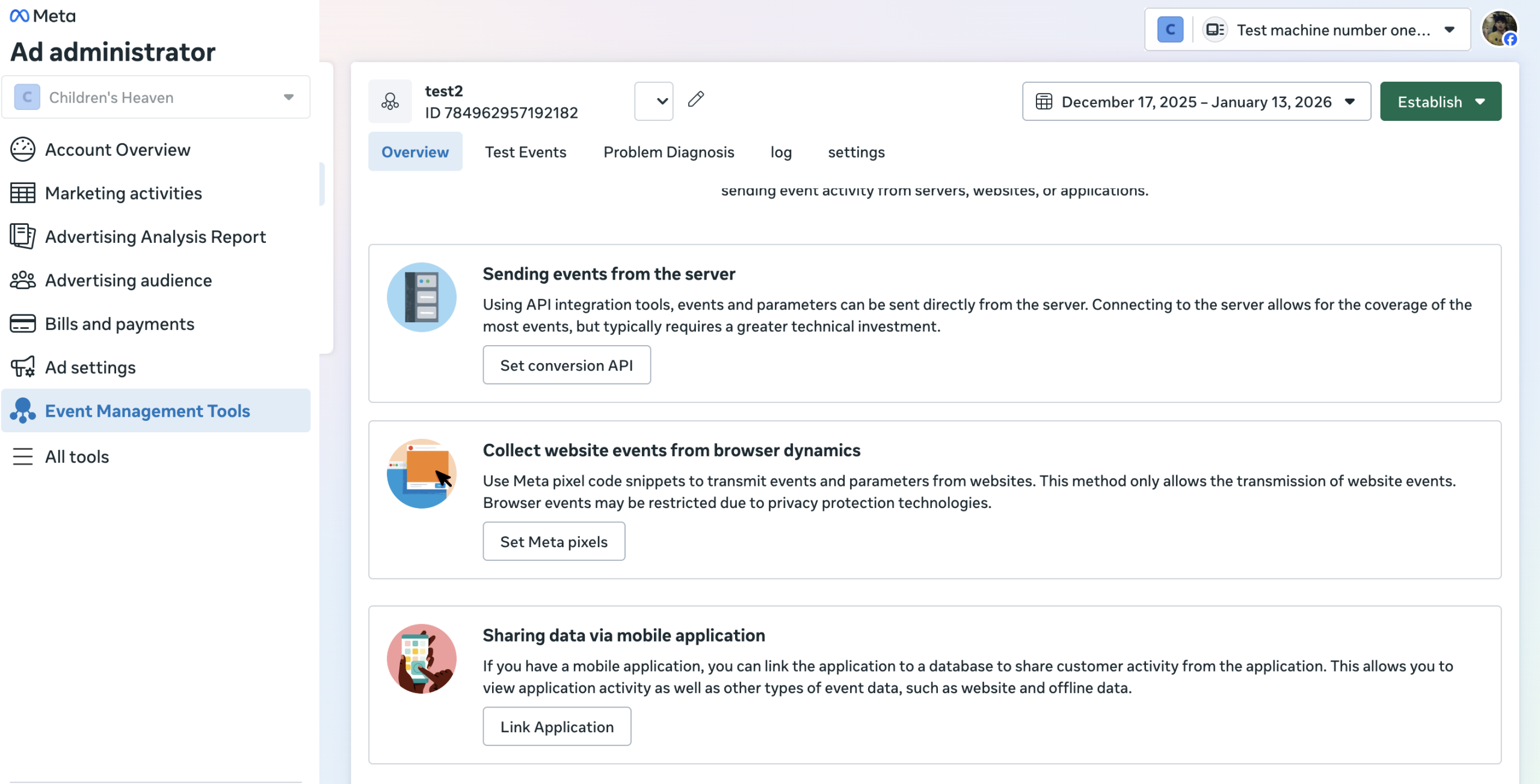
- Select Data Source: Click Data Collection on the left sidebar.
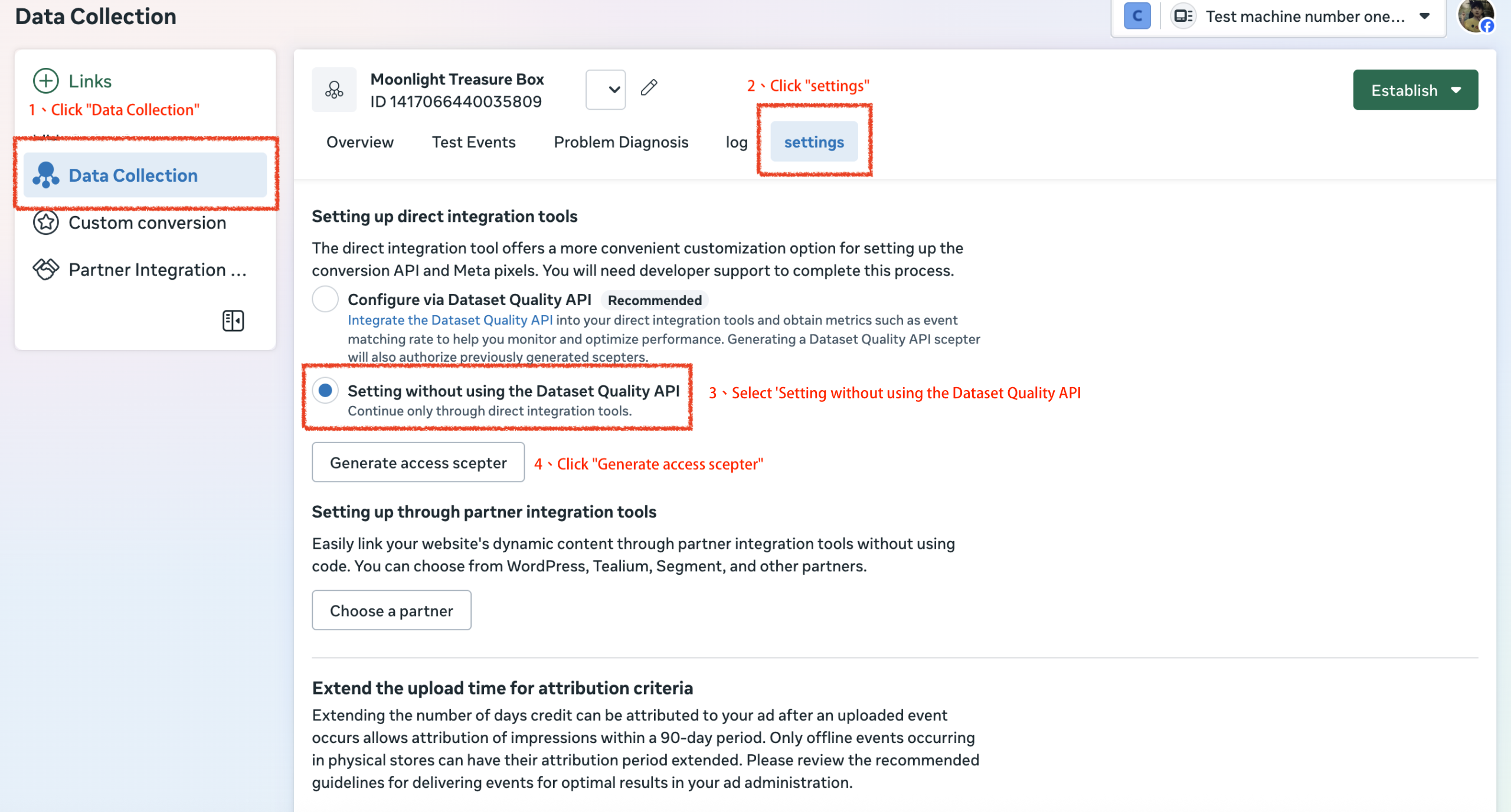
- Find Your Pixel:
- Click Data Collection.
- Click on the Settings tab.
- Select ‘Setting without using the Dataset Quality API.
- Click the Generate Access scepter button.
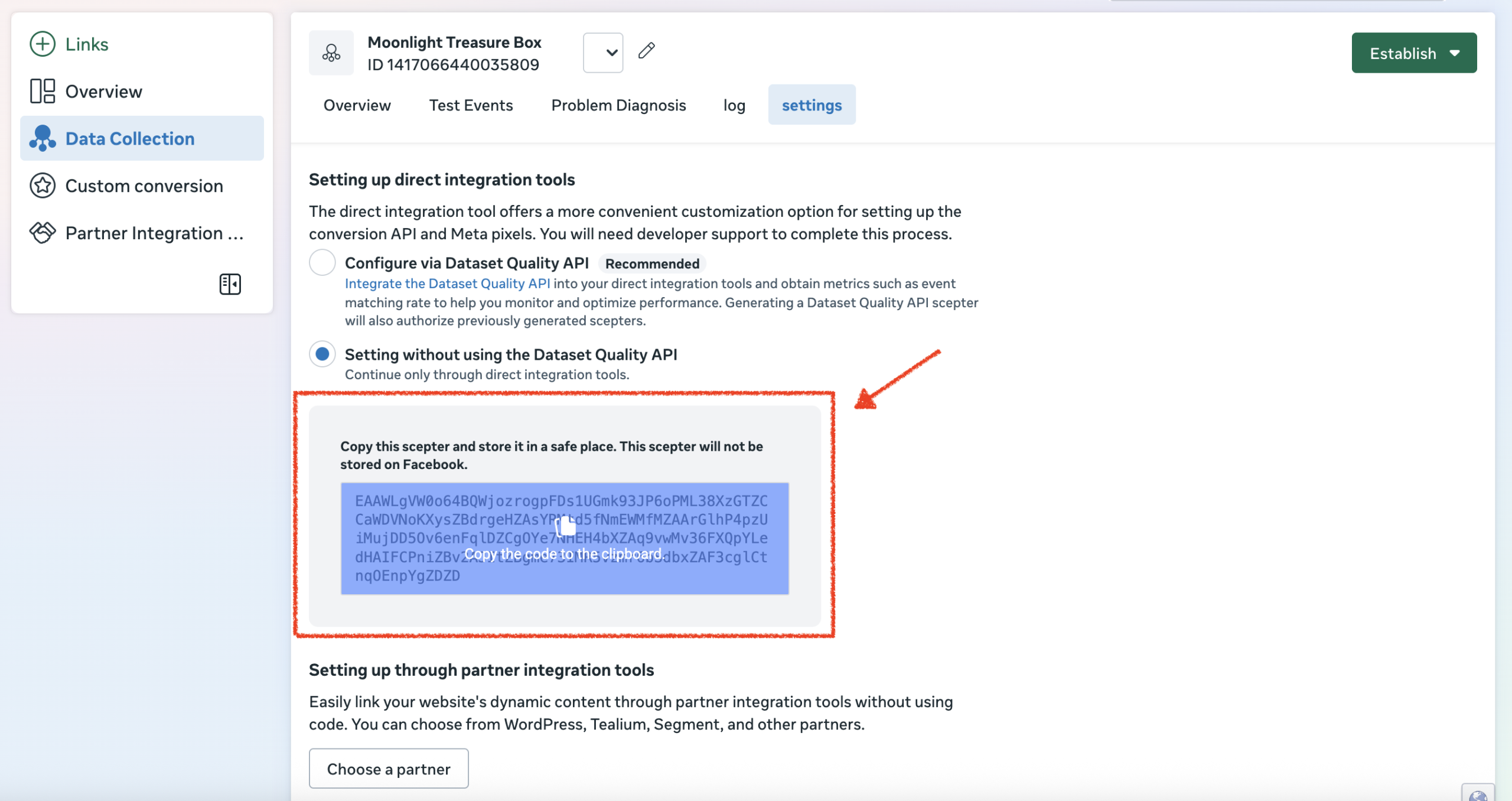
- Copy Token: Click the blue code box to copy the generated Access Token to your clipboard.
Phase 2: Configure in lihi
- Paste Token:
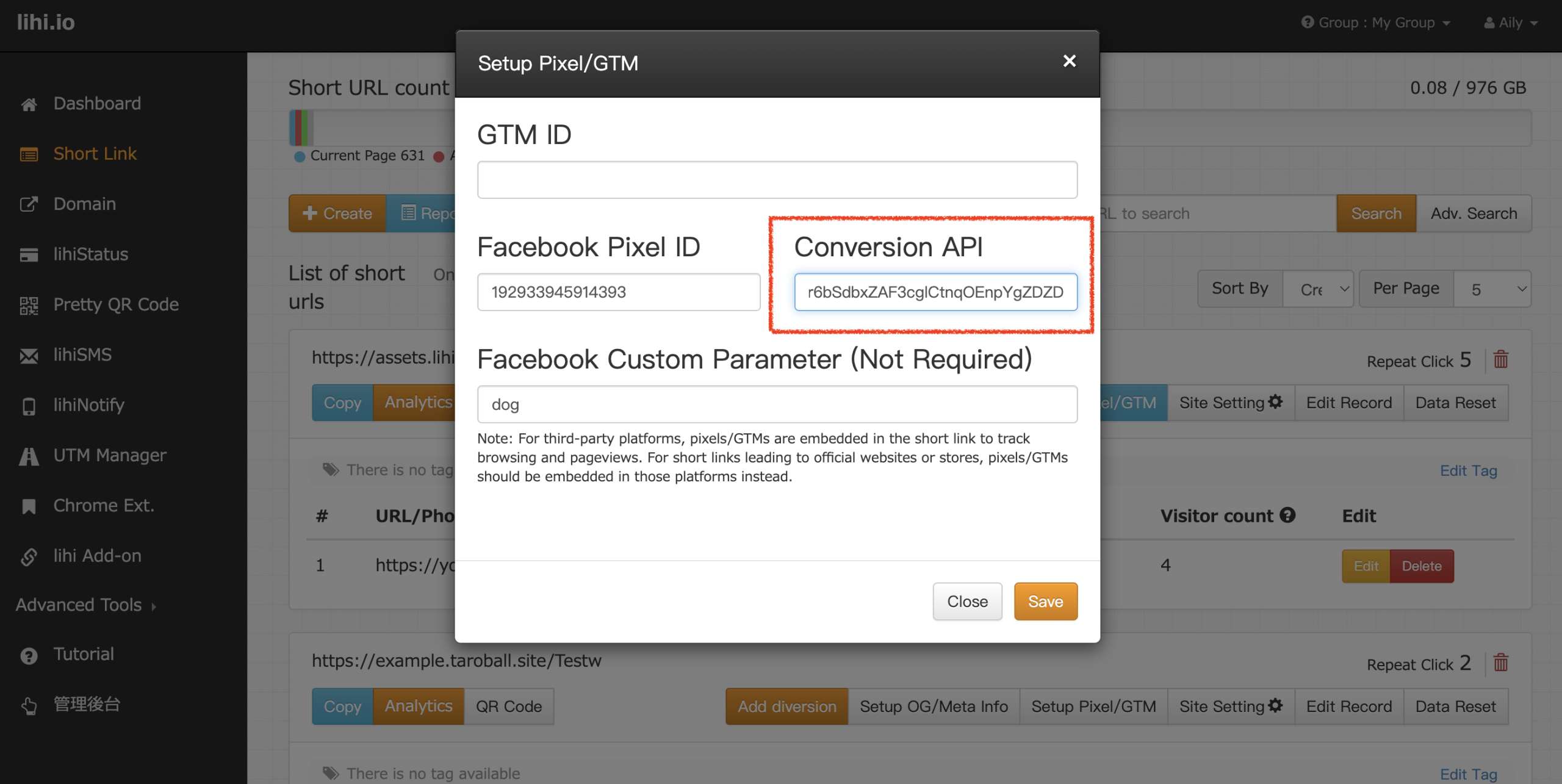
- Go to your lihi dashboard and navigate to “Setup Pixel / GTM.”
- Find the Conversion API field.
- Paste the token you copied and click Save.
Phase 3: Verification
How to check if it works:
- After setup, click on one of your short links to trigger an event.
- Wait approximately 20 minutes.
- Return to Meta Events Manager and check the “Overview” tab for your Pixel.
- Look for the “Server” label under the Connection Method column.
- If “Server” appears: The setup is complete!
- If not: Data propagation can sometimes be delayed. Please allow 2-3 days for the server events to appear.
Start using lihi for free ⇒ Click Here!