What are Mappings? (How to Fix Broken Links After Printing)
Have you ever realized your short link settings were incorrect after you already sent your QR codes or marketing materials to print?
In the past, this meant wasting money on reprints. Now, with the Mappings feature, you can “resurrect” dead links instantly! Mappings allows you to redirect incorrect or broken paths to the correct destination without changing the QR code itself.
How to Set Up Mappings
- Access Settings:
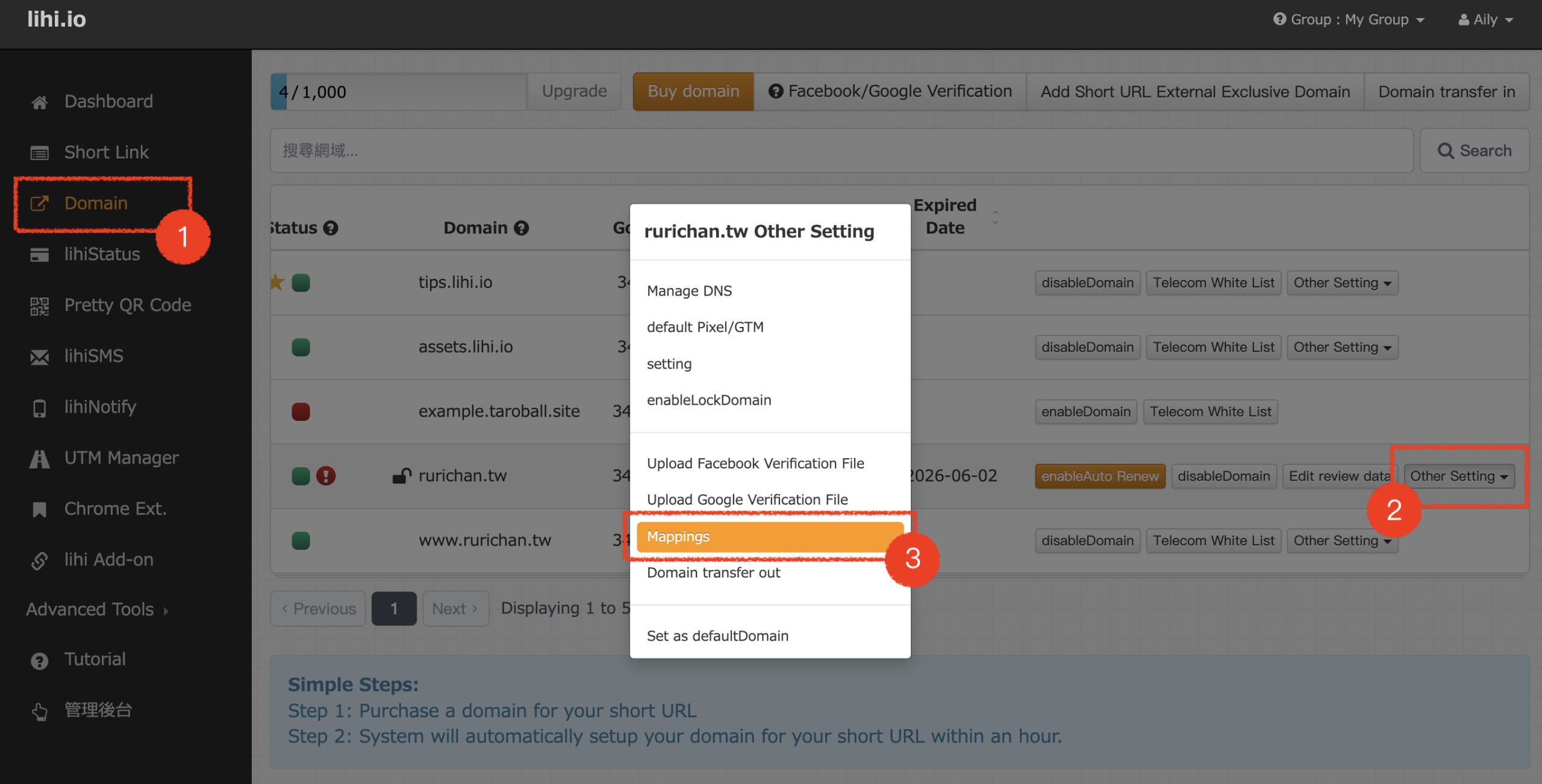
- Go to your Dashboard and click Domain in the left menu.
- Find the domain you are using.
- Click Other Setting, then select Mappings.
- Add a Rule:
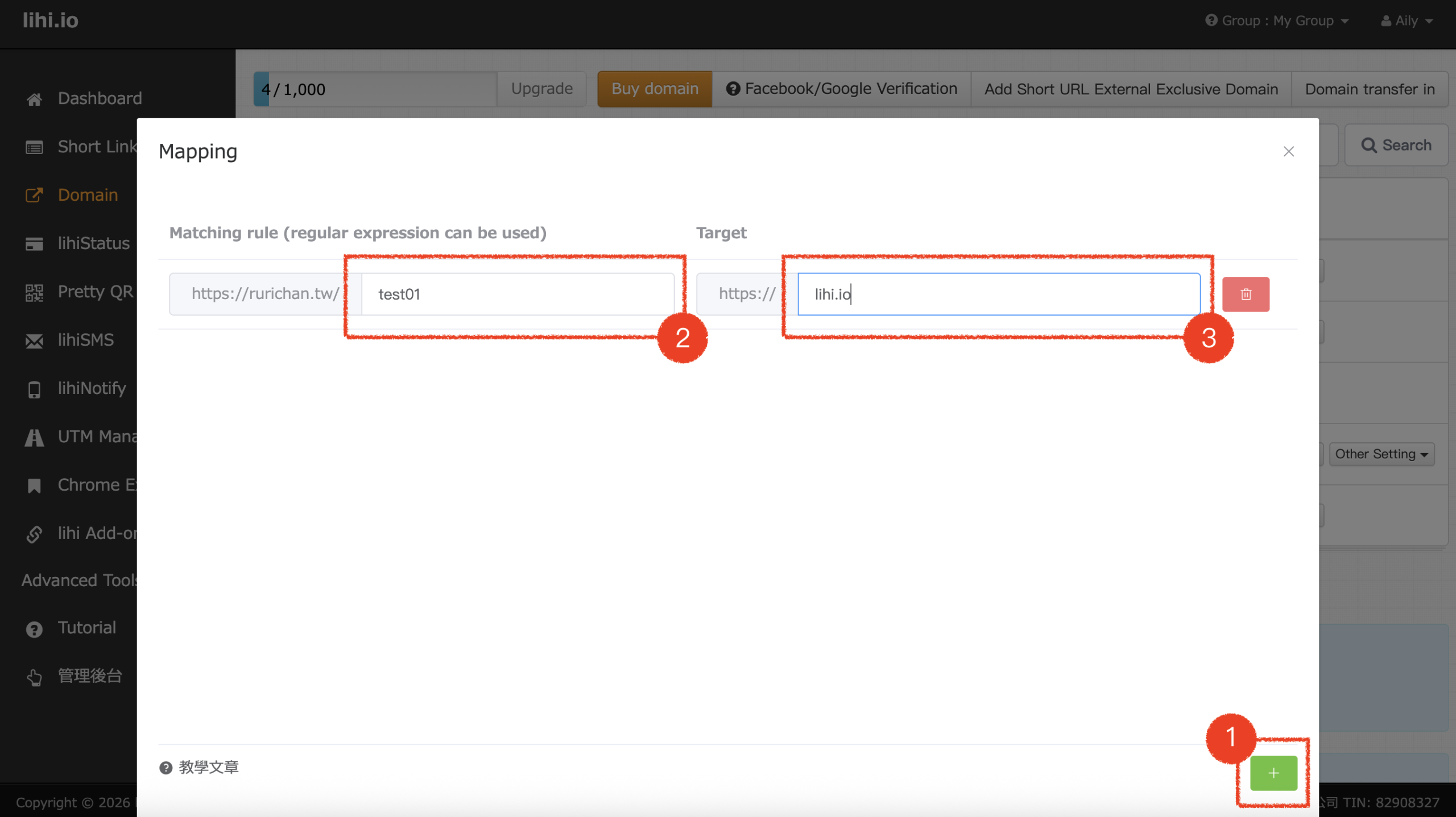
- Click the + (Add Rule) button at the bottom right.
- Source Path: Enter the “wrong” path (the one printed on your material).
- Target URL: Enter the correct destination URL where you want users to go.
- Click Confirm.
Advanced: Using Wildcards (*) for Bulk Redirection
If you have multiple incorrect links that follow a pattern, you can use an asterisk * (Wildcard) to cover them all at once.
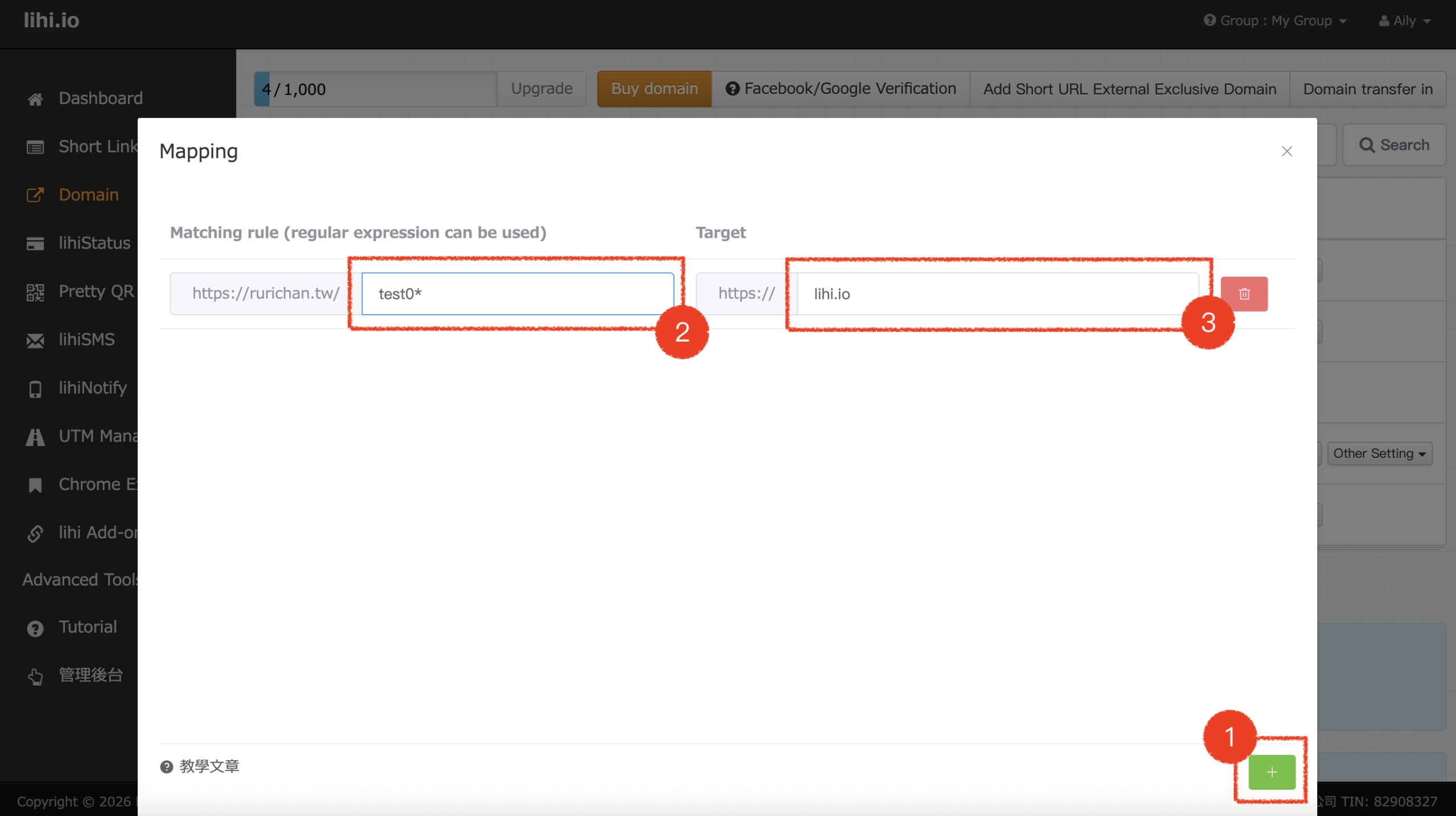
- (Wildcard): Represents any string of characters.
Examples:
- Rule:
test*- Effect: Any path containing “test” will be redirected to your target URL.
- (e.g.,
your.link/testing,your.link/my-testwill all redirect.)
- Rule:
^test+- Effect: Any path that starts with “test” followed by any other characters will be redirected.
- (e.g.,
your.link/test1,your.link/test-eventwill redirect.)
Final Step:
- Finish: Once the Success message appears, your redirect rule is active and your printed links are saved!
Start using lihi for free ⇒ Click Here!