What is Device Routing?
Device Routing allows you to direct traffic to different destination URLs based on the visitor’s operating system (OS) or device type. This feature is ideal for guiding users to specific app store download pages (iOS vs. Android) or opening specific applications directly.
How to Set Up Device Routing
- Start New Link: Click “Create” to open the creation dialog then click the “Add Device routing” button.
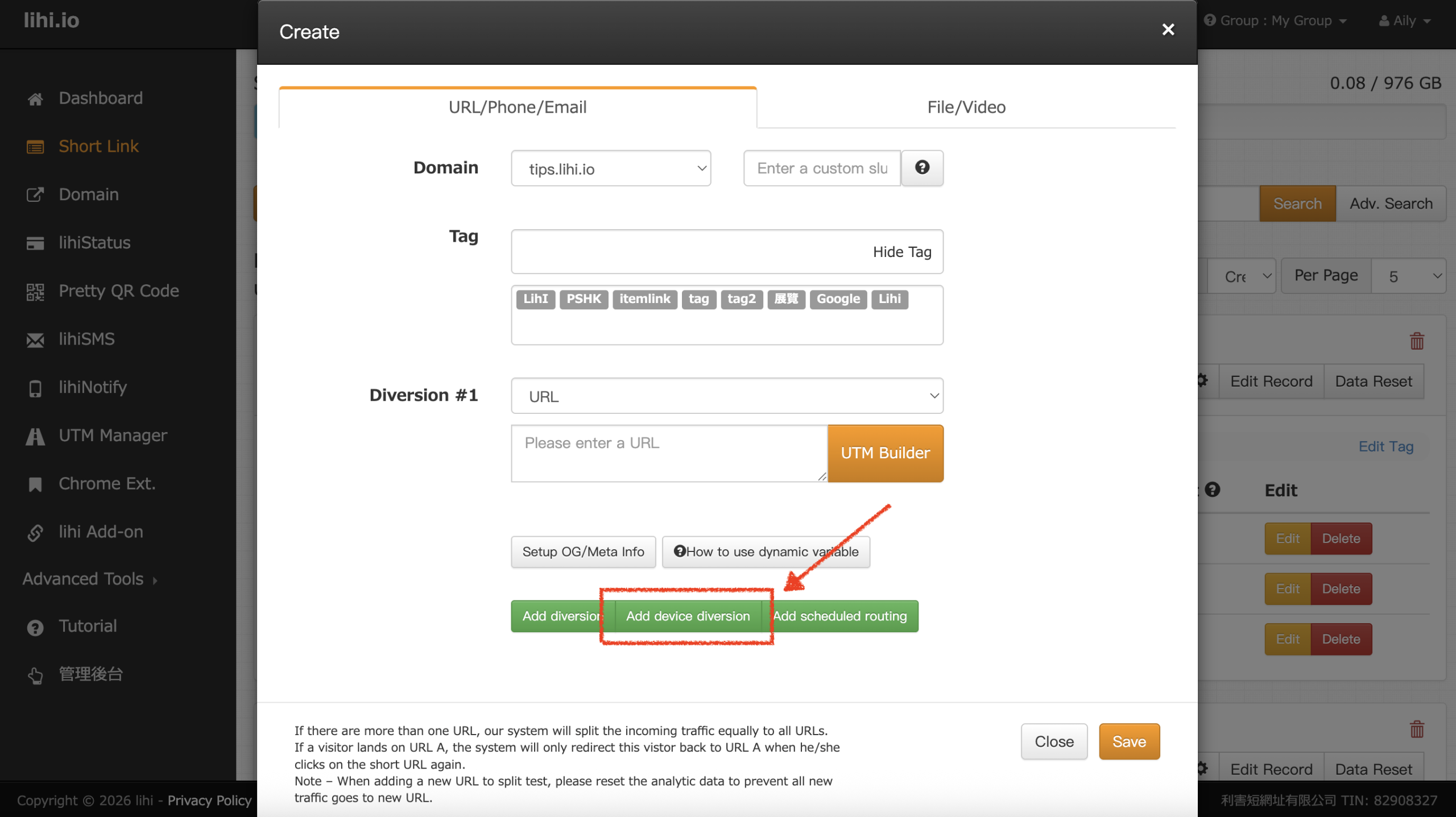 ⚠️ Important Note: Device routing must be configured during the creation of a new link. Existing links on the dashboard currently only support adding A/B split testing, not device routing.
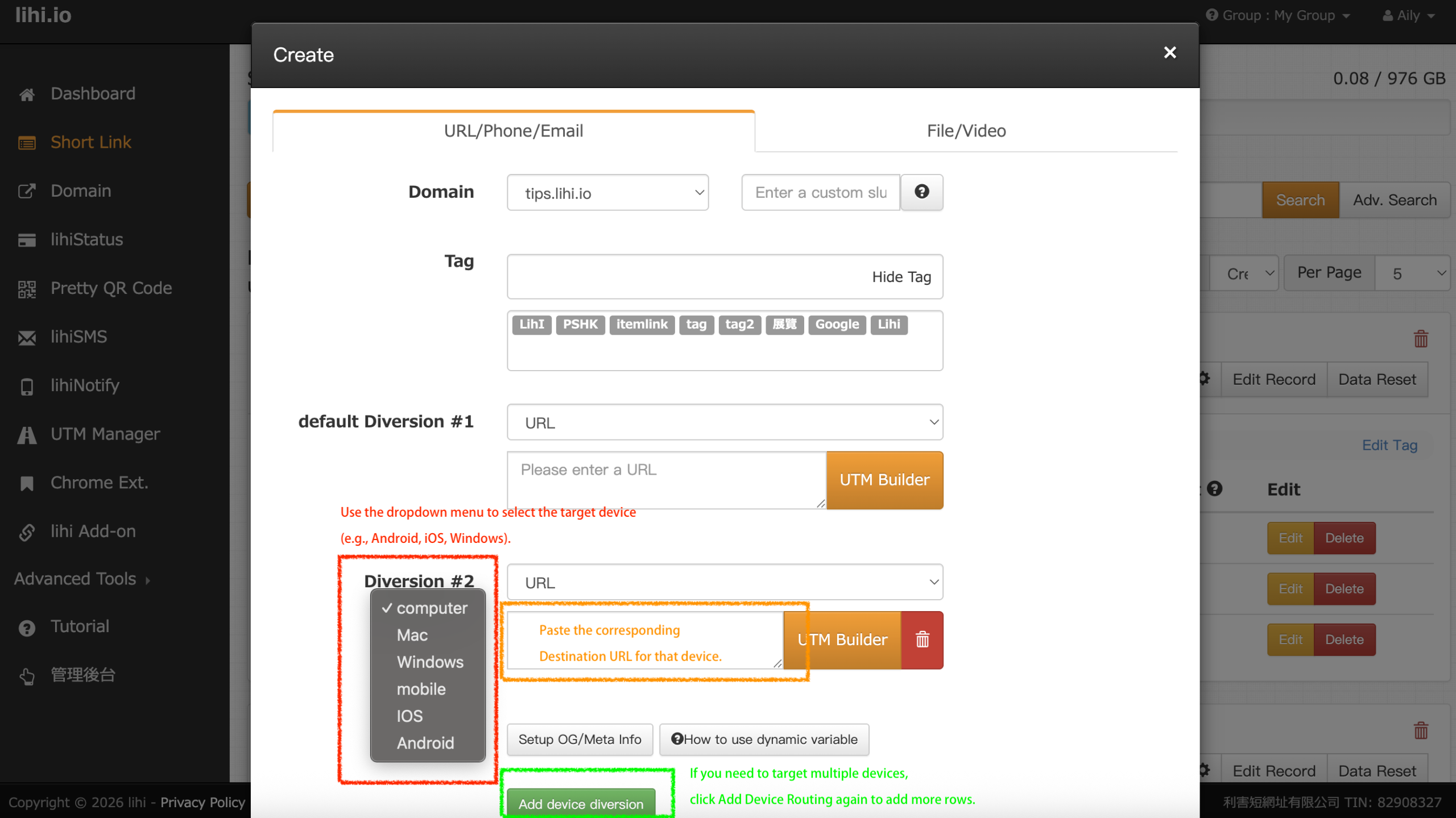
 - Configure Rules:
- A configuration section will appear.
- Use the dropdown menu to select the target device (e.g., Android, iOS, Windows).
- Paste the corresponding Destination URL for that device.
- (If you need to target multiple devices, click Add Device Routing again to add more rows.)
- Note: The “Default” field is optional, but serves as a fallback for unrecognized devices.
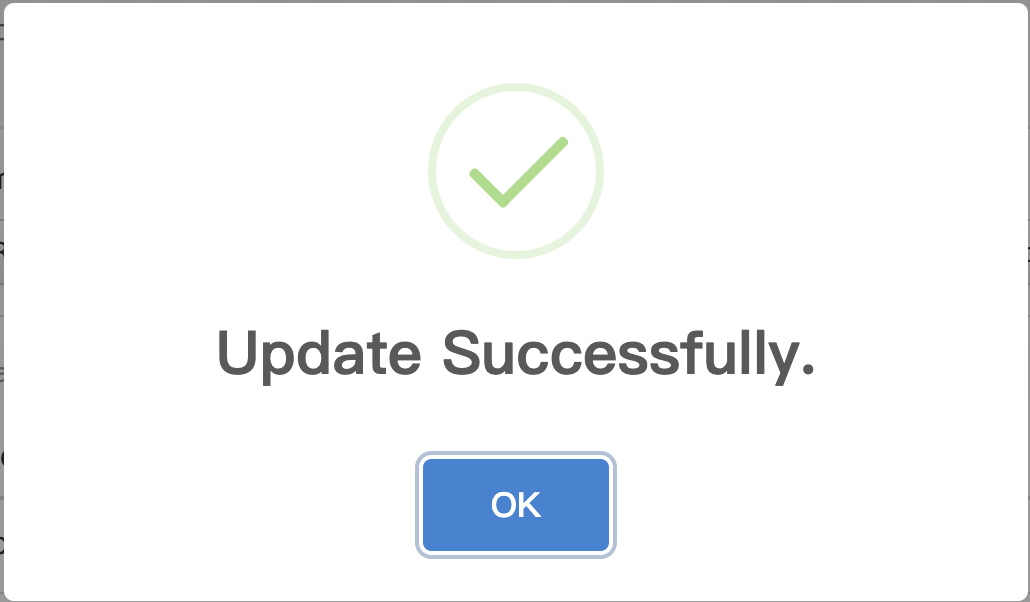
- Save: Click Save. A confirmation popup (“Update Successful”) will appear; click OK to finish.
💡 Pro Tip: How to Open Apps Directly (Deep Linking)
If you want the link to open the Meta or Instagram App directly instead of the mobile web browser, use the following URL formats as your destination:
1. To Open the Meta App Use this format for both Android and iOS:
- URL:
fb://profile/{Page_ID} - (Replace
{Page_ID}with your numeric Meta Fan Page ID)
2. To Open the Instagram App Use the specific bridge link format below for both Android and iOS:
- URL:
https://www.cjkuo.net/q/rd.html?ig={Your_IG_Handle} - (Replace
{Your_IG_Handle}with your Instagram account name, e.g., lihi_io)
Start using lihi for free ⇒ Click Here!