How to Shorten Links in One Second with the lihi iPhone Shortcut
Stop wasting time switching apps. Learn how to set up the lihi iPhone Shortcut to create branded short links in one second directly from your iOS Share Sheet.
Stop switching between browser tabs and apps just to shorten a link. If you are a mobile marketer, every second counts. Whether you are sharing a promotion on Instagram or sending a quick link via WhatsApp, you need speed.
With the lihi iPhone shortcut, you can transform long, cluttered URLs into clean, trackable links in just one second.
Why automate your link shortening?
Efficiency is the bridge between a lead and a conversion. Manual shortening is a productivity killer. By using an iOS shortcut, you integrate lihi directly into your phone’s operating system.
Instant Access: Create links from any app’s “Share” menu.
Auto-Copy: The shortened link is ready to paste immediately.
Branding on the Go: Use your Custom Domain without touching your computer.
Step 1: Get Your API Key and Shortcut via lihi Add-on
To start automating, you need two things: your unique API key and the shortcut file itself. You can find both in one place.
Log in to your lihi dashboard.
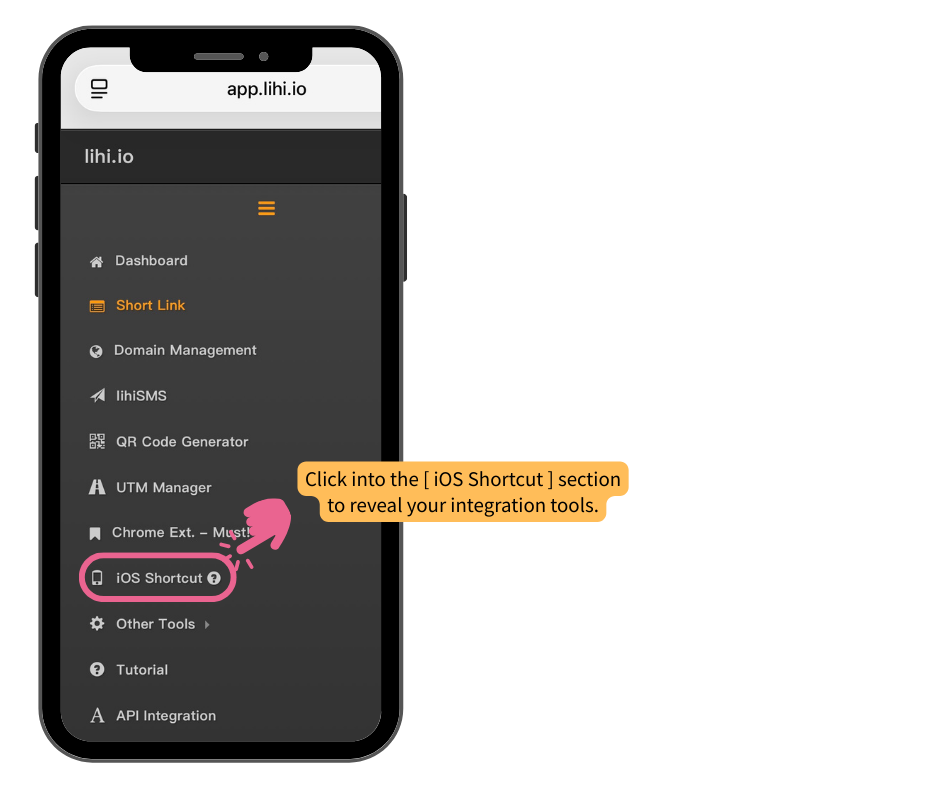
Locate the lihi iOS Shortcut option in the main toolbar or sidebar.
Tap lihi iOS Shortcut option in the main toolbar or sidebar.
section to reveal your integration tools.
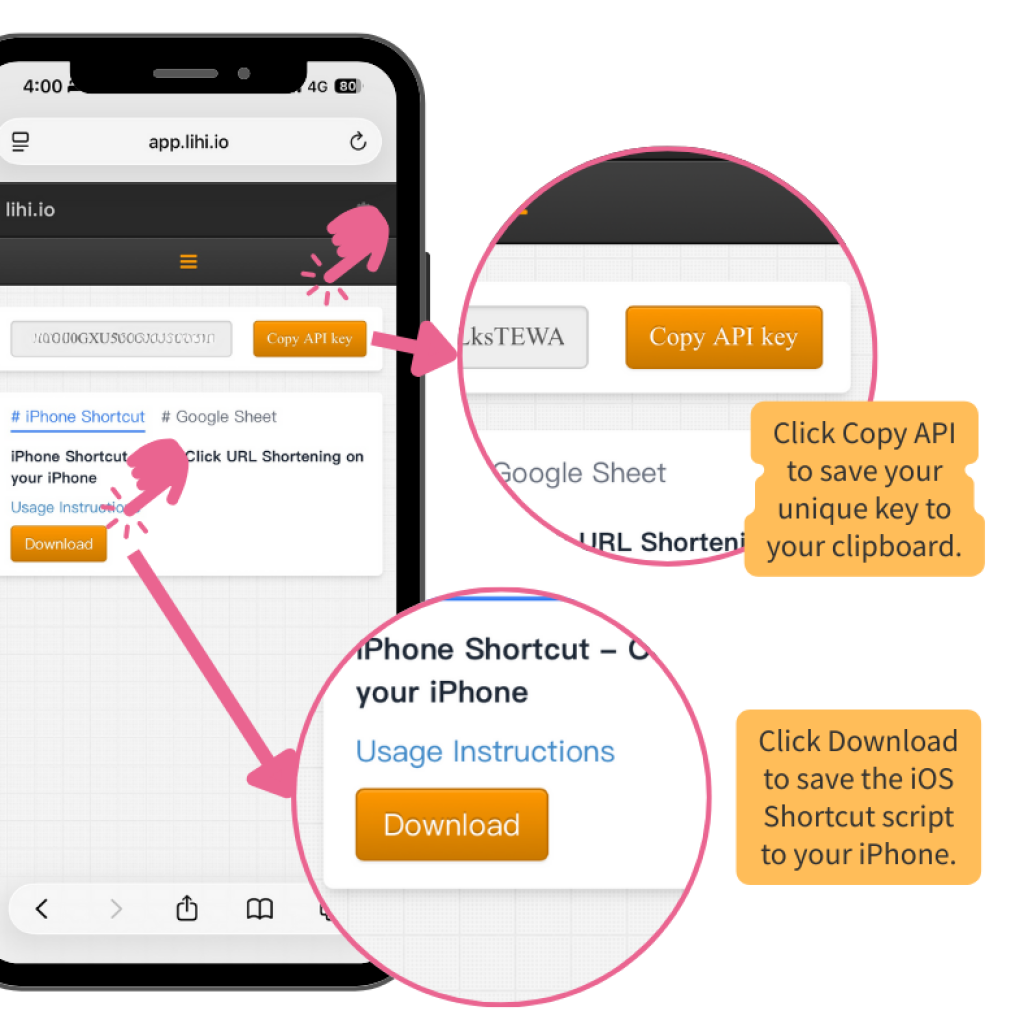
Tap Copy API to save your unique key to your clipboard.
Tap Download to save the iOS Shortcut script to your iPhone.
Security Note: Your API key is like a master password for your links. Keep it private and never share it in screenshots or public forums.
Copying API key and downloading the shortcut in lihi shortcut
Step 2: Configure & Personalize Your lihi iOS Shortcut
Once you have downloaded the shortcut, you need to “initialize” it with your credentials. This ensures the shortcut knows exactly which lihi account to link to.
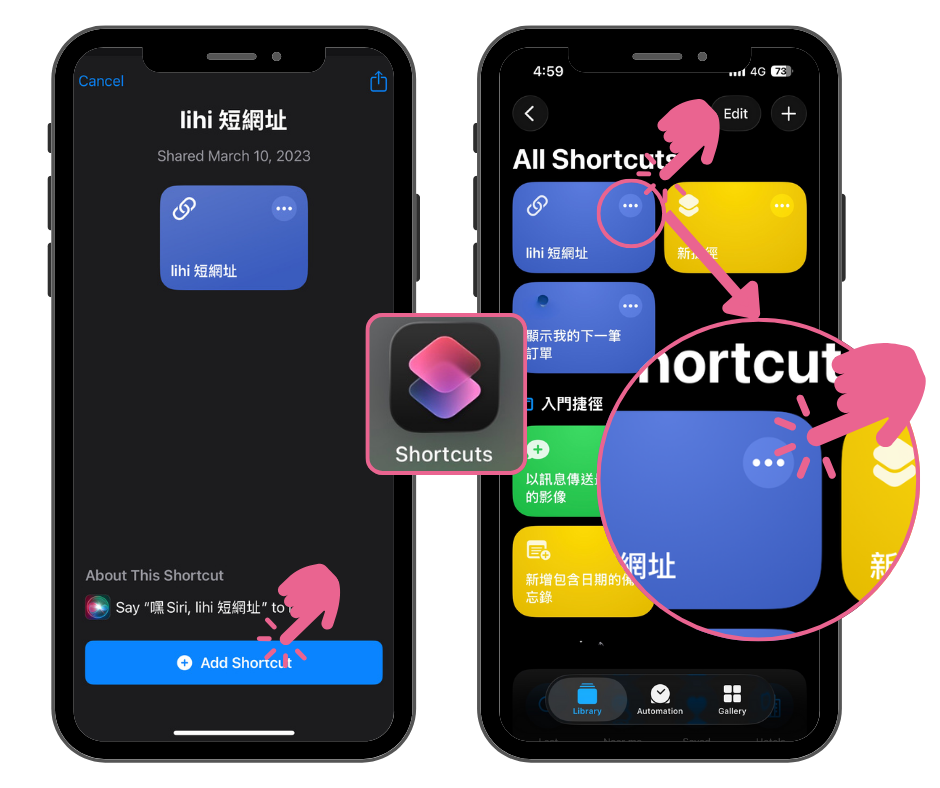
Add the Shortcut: Tap Shortcuts App on your iPhone.
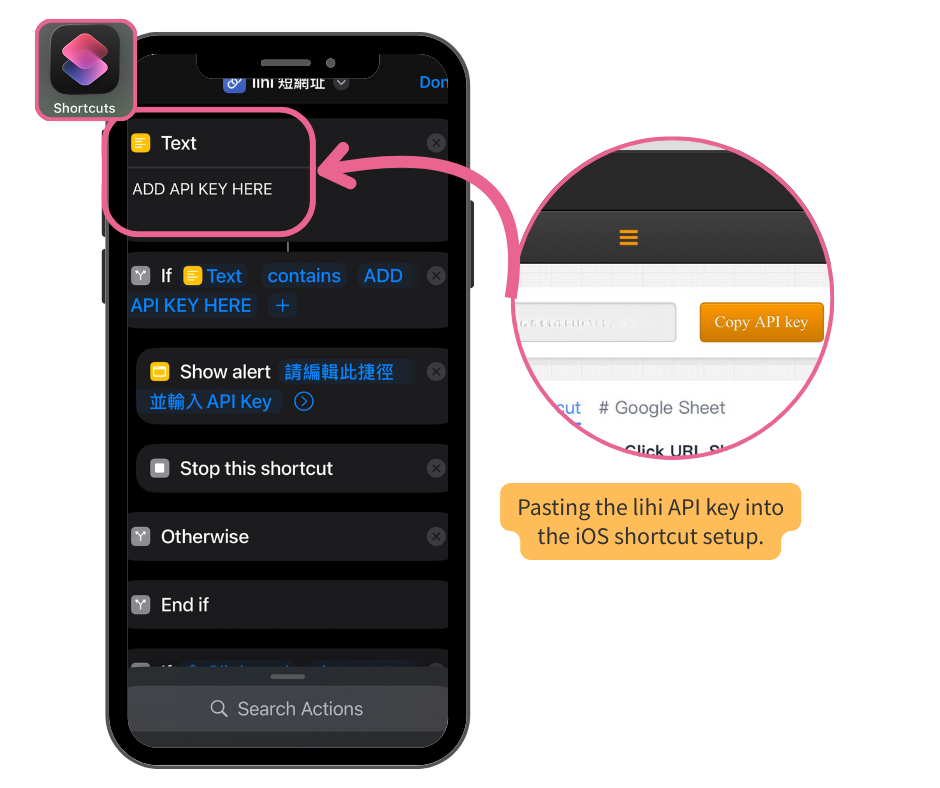
Critical Setup (Paste API Key):Don’t just close the app! Tap the three dots (…) on the lihi Shortener shortcut to edit it. Find the text field labeled “API Key” and paste the key you copied from the lihi iOS Shortcut section. Tap Done to save.
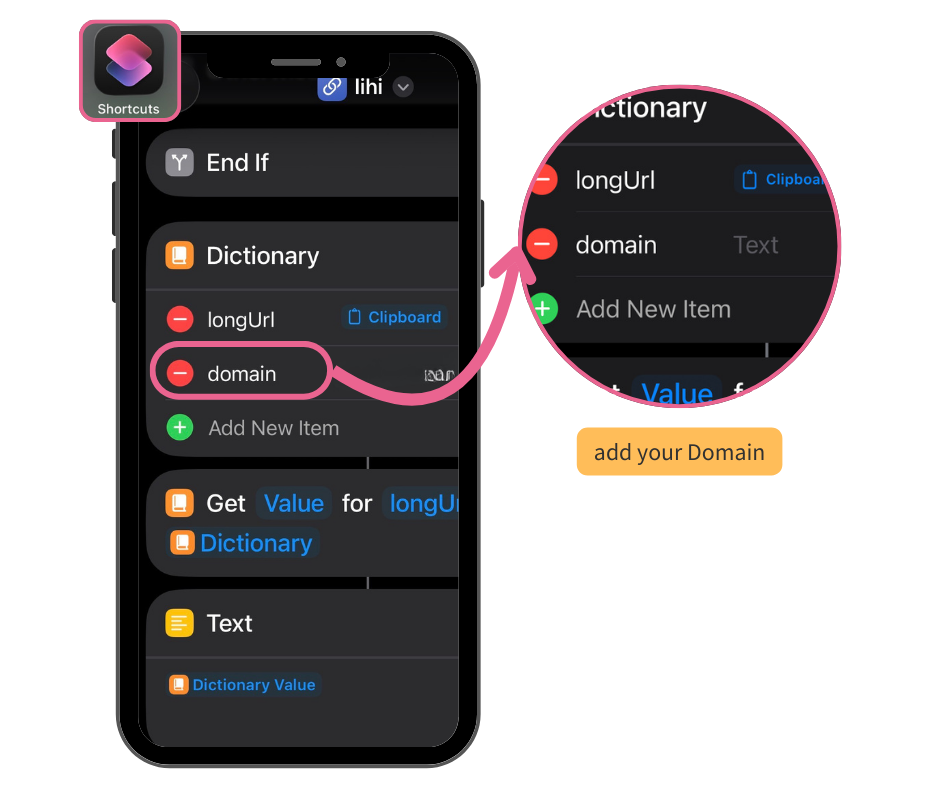
Custom Domain (Optional): If you want to use your own branded link, scroll down within the shortcut settings to the “domain” field and enter your custom domain.
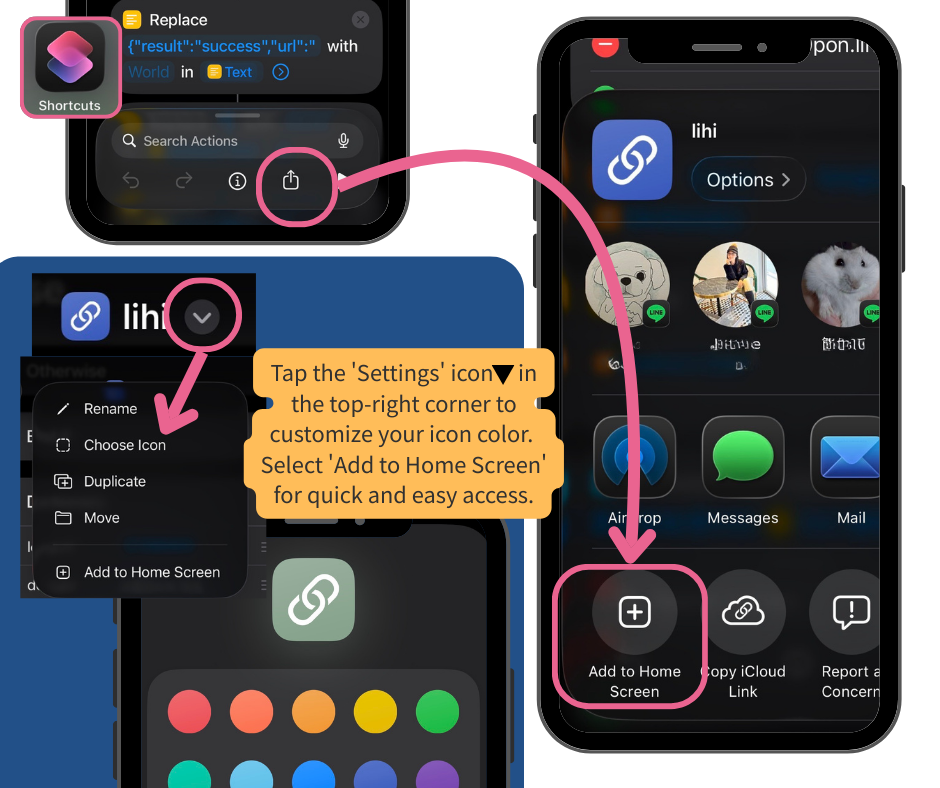
Boost Accessibility: For even faster access, you can select Add to Home Screen.
Express Your Style: Want it to stand out? You can change the lihi iOS Shortcut icon color to any style that fits your home screen.
three dots (…) on the lihi iOS Shortcut shortcut to edit it.
Step 3: Shorten Your First Link in Seconds
Now that you are set up, creating a link is as easy as a single tap.
Done! Your shortened lihi link is now ready to be pasted anywhere.
Copy any long URL you want to shorten.
Tap the lihi Shortener shortcut on your Home Screen or in the Shortcuts app.
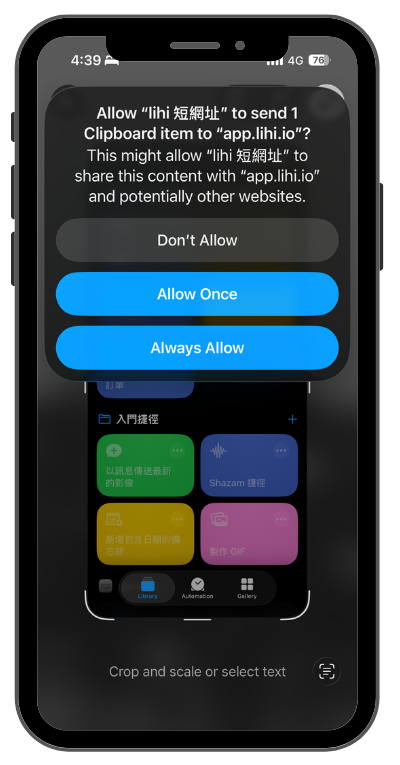
Grant Permissions: The first time you run it, your iPhone will ask for permission to “Paste,” “Show Notifications,” and “Copy to Clipboard.” Tap Allow or Always Allow.
Unlock the full power of your iPhone. Sign up for a FREE lihi account and pair it with our shortcut to save time on every link you share!