How to Verify Your Domain on Meta
Please choose one of the following methods to verify your domain in Meta Business Suite.
Method 1: Update DNS TXT Record (Recommended)
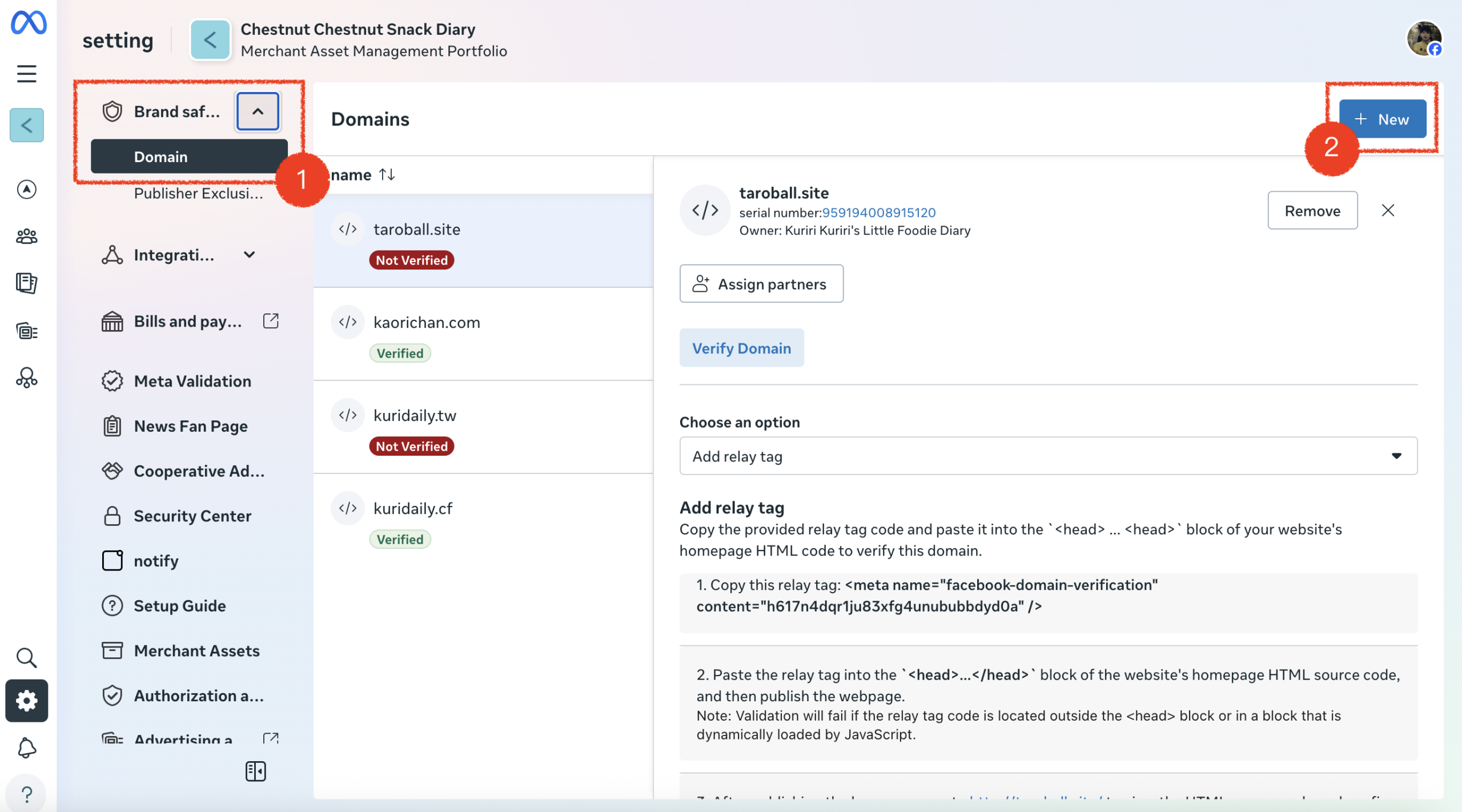
- Navigate to Settings: Go to Meta Business Suite. In the left menu, select Brand Safety, then click Domain. Click the New button.
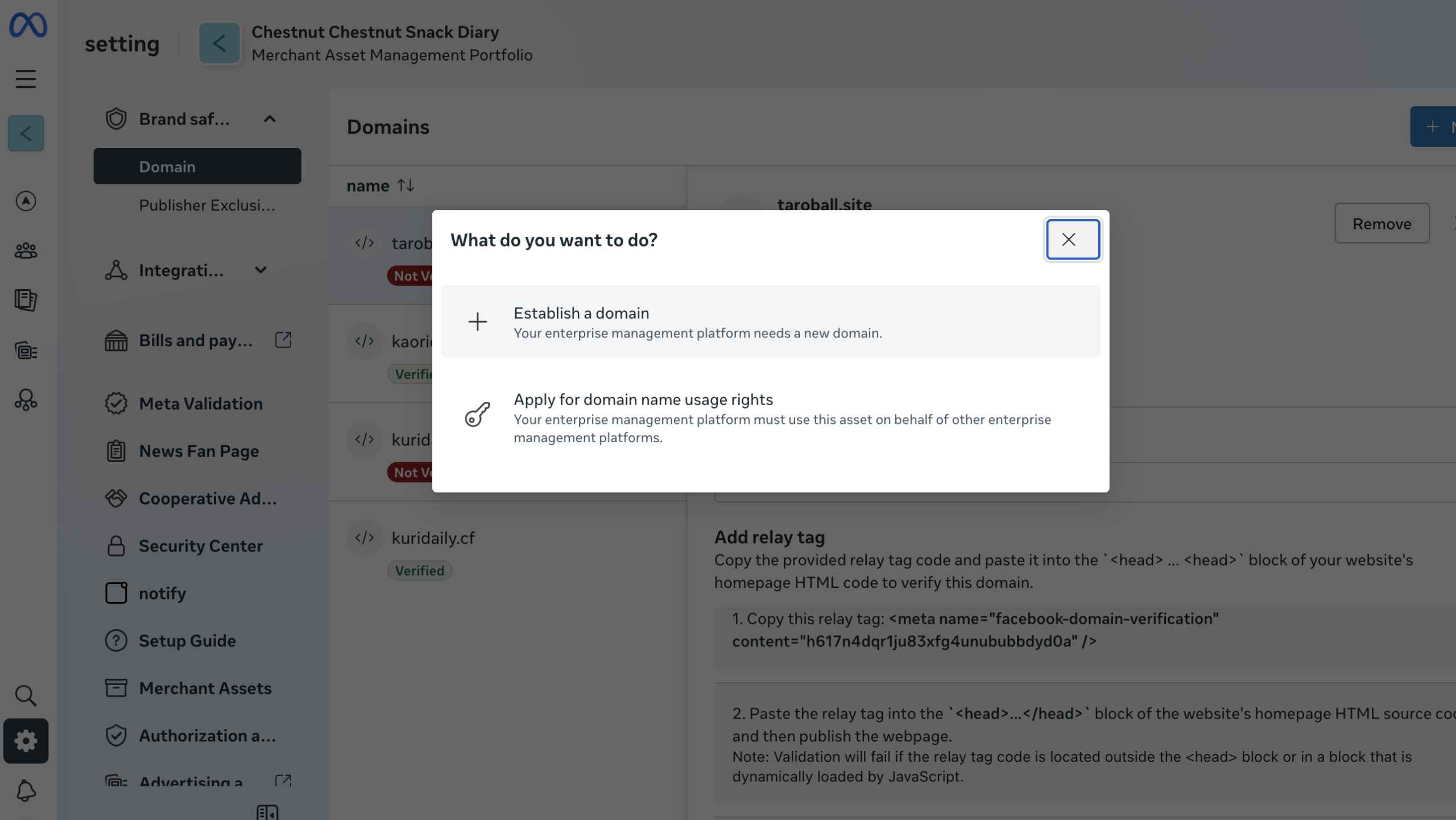
- Add Domain: Click Establish a domain
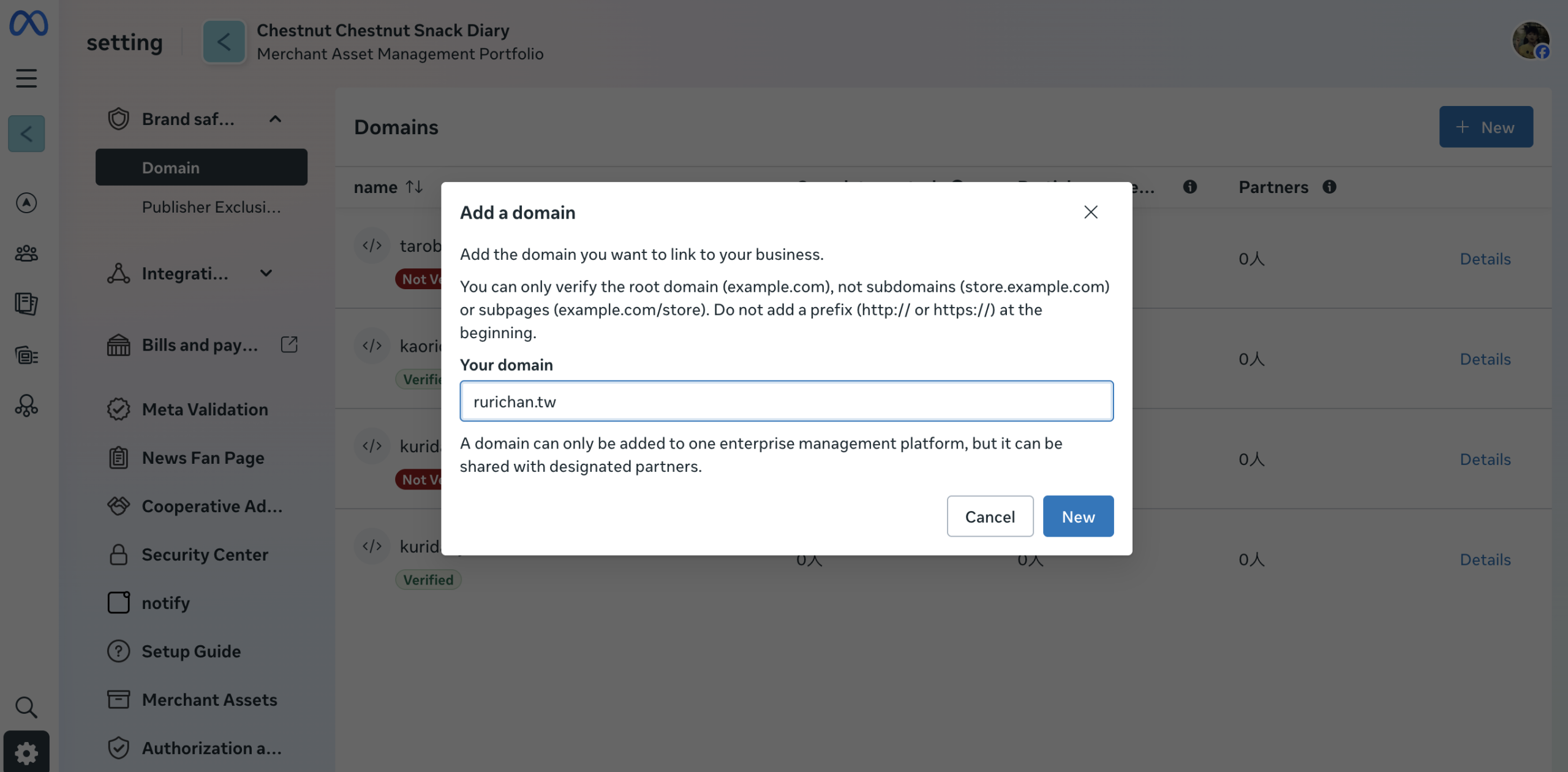
Enter your purchased domain name (e.g.,yourbrand.com) and click New.
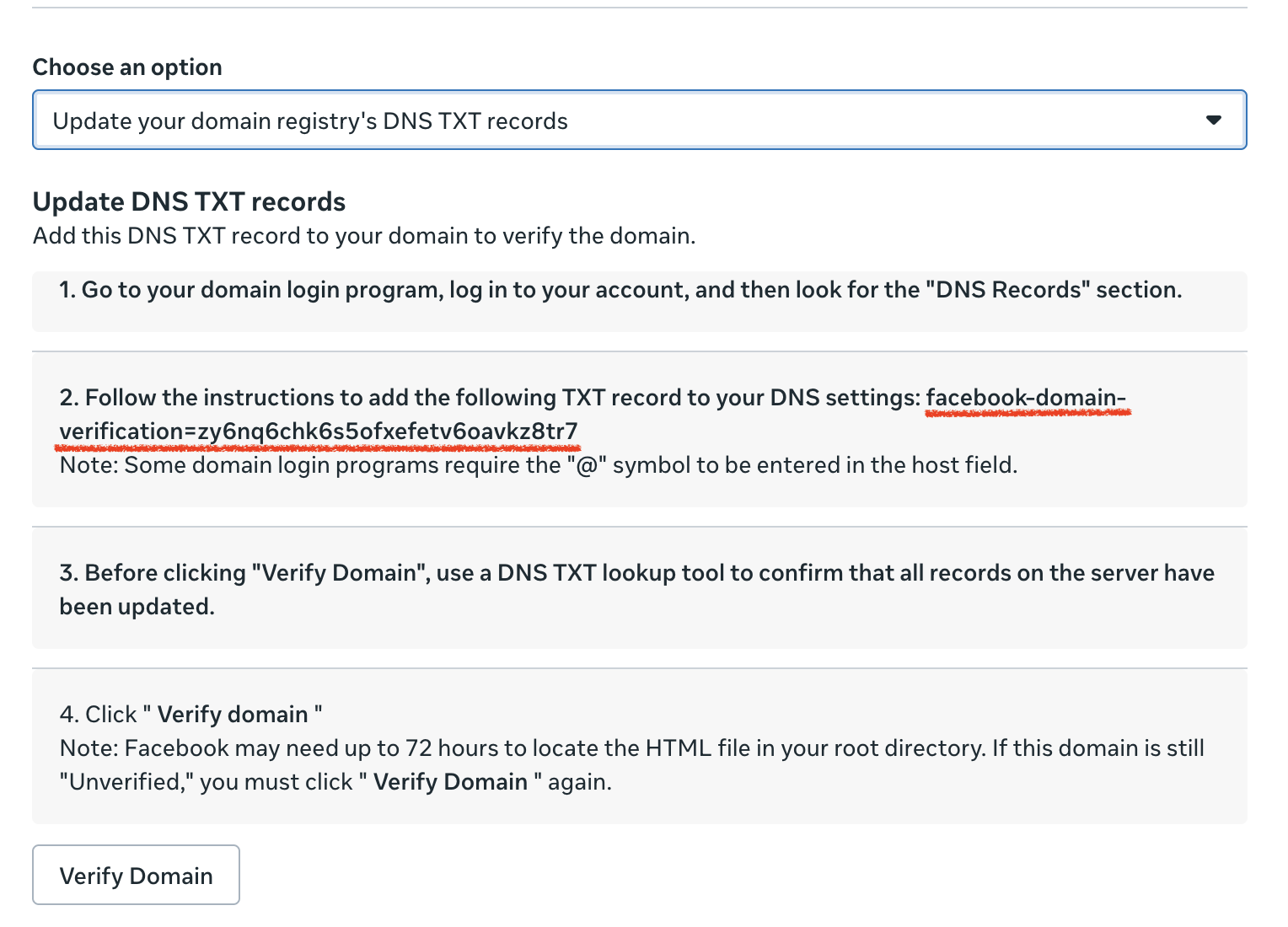
- Get Verification Code: From the dropdown menu, select “Update your domain registry’s DNS TXT records” Copy the verification code (the long string of random characters) provided in step 2 on the screen.
- Configure DNS: Go to the DNS settings of where you purchased your domain.
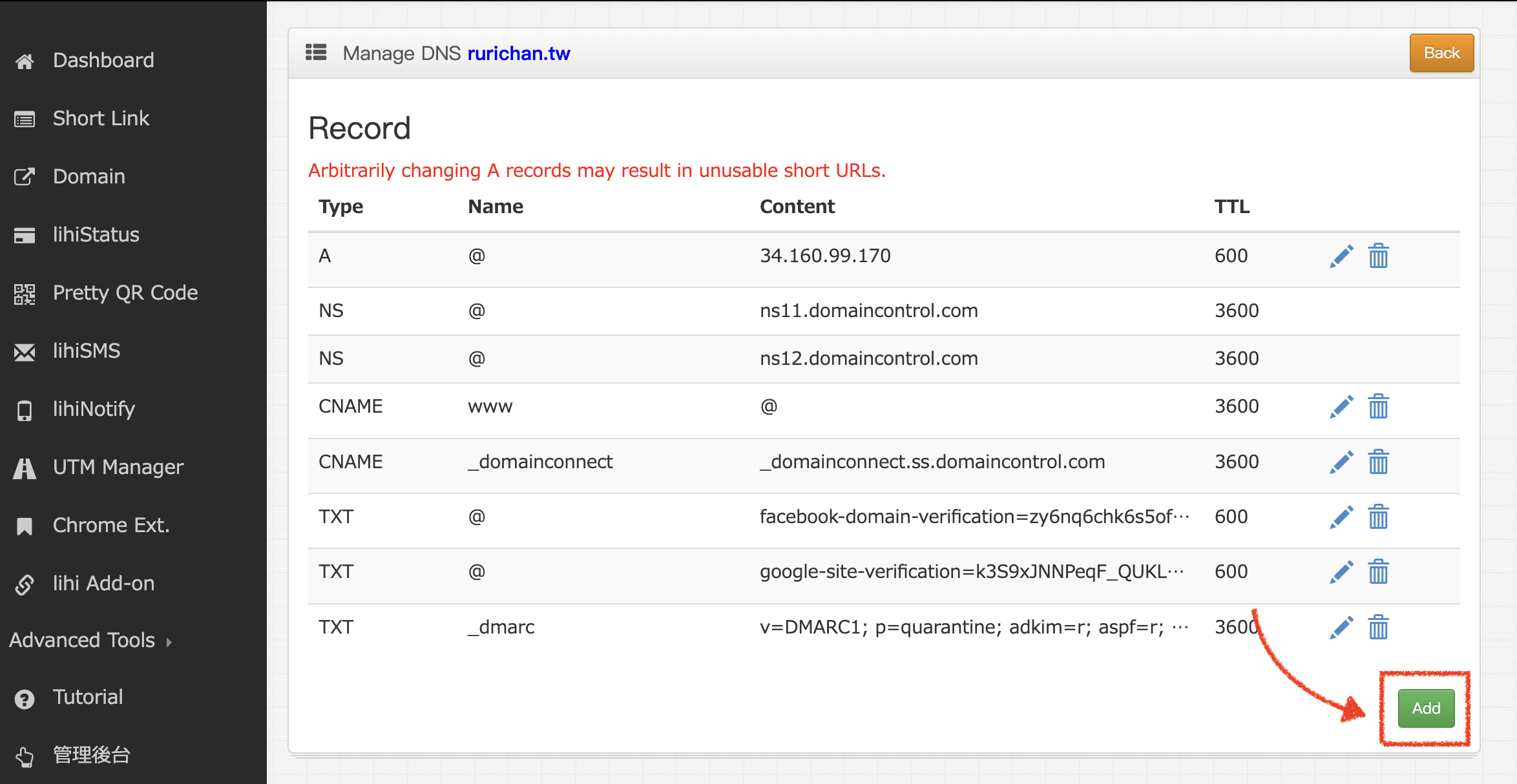
- (For lihi Users: Log in to your dashboard > Click Domain > Click Other Setting > Click Manage DNS > Click Add .)
- (For lihi Users: Log in to your dashboard > Click Domain > Click Other Setting > Click Manage DNS > Click Add .)
- Add Record: Fill in the fields as follows (referencing your provider’s interface):
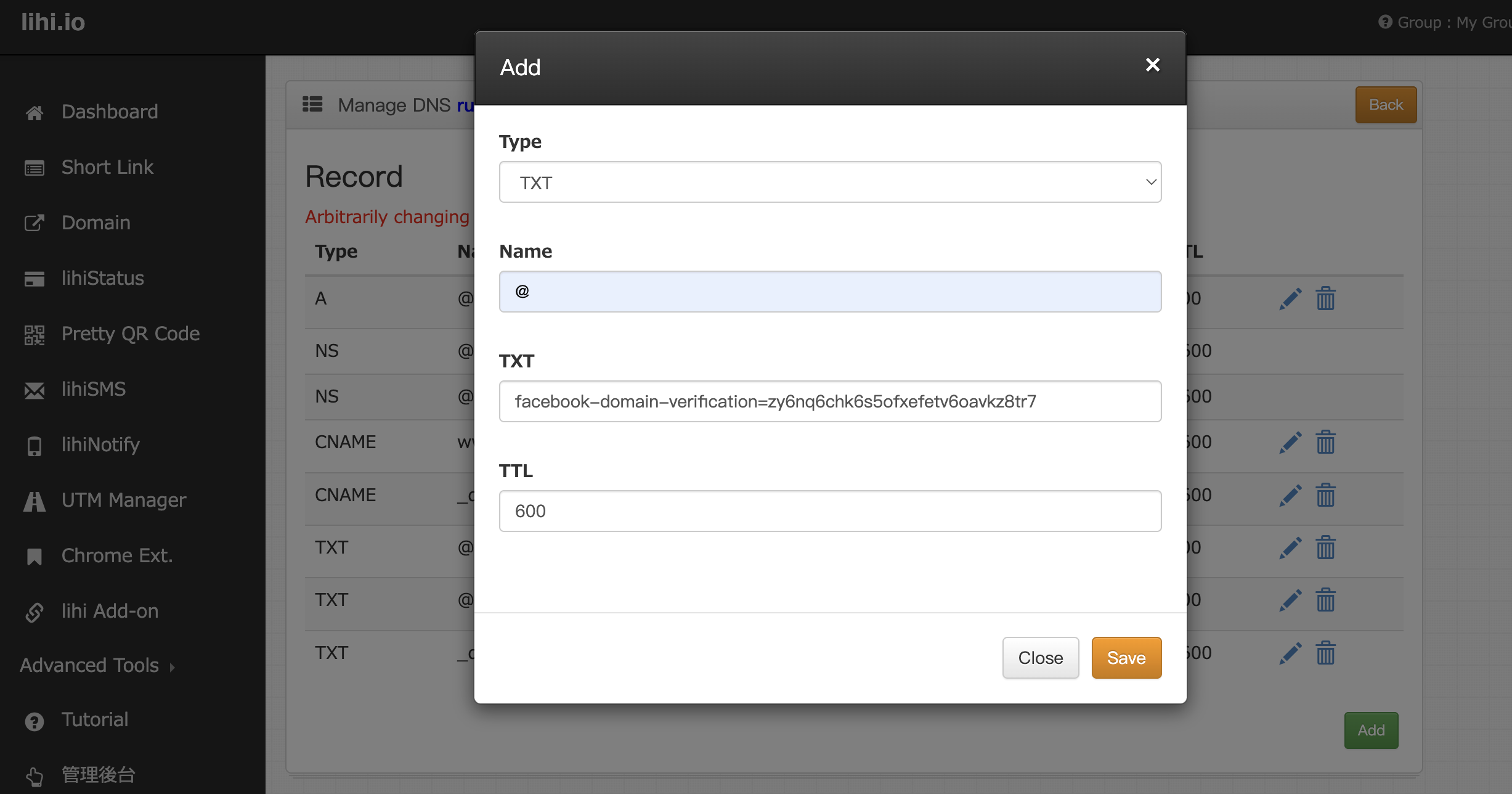
- Type: TXT
- Name/Host: @ (or leave blank)
- Value/Content: Paste the code you copied from Meta.
- Click Save.
- Return to the Meta screen and click Verify Domain.
Method 2: HTML File Upload
- Navigate to Setting: Go to Meta Business Suite. In the left menu, select Brand Safety, then click Domain. Click the New button.
- Add Domain: Click Establish a domain.
- Enter your purchased domain name (e.g.,
yourbrand.com) and click New.
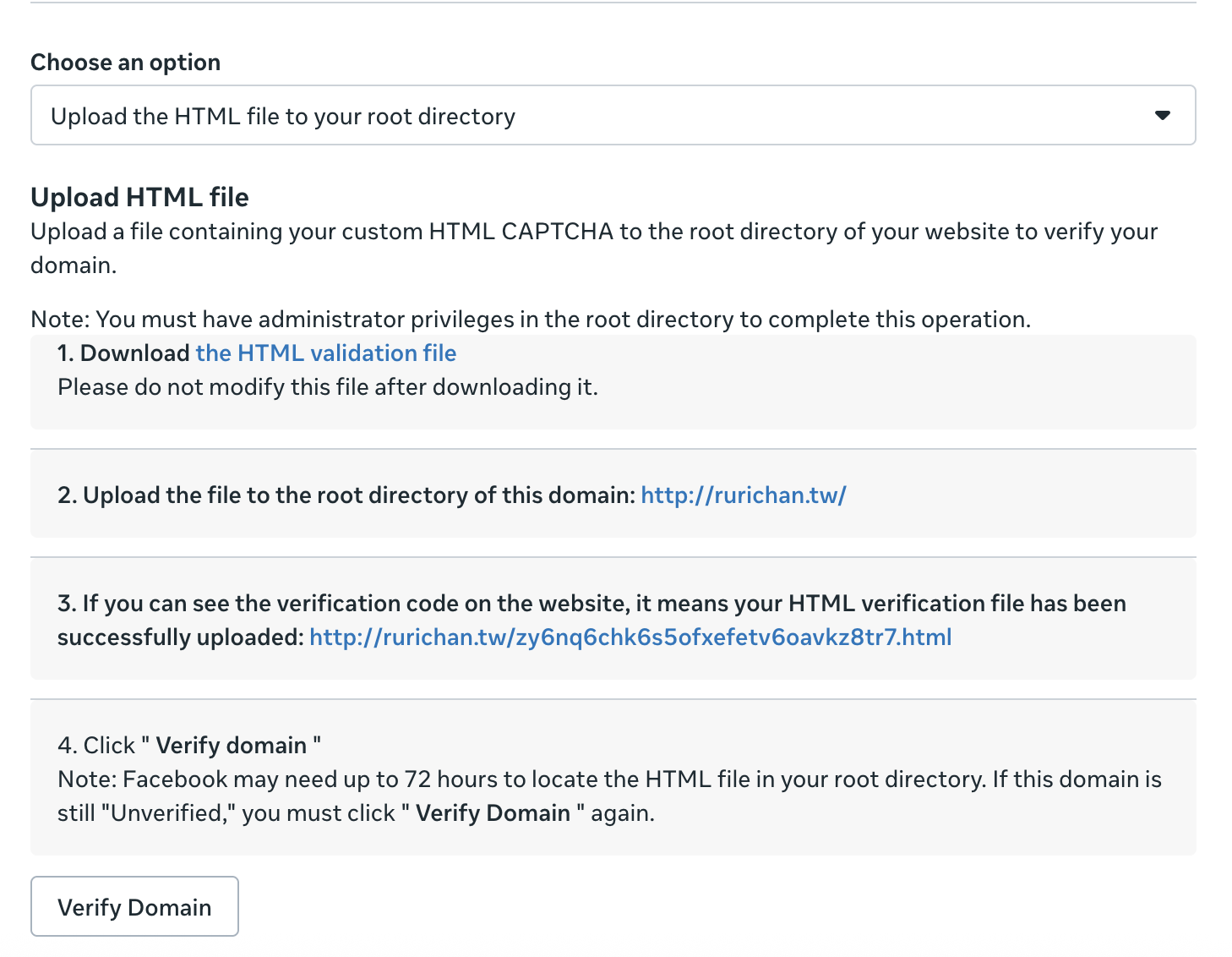
- Download File: From the dropdown menu, select “Upload an HTML file to your root directory.” Click the download link to save the HTML verification file to your computer.
- Upload to lihi:
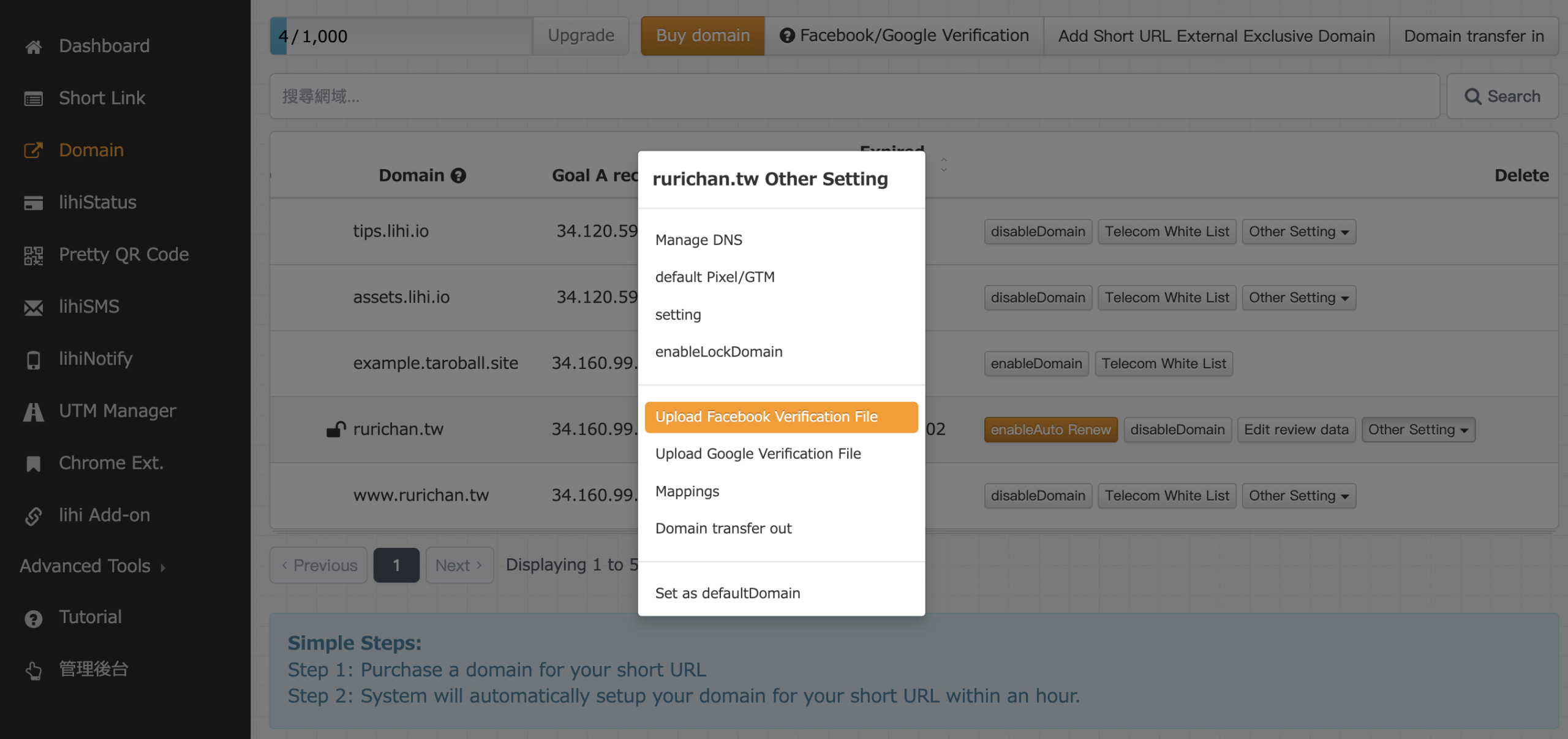
- Log in to lihi.
- Click Domain in the left menu.
- Find your active domain and click “Other Setting” > click “Upload Meta Verification File.”
- Select and upload the file you just downloaded.
- Verify:
- Return to the Meta screen.
- Click the link provided in step 3 to confirm the file is uploaded correctly (you should see a code appear in your browser).
- Click Verify Domain to finish.
Start using lihi for free ⇒ Click Here!