How to Update or Change Your Credit Card
Follow these steps to update your payment method or switch credit cards.
Step 1: Access Payment Settings
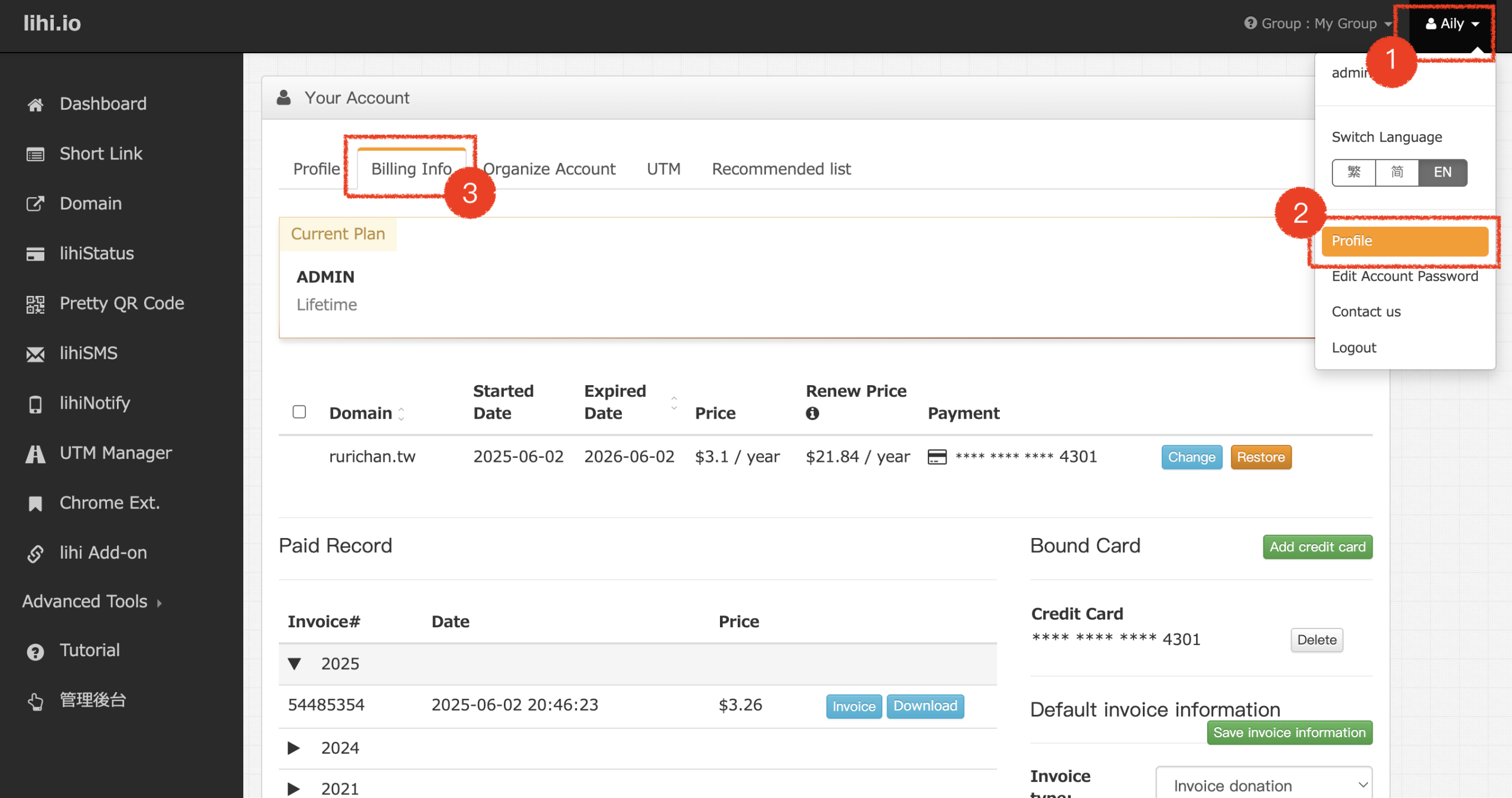
- Click on the top right corner of the dashboard (your name or email address).
- Click Profile from the dropdown menu.
- Click on the Billing Info tab.
Step 2: Switch Payment Card for a Service
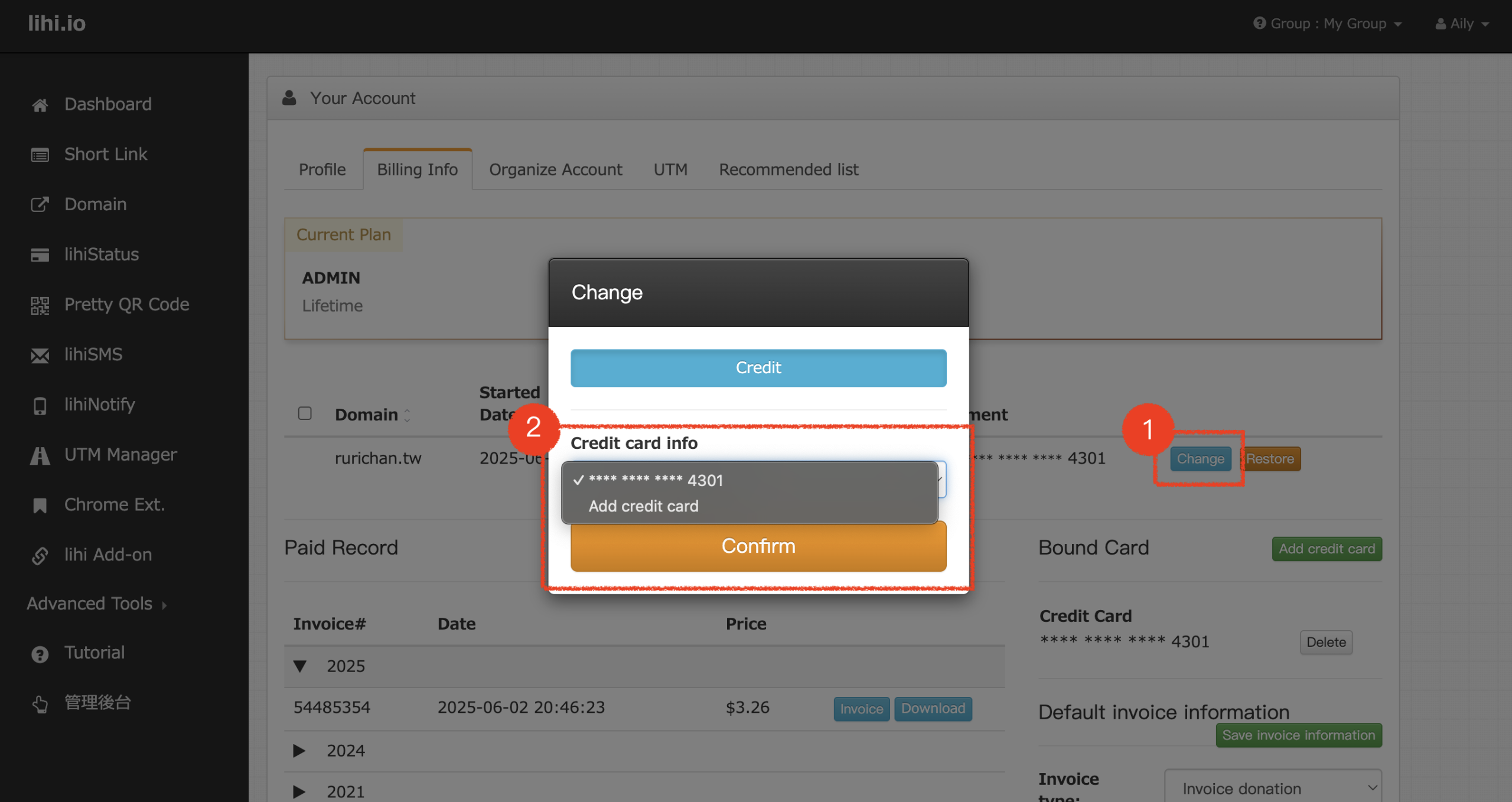
Find the specific domain or subscription you want to update in the list.
- Click the Change button next to that item.
- A pop-up window will appear. Select the card you wish to use for this specific service.
- Note: This moves the billing for this service to the selected card.
Step 3: Add a New Card / Delete an Old Card
Important Limit: The system stores a maximum of 2 credit cards.
If you need to add a new card but already have two on file:
- Transfer: First, ensure the card you want to delete is not bound to any services. Use the Change Card button (from Step 2) to move all subscriptions to the other existing card.
- Delete: Once the old card is free of any active subscriptions, click the Delete button next to it in the “Credit Card Info” section on the right.
- Add: After deleting the old card, you will have space to add your new credit card details.
Start using lihi for free ⇒ Click Here!