How to Set Up lihi UTM Manager for Automated Campaign Tracking
Learn how to configure the lihi UTM Manager to automate your marketing tags. Standardize sources, mediums, and campaigns to ensure clean data in GA4.
Marketing URLs are often long, messy, and intimidating to share. Manually adding UTM parameters makes them even uglier and introduces human error: typos, inconsistent casing, and missing tags can quietly ruin your reports. While traditional link shorteners fix how links look, they do not solve the underlying data chaos.
The lihi UTM Manager is more than just a UTM builder; it is a centralized governance system for all your campaign links. In this guide, you will learn how to set up account‑wide safety mechanisms, create standardized templates, and export your data for clean, professional collaboration.
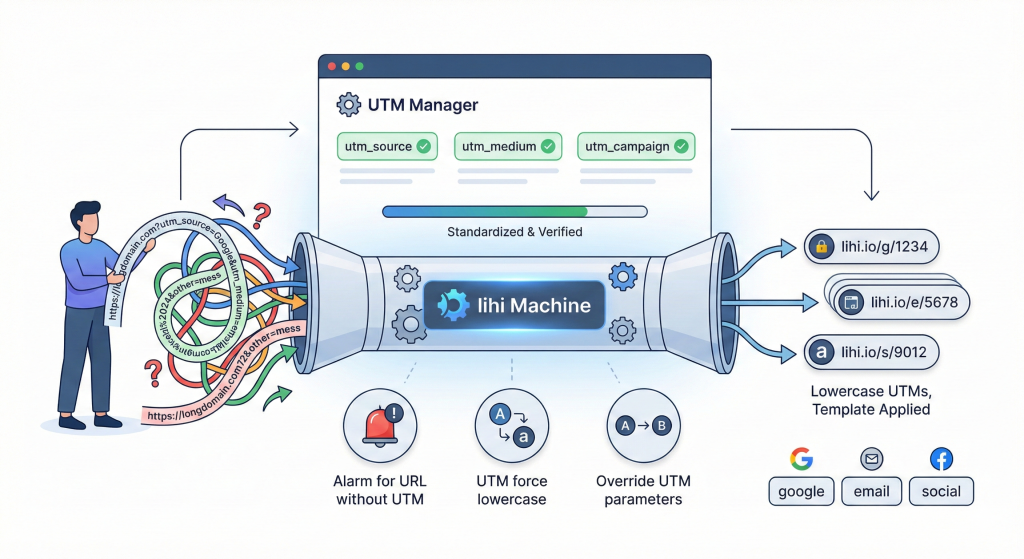
Why UTM Collaboration Goes Wrong?
Even experienced marketers run into the same UTM headaches:
- Case sensitivity chaos: Analytics tools treat
Metaandmetaas two different sources, fragmenting your data. - Spreadsheet hell: Shared Excel or Google Sheets get messy, parameters are deleted, and version control becomes impossible.
- Forgotten UTMs: Someone shares a link and realizes five minutes later that there are no tracking tags.
- Manual updates: When you change UTMs, you need to manually update every short link or risk inconsistent tracking.
The lihi UTM Manager is built specifically to eliminate these issues by unifying UTM creation, link shortening, and collaboration in one place.
Step 1: Set Up Your Account‑Wide “Safety Net”
Before creating your first UTM link, you should enable the lihi anti‑error mechanisms at the account level. This ensures every teammate follows the same rules.
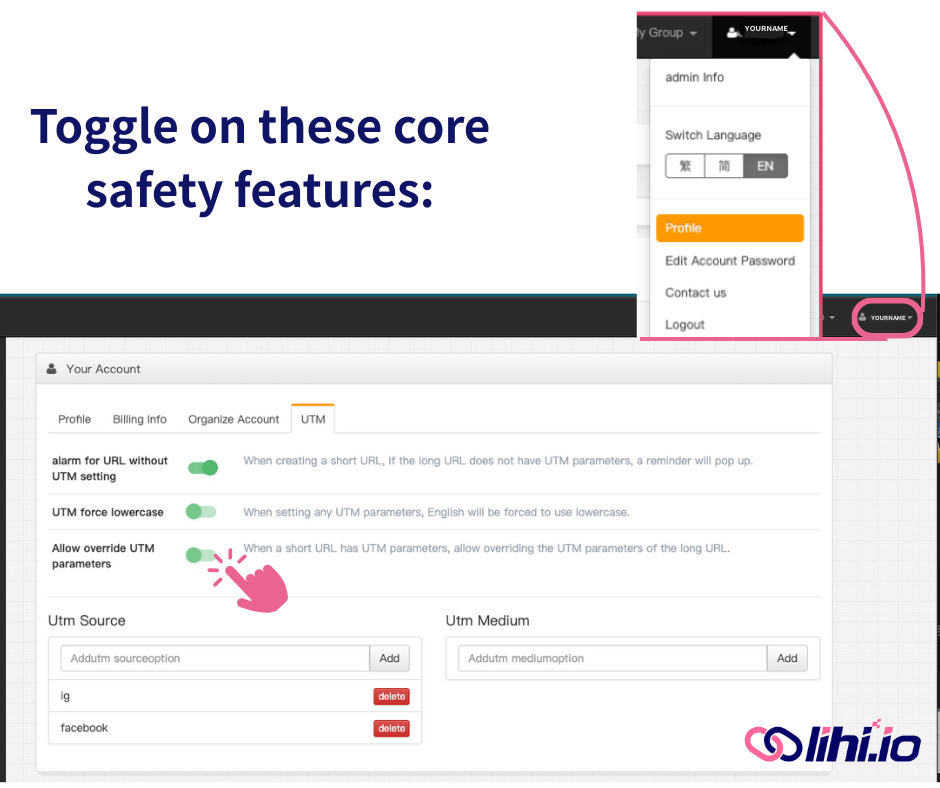
- Navigate to Profile in your lihi dashboard.
- Turn on these core safety features:
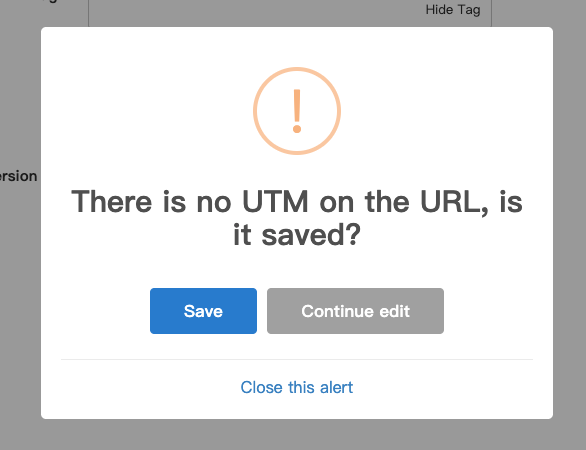
Alarm for URL without UTM setting. If you attempt to save a short link without any UTM parameters, lihi will trigger an alert or pop‑up warning. This prevents untagged traffic from sneaking into your GA4 reports.
UTM force lowercase. Case sensitivity is a major tracking killer. With this setting enabled, even if someone types
Social_PostorMeta, lihi automatically converts it tosocial_postandmeta. This keeps your data consistent and your GA4 reports clean and unified.
Allow override UTM parameters. Many long URLs already contain old or incorrect UTMs. Enabling override allows lihi to replace those parameters with your new, standardized ones so you maintain full control over tracking structures.
Once this “safety net” is active, you dramatically reduce the risk of bad data before any link goes live.
Step 2: Create Standardized UTM Templates
Standardization is the key to scaling your tracking. Instead of manually typing tags for every campaign, use the lihi UTM Manager to build a reusable library.
Following the brand’s name change, using ‘meta’ as a consistent source tag can help you consolidate data from all associated platforms.
1. Standardize sources and mediums
In the UTM Manager, define approved values such as google, cpc, email, social and expose them as dropdown menus for your team. This prevents free‑text chaos like Google, google_ads, or g ads all showing up as different sources.
2. Create campaign templates
Group commonly used parameters into templates, for example:
- Newsletter_Monthly (email campaigns)
- FB_Ads_Summer (paid social campaigns)
- Brand_Launch_2026 (product launch campaigns)
3. Organize by marketing themes
You can group links and templates under specific marketing initiatives or campaigns so every channel uses the same UTM logic.
With templates in place, your team can generate fully tagged URLs in a few clicks instead of rebuilding parameters from scratch every time.
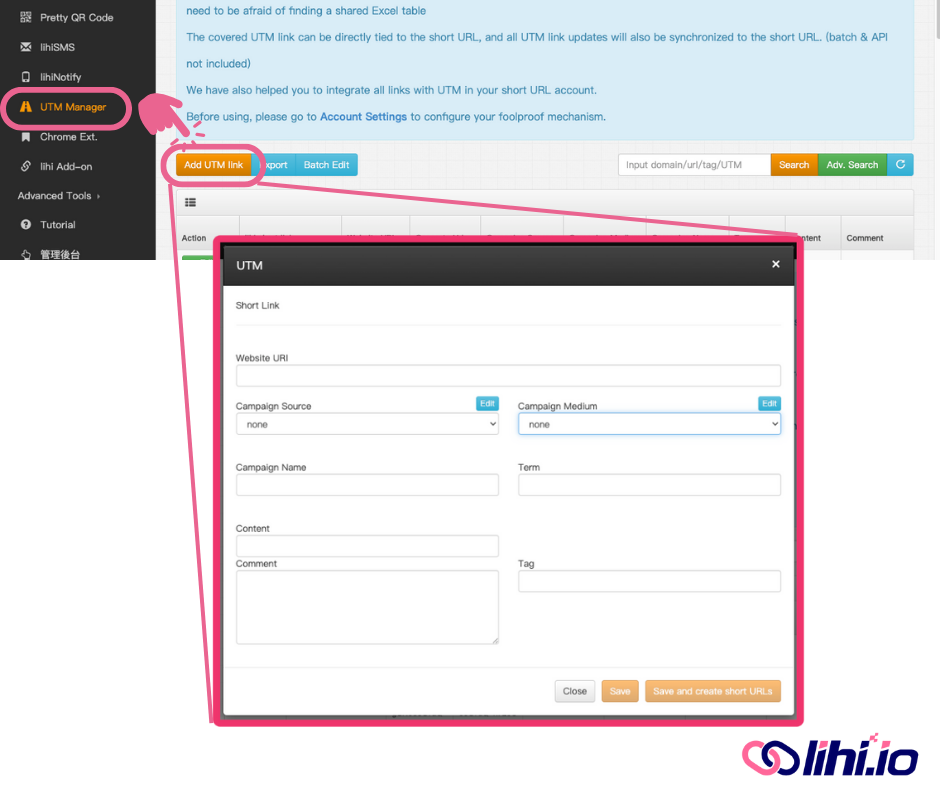
Step 3: Generate Professional, Trackable Short Links
Once your safety rules and templates are ready, shortening and tagging happen in a single flow inside lihi.
- Paste your long URL: lihi automatically checks whether UTMs are already present and applies your account‑level rules (including override, lowercase, and alerts).
- Toggle the UTM Manager and select a template: Choose the appropriate UTM template, then adjust any campaign‑specific fields if necessary. When you save, lihi writes the parameters into the original URL so you get a fully tagged destination link with one click.
- Choose your short link alias:
- Paid feature: Paid lihi members can customize the short slug (e.g.,
lihi.io/BrandSaleorlihi.io/YourBrandName) to improve click‑through rates and branding. - Free users: The system generates a random string as the link alias.
- Paid feature: Paid lihi members can customize the short slug (e.g.,
The generated short link appears both in your UTM Manager table and in the main short‑link list in your dashboard, so you can find it quickly later. Because the UTMs and short link are created together, you no longer need to copy‑paste between spreadsheets and separate tools.
Step 4: Edit and Export for Clean Collaboration
lihi is designed for ongoing collaboration, not one‑off link creation.
Edit UTMs even after links go live
From the UTM Manager table, you can open any row and modify parameters like campaign, term, or content. When you save, lihi updates the underlying UTM URL while keeping the existing short link intact, so you do not need to recreate or redistribute links.
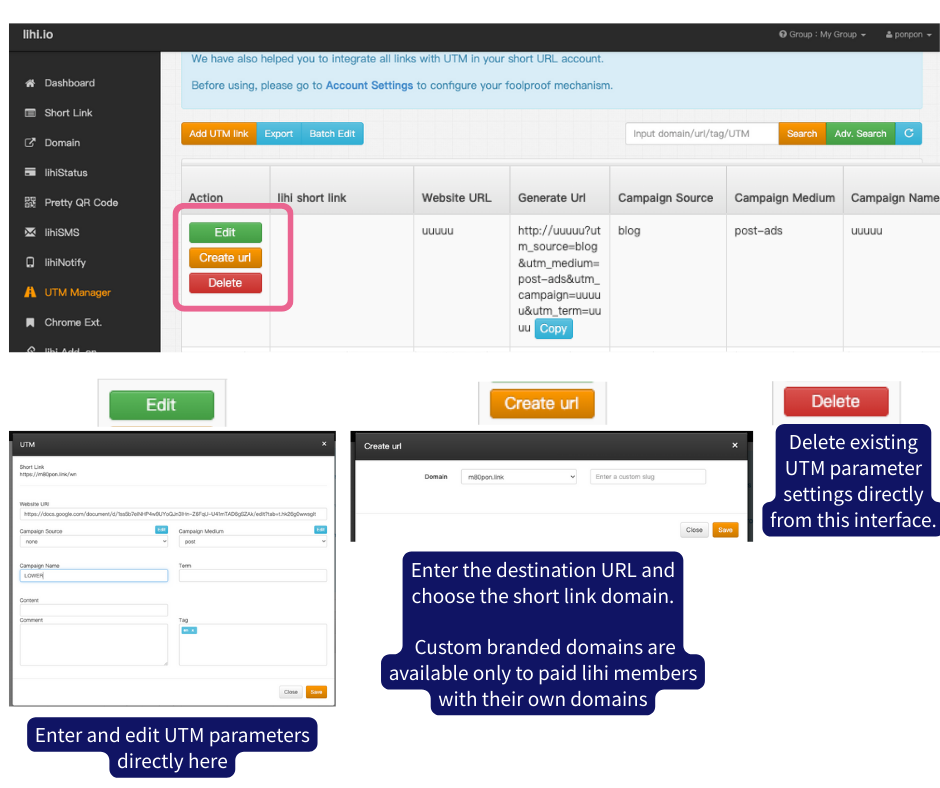
Once your UTM setup is complete, you will find three convenient buttons on the far left of the UTM Manager table: Edit, Create URL (Short Link), and Delete. These allow for ongoing management of your tracking links.
Export your UTM library
You can export your UTM table or specific campaign sets as Excel or CSV files. Typical workflows include:
- Importing into Google Sheets for cross‑departmental reviews.
- Sharing clean, organized logs with clients or external agencies.
- Maintaining a “master list” that always reflects the latest parameters while avoiding broken formulas in shared spreadsheets.
Pro Tips for Marketers
To get the most from lihi UTM Manager and Google Ads / GA4:
- Keep it lowercase: Always use the “UTM force lowercase” setting to ensure every channel stays organized.
- Audit regularly: Periodically export your UTM table and compare it with GA4 traffic reports to detect unexpected sources or mediums.
- Living Governance: Treat your lihi UTM templates as a living system: update them whenever your media strategy or naming convention changes.
- GA4 Channel Alignment: If you choose to use
metainstead offacebookas your source tag, ensure your GA4 Custom Channel Groups are updated. This ensures your data is correctly bucketed under “Social” rather than falling into “Unassigned.”
Set up this system once, and lihi UTM Manager becomes your always‑on safety net to ensure every short link you share drives clean, high‑intent, and fully trackable traffic.
If you are still managing UTMs in spreadsheets and wondering whether it is time to upgrade, this breakdown of [lihi UTM Manager vs. Excel and how manual tracking hurts your ROI] is a must‑read companion to this guide.
- If you are new to UTM tracking, start with this clear introduction to GA4 campaign tagging in [A Guide to UTM Parameters in Google Analytics 4].
- For an official reference on how campaign URLs work, see Google’s documentation on [URL builders for collecting campaign data with custom URLs].
- To deepen your understanding of how GA4 reads and attributes UTM parameters, check out this [full guide to GA4 UTM parameters in Google Analytics 4].
- If you are running paid search or display, this walkthrough on [tracking Google Ads with UTM parameters] shows how to connect your ads to GA4 reports more reliably.
- To compare free vs. paid plans, custom domains, and other advanced features mentioned in this article, review the latest details on the [lihi pricing and plans page].
- For a Chinese-language walkthrough with screenshots of the same workflow, you can also read our [lihi UTM Manager setup guide in Chinese].
Ready to stop guessing and start tracking like a pro? Start using lihi for free today and create your first fully trackable short link in minutes.
Start using lihi for free
Join thousands of marketers and optimize your links today.