How to Install and Use the lihi Chrome Extension
The lihi browser extension allows you to create short links instantly while browsing any webpage, without needing to open the lihi dashboard.
Step 1: Installation
- Add to Chrome: Go to the extension page and click the Add to Chrome button.
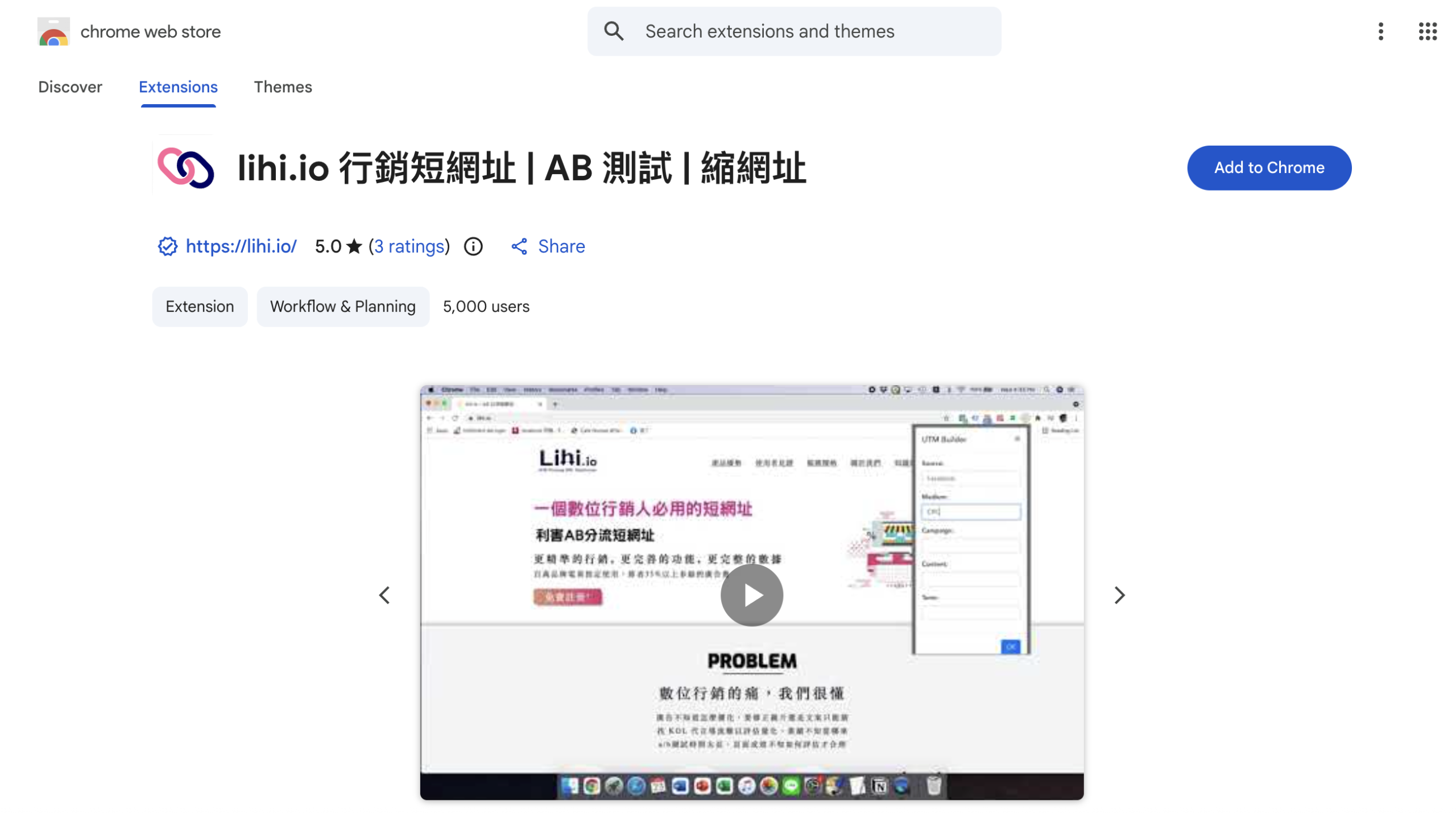
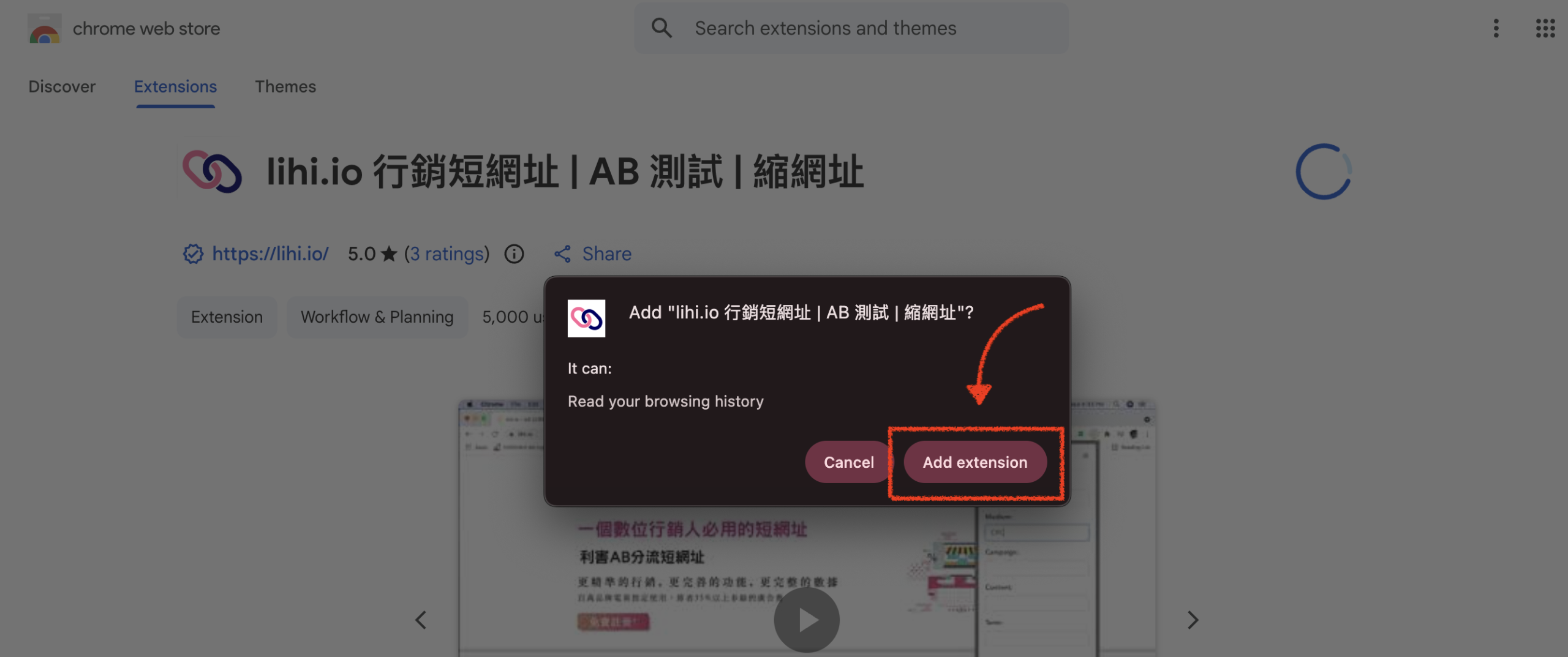
- Confirm Installation: A pop-up window will appear; click Add extension.
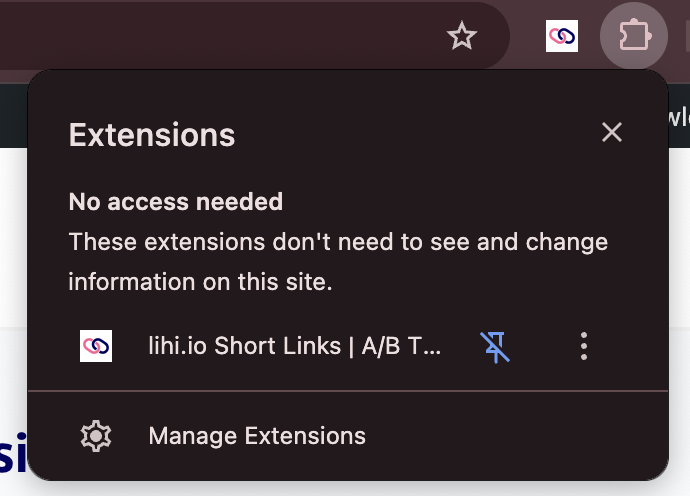
- Check Toolbar: Ensure the lihi icon appears in the top-right corner of your browser toolbar.
Step 2: Creating a Short Link
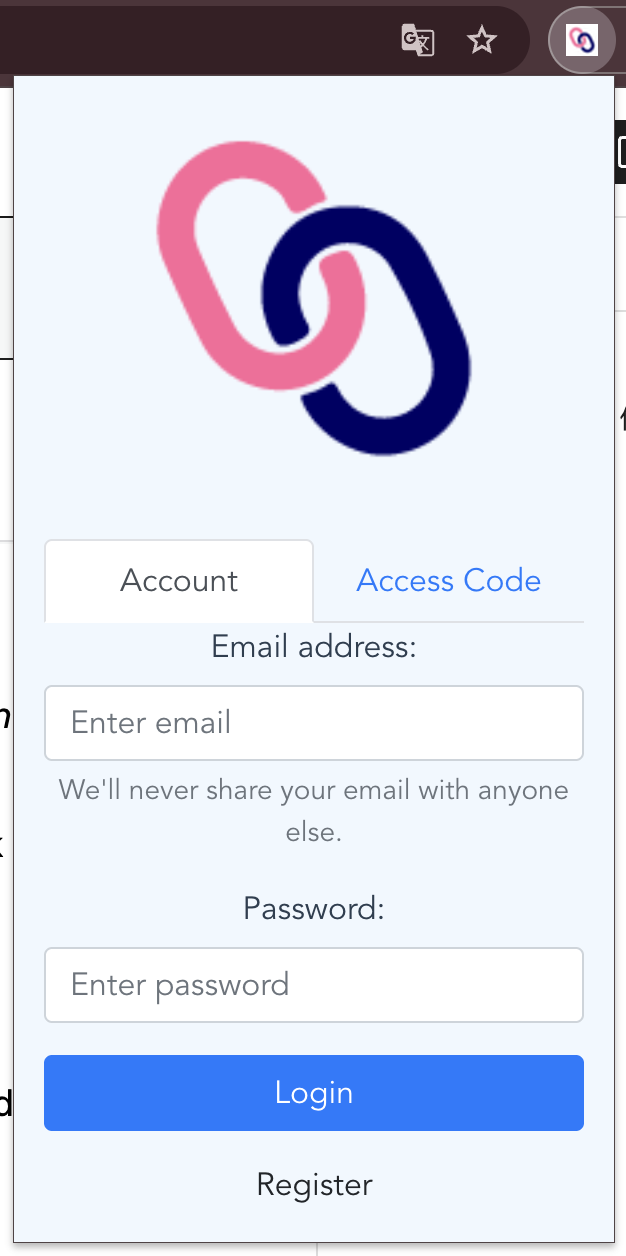
- Log in: Click the extension icon to open it. Log in with your email and password. (Note: If you don’t have an account yet, click Register at the bottom.)
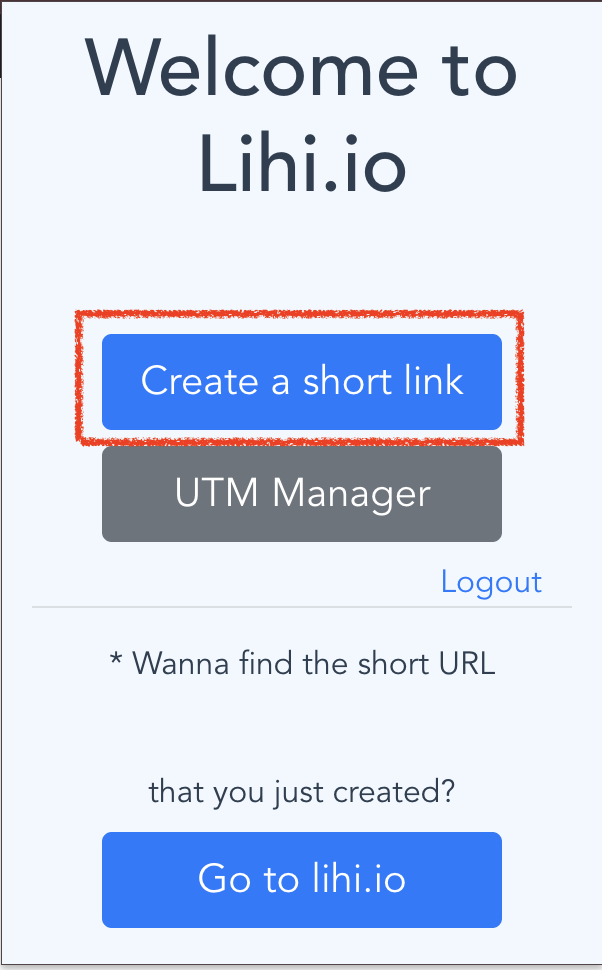
- Start Creating: Navigate to the webpage you want to shorten. Open the lihi extension and click Create a short link.
- Configure Settings:
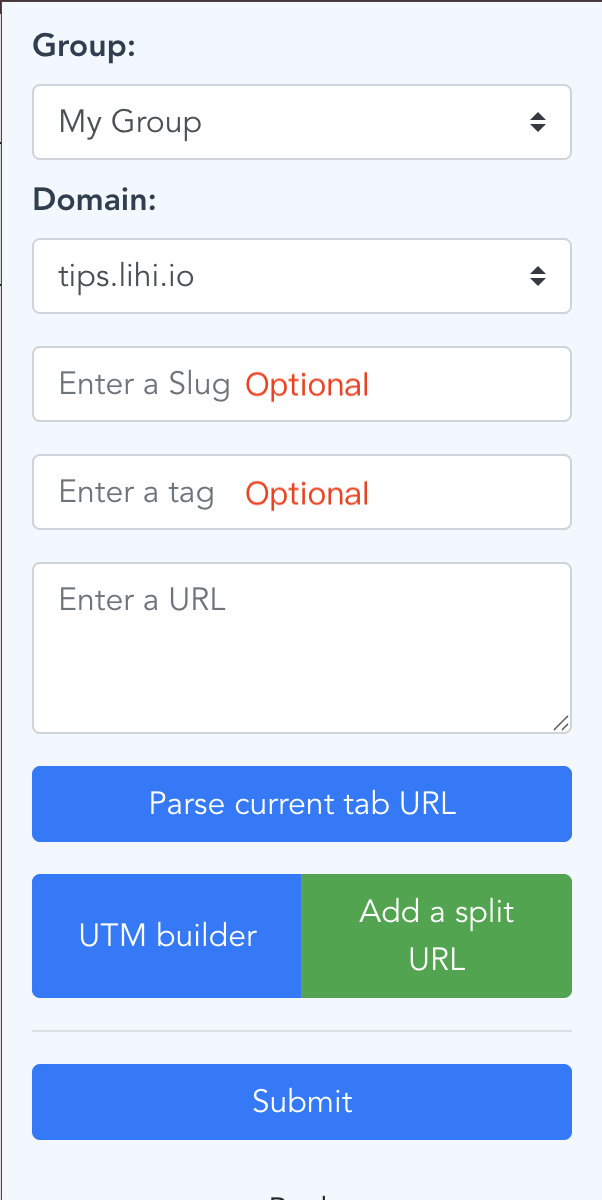
- Group & Domain: Select your group and choose between a Public or Custom Domain.
- Custom URL (Optional): If using a Custom Domain, you can enter a custom alias (this field is hidden for Public Domains).
- Tags (Optional): Enter tags to categorize your link.
- Set Destination: Click Parse current URL. The system will automatically grab the link of the page you are currently viewing.
- Add A/B Split URL (Optional):(Skip this step if you don’t need traffic splitting)
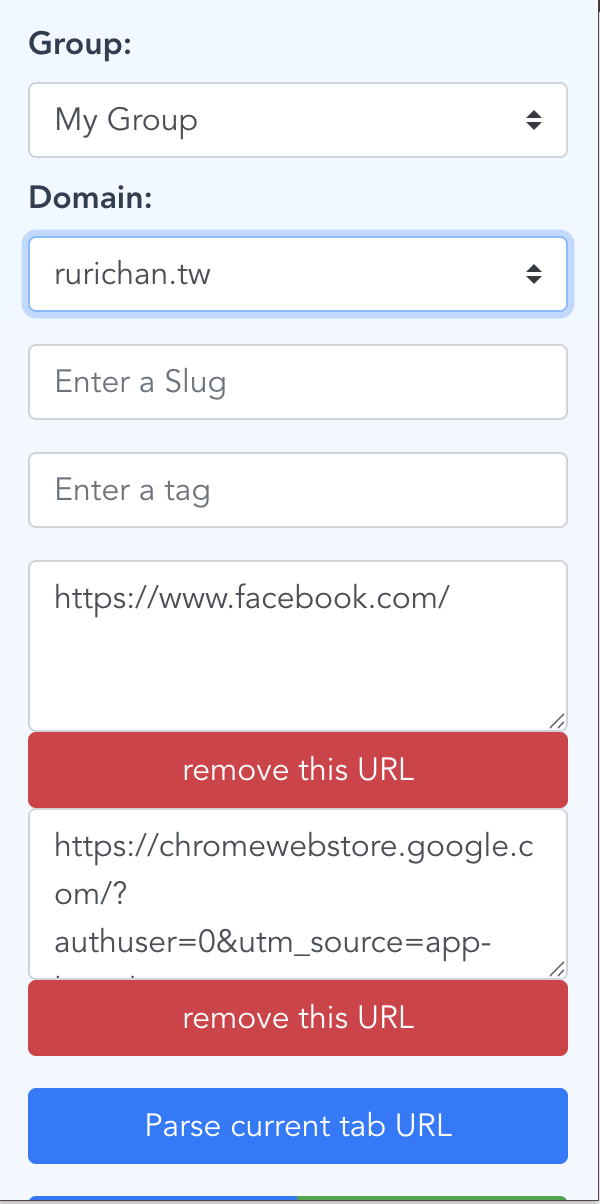
- Click Add a split URL.
- Navigate your browser tab to the second webpage you want to use for split testing.
- Open the extension again and click Parse current URL to grab the second link.
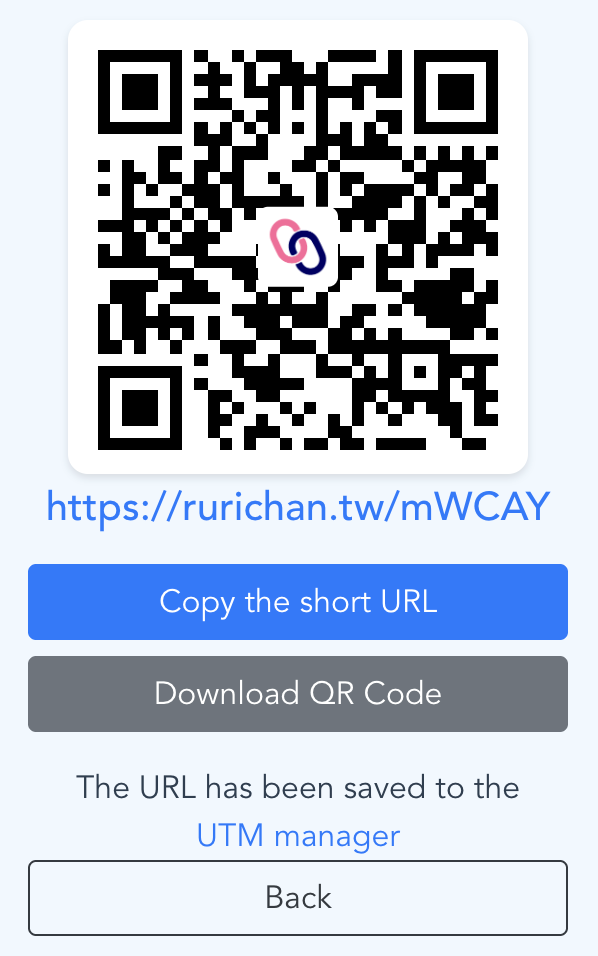
- Finish: Click Submit. Once the link is generated, click Copy the short URL to copy it to your clipboard.
Start using lihi for free ⇒ Click Here!