How to Customize OG/Meta Tags & Thumbnails
This feature allows you to control how your link preview (Title, Description, and Image) appears when shared on social media platforms like Meta or Whatapps.
For New Links
- Select Tab: When creating a New Short URL, click the Setup OG/Meta info button. (If you are editing an existing link, please skip to Scenario B).
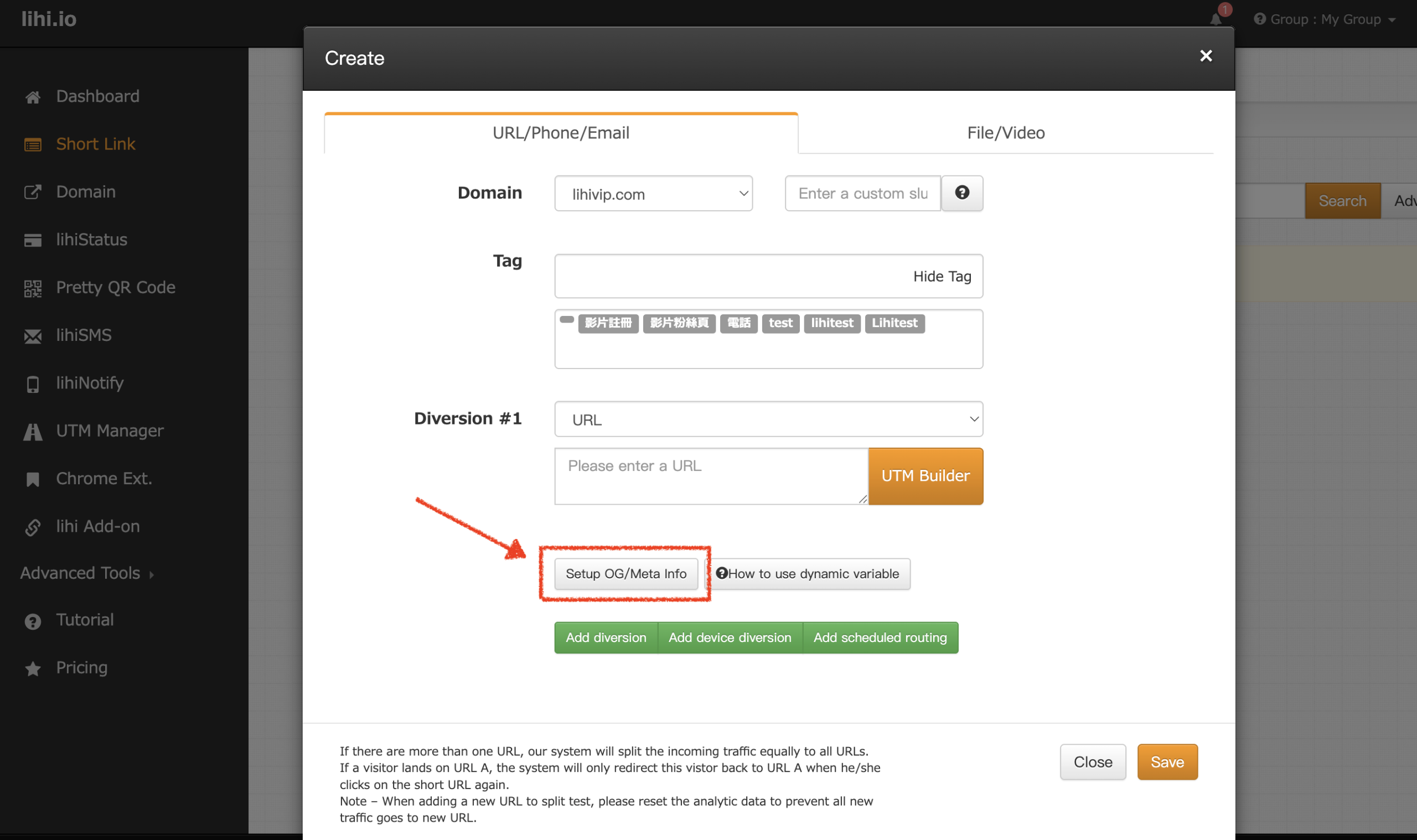
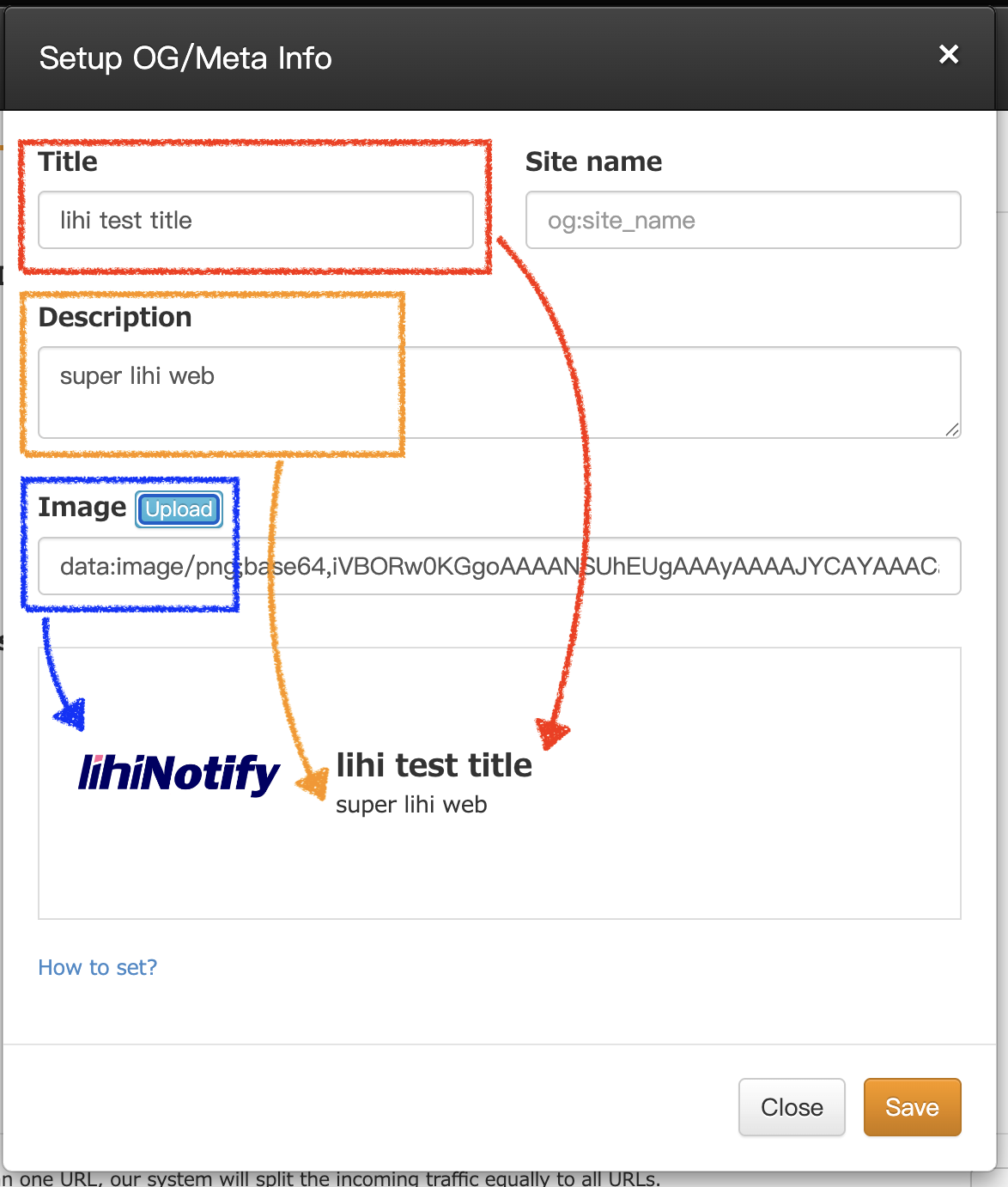
- Enter Details: Fill in the fields in the pop-up window:
- Title: The headline displayed in the preview.
- Site Name: The website name (used for SEO crawlers; usually not visible to users).
- Description: A brief summary of the content shown below the title.
- Image: The URL of the custom thumbnail image you want to display.
- Click Save when finished.
3. To apply these settings to an existing short link, click the Setup OG/Meta/Info button located in the toolbar above the link.
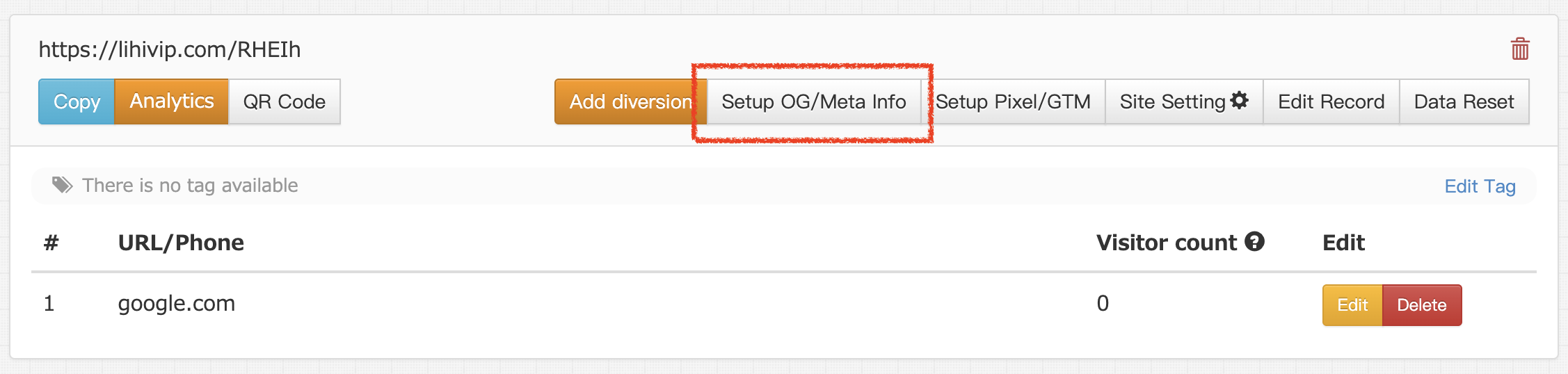 4. Update Details: Fill in the fields (Title, Site Name, Description, Image) as described above and click Save.
⚠️ Important Note on Caching: Social media platforms (like Meta) “cache” or remember the old preview data. After making changes, the preview might not update immediately.
If you need to see the changes right away, you must force Meta to scrape your new data. [Click here to use the Meta Sharing Debugger] to clear the cache.
Start using lihi for free ⇒ Click Here!
Start using lihi for free
Join thousands of marketers and optimize your links today.