How to Batch Create Short URLs
Step-by-Step Guide
- Download Template: From the Advanced Tools, click Batch Create. Then, click the XLSX template button to get the template file.
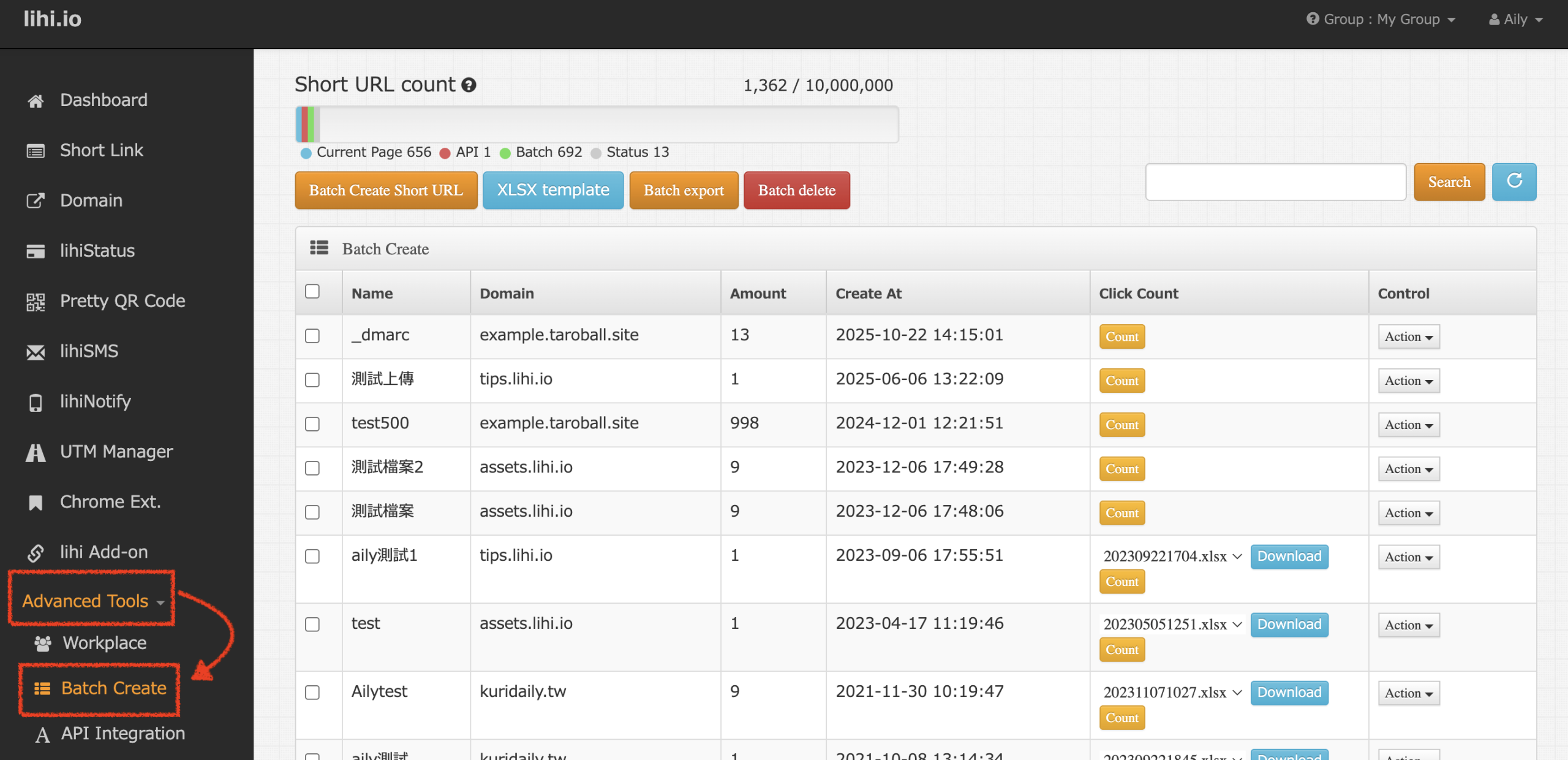
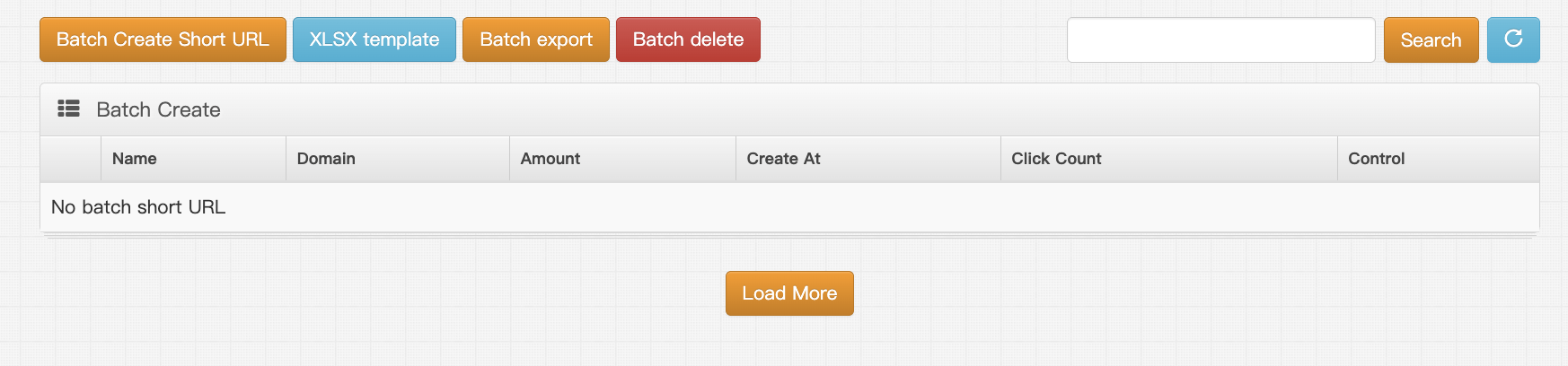
- Prepare Data: Open the template and fill in the required fields (Destination URL, Tags, etc.) Following the example format.
⚠️ File Format Warning: Please ensure your file is saved with the .xlsx extension. Other formats will not be accepted.

- Initiate Upload: Return to the Batch Create section and click the Batch Create Short URL button again to open the upload interface.
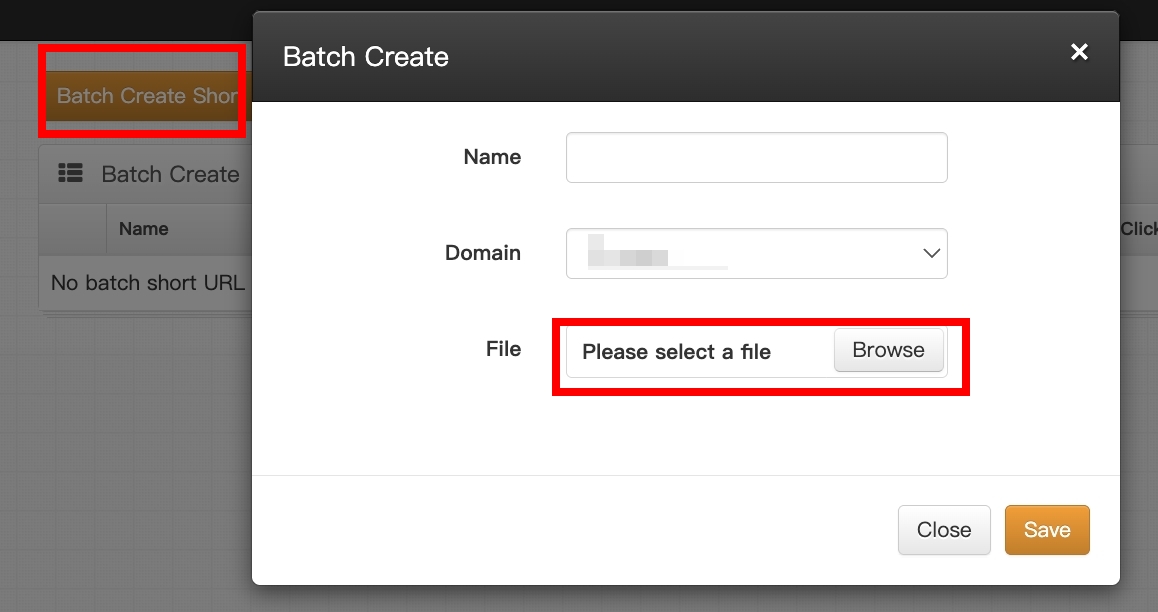
- Upload & Settings:
- Upload: Select your prepared
.xlsxfile. - Domain: Select the domain you wish to use. (Note: If you do not have a Custom Domain, you may need to purchase one to use this feature.)
- Save: Click Save. An “Update Successful” popup will appear; click OK.
- Upload: Select your prepared
Managing Reports & Updates
View & Calculate Data: After uploading, you will see your batch in the list. In the Click Count column, you will see a Count button. Click it to process and display the total click performance for those links up to the current moment. 
- Download Reports: Click the Action dropdown menu next to your batch to download the report file or perform other management tasks.
- Updating Data: To see the latest statistics, simply click the count button again. A progress bar will appear while the system fetches the newest data. Once the update is complete, you can download the report again.
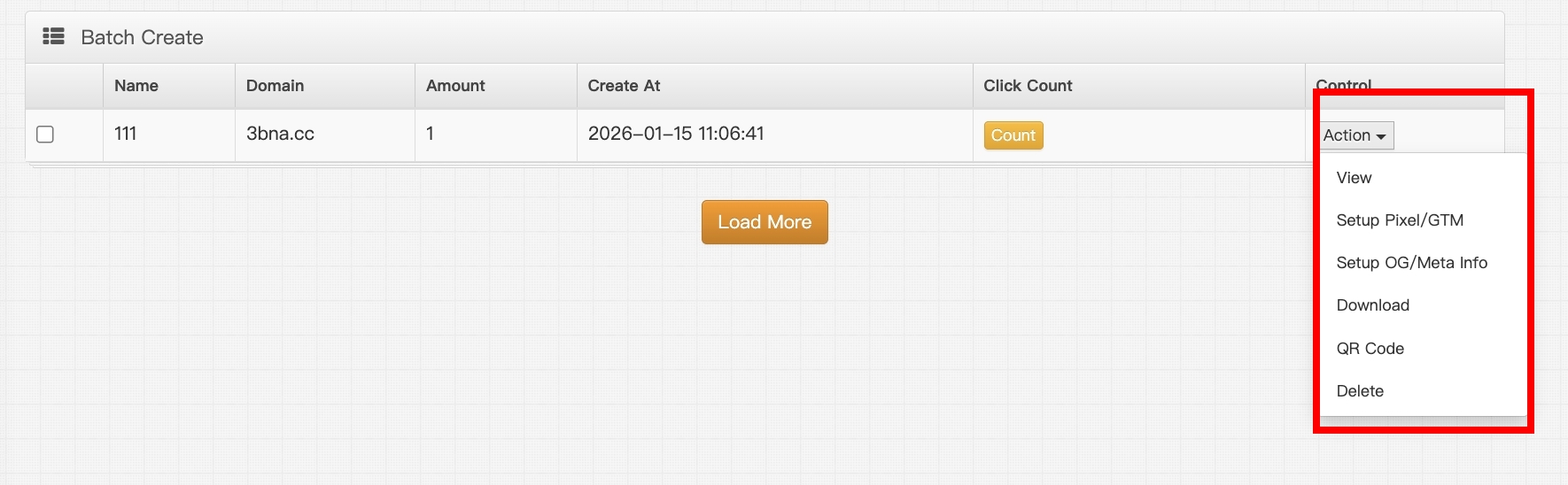
⚠️ Important Note on Analytics: Data for batch created short links cannot be viewed in the standard dashboard analytics. You must return to this “Batch Create” section to calculate and view their performance.
Start using lihi for free ⇒ Click Here!