How to Set Up and Add Subdomains for Your lihi Links
Do you want to turn generic links into branded assets using your Gandi domain? It’s a smart move. Branded links increase trust and improve your click-through rates.
If you use Gandi as your registrar, setting up a subdomain for lihi is straightforward. Follow these steps to get your DNS configured and your links live in no time.
Step 1: Configure your DNS records in Gandi
First, you need to tell Gandi where to send traffic for your new subdomain.
-
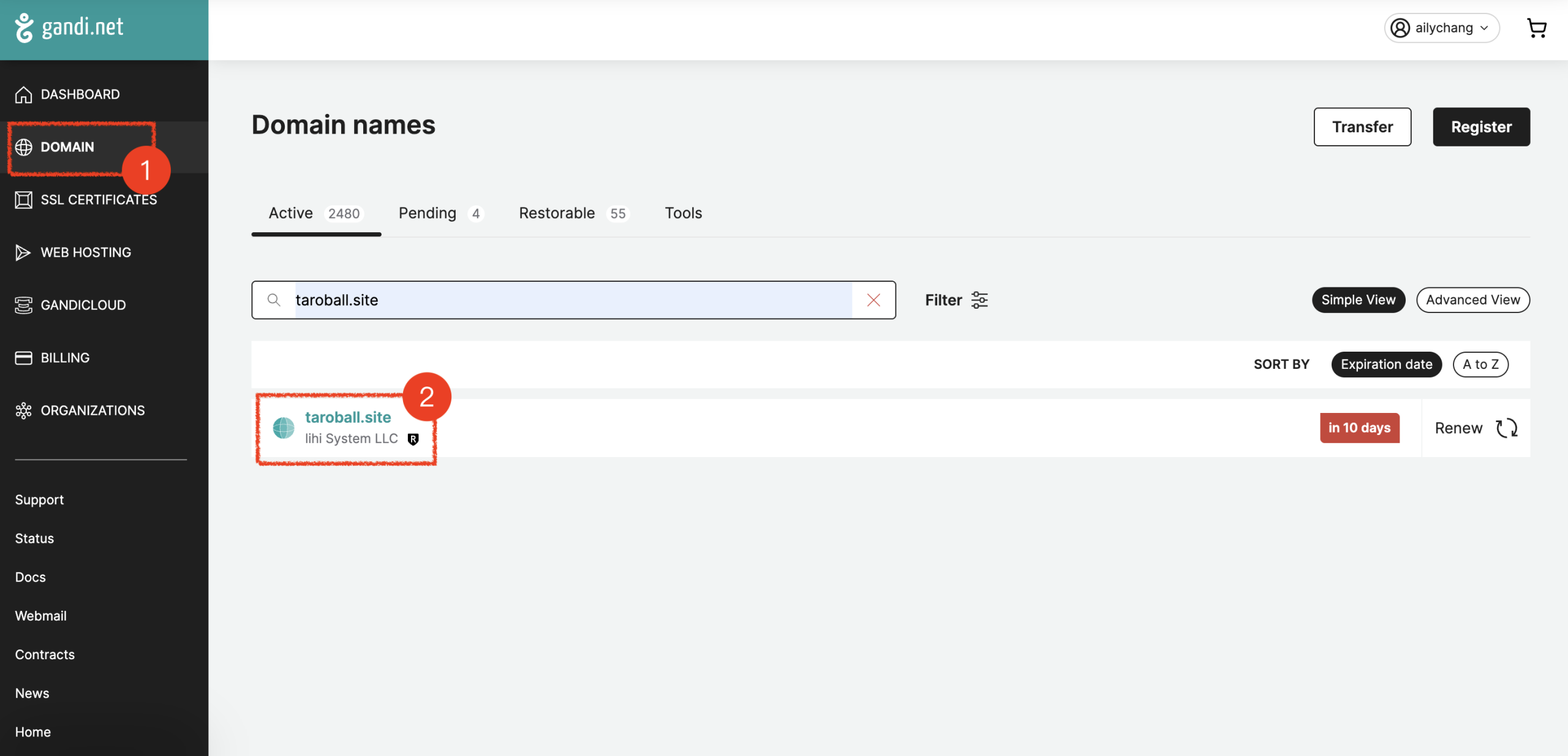
Log in to your Gandi.net account. Select Domain from the left-hand menu and click on the domain you wish to use.
-
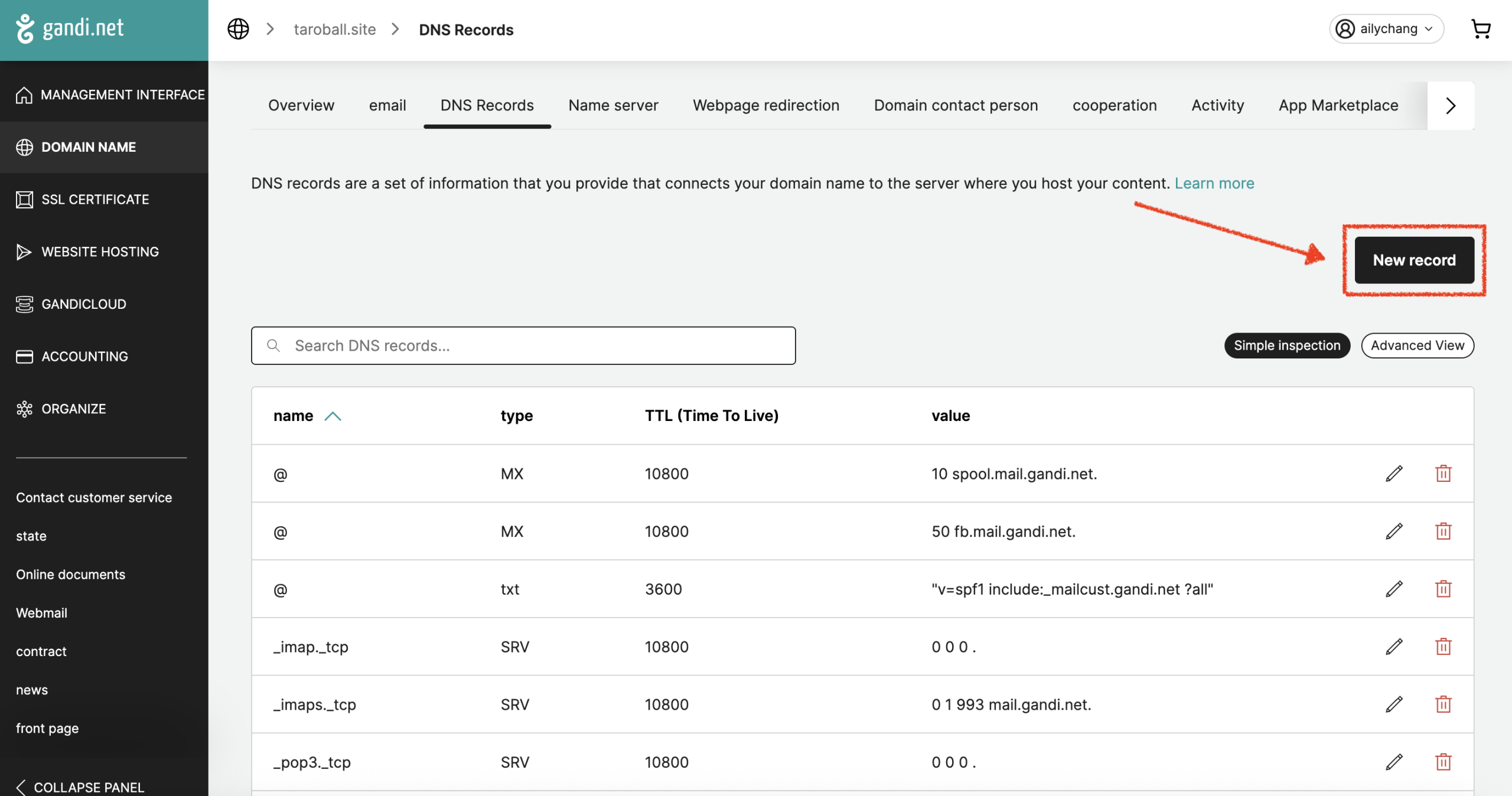
Click the DNS Records tab at the top of the page. Click New record to create a new record.
-
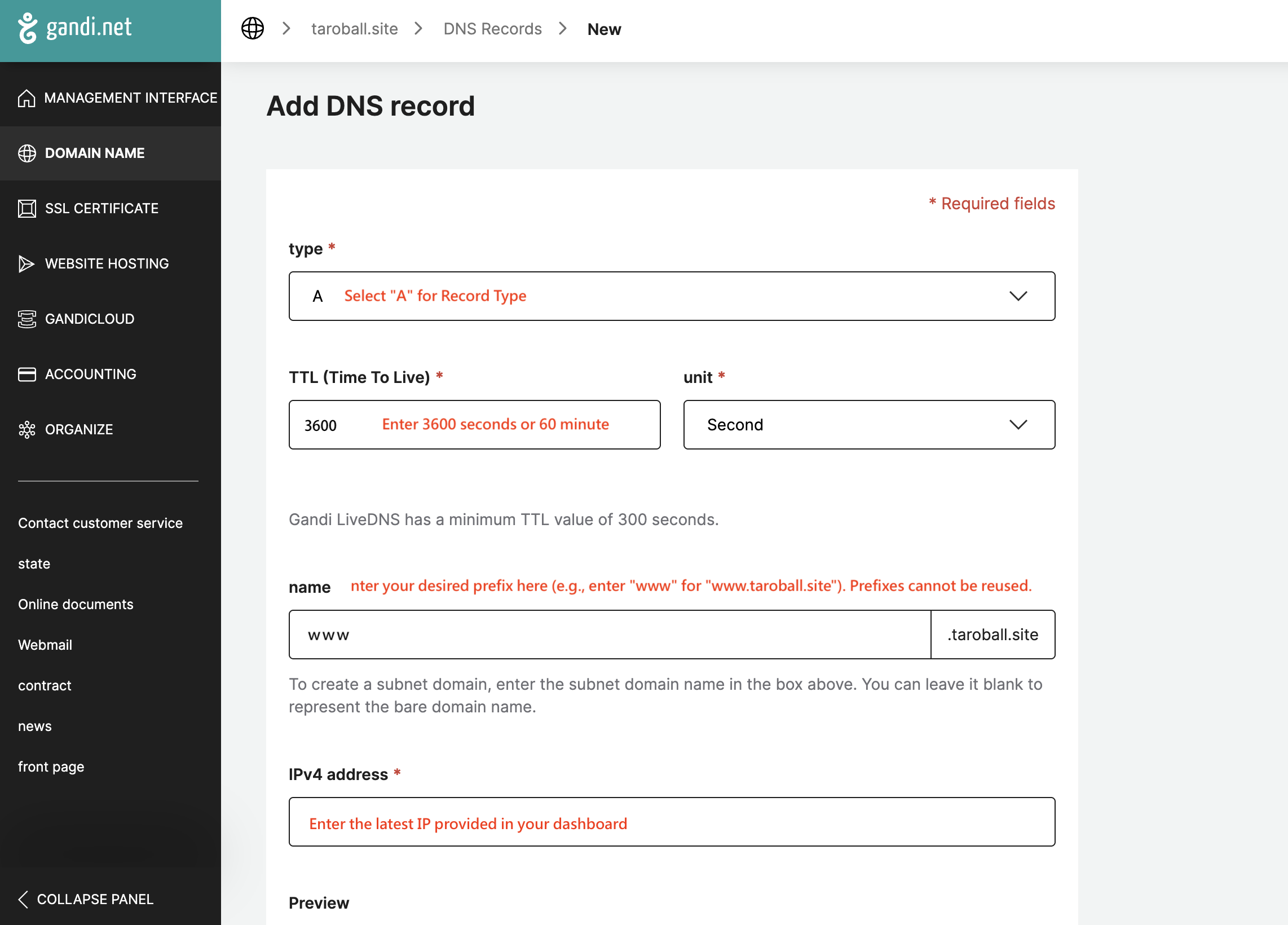
Fill in the following details:
-
Type: Select A.
-
TTL: Enter 3600 (or 1 hour).
-
Name: Enter your desired prefix (e.g., use
goforgo.yourbrand.com). -
IPv4 Address: Paste the lihi IP address found in your dashboard.
-
-
Click Estabilsh to save the changes.
Step 2: Add your subdomain to lihi
Now that your domain is pointing to the right place, you need to “claim” it inside the lihi platform.
-
Log in to your lihi dashboard.
-
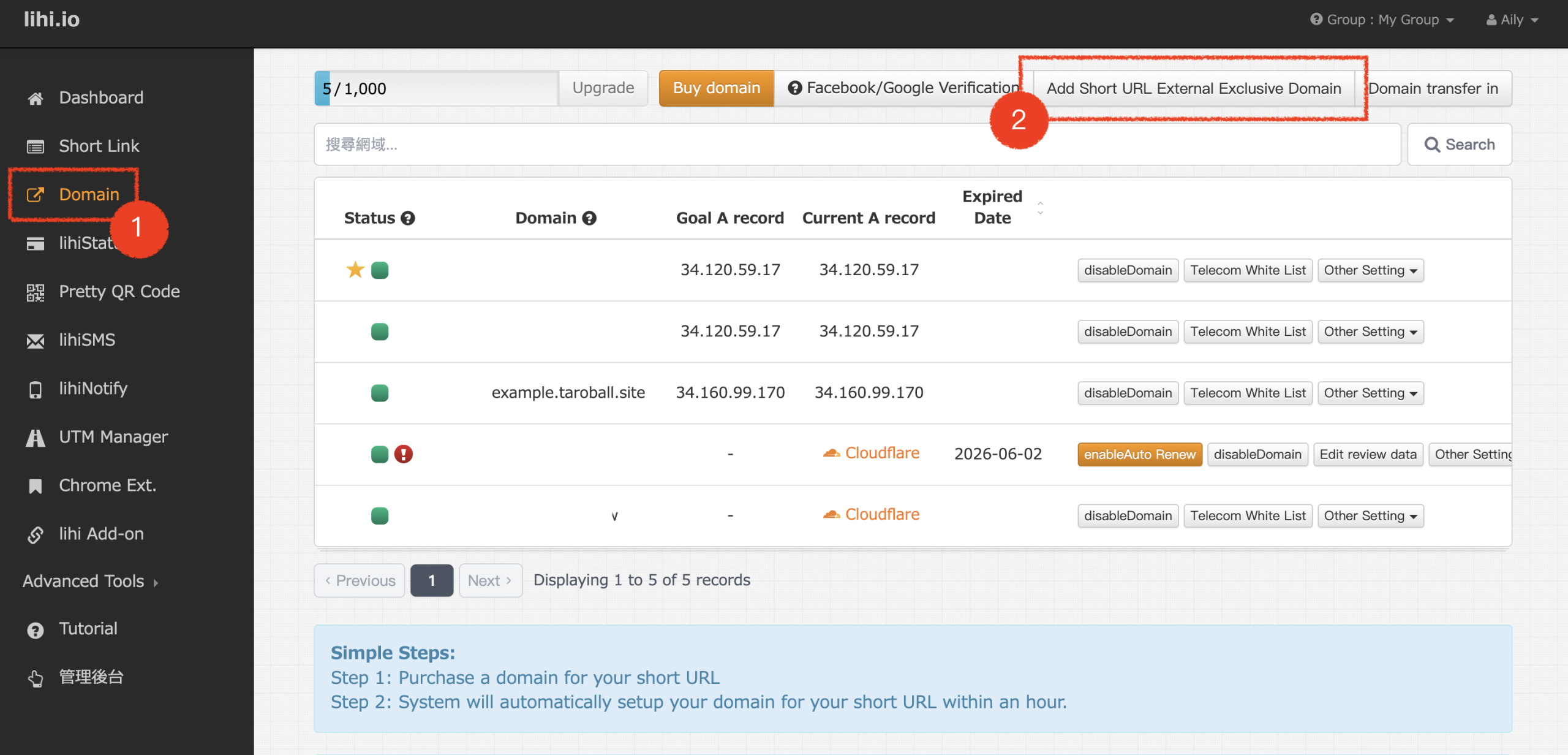
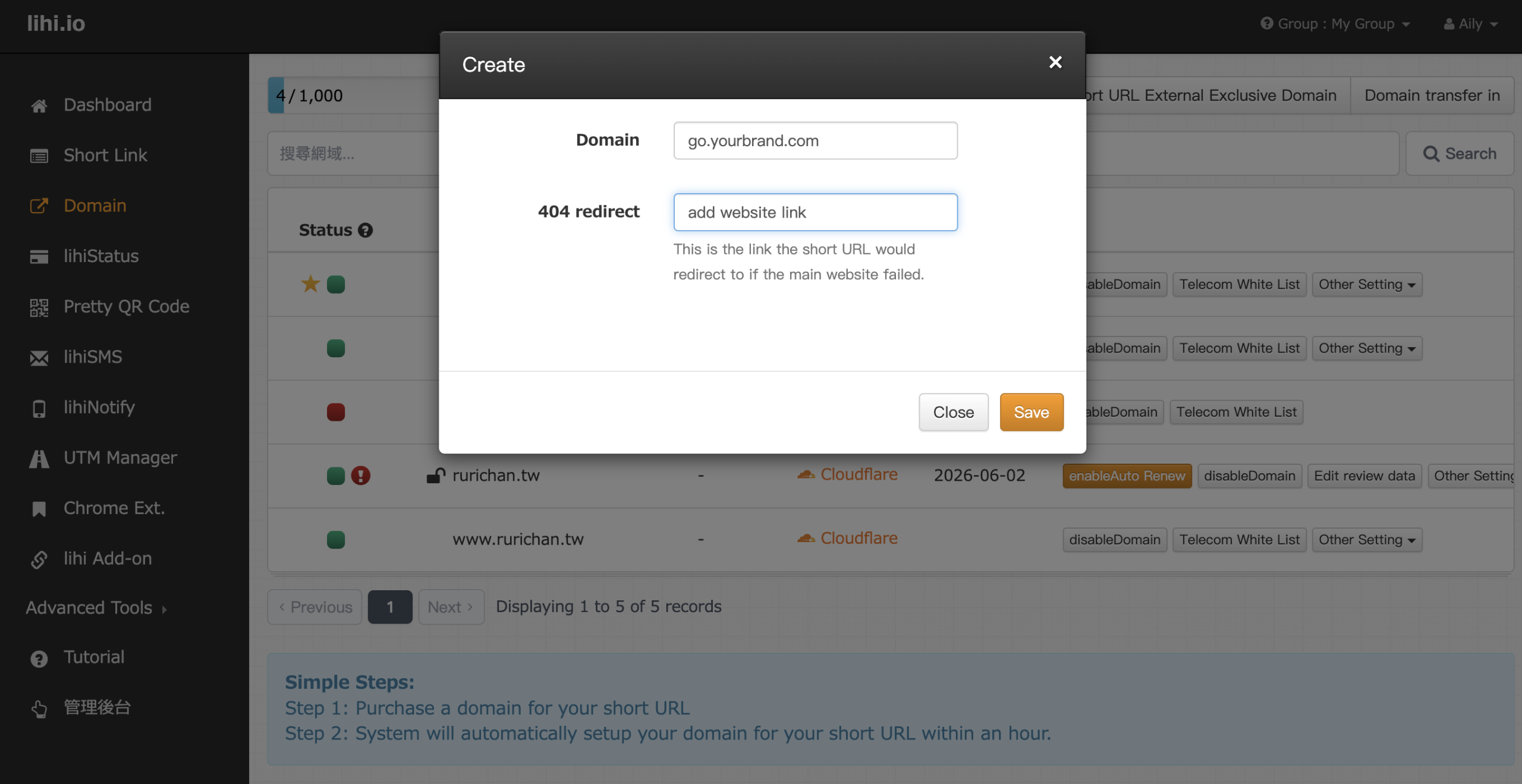
Select Domain from the left sidebar, Click Add Short URL Extemal Exclusive Domain.
-
Enter your full subdomain (e.g.,
go.yourbrand.com).
-
Optional: Enter a default destination link in the “404 redirect” field (like your homepage). You can change this later.
-
Click Save.
Step 3: Enable and verify your domain
You are almost there. The final step is activation.
-
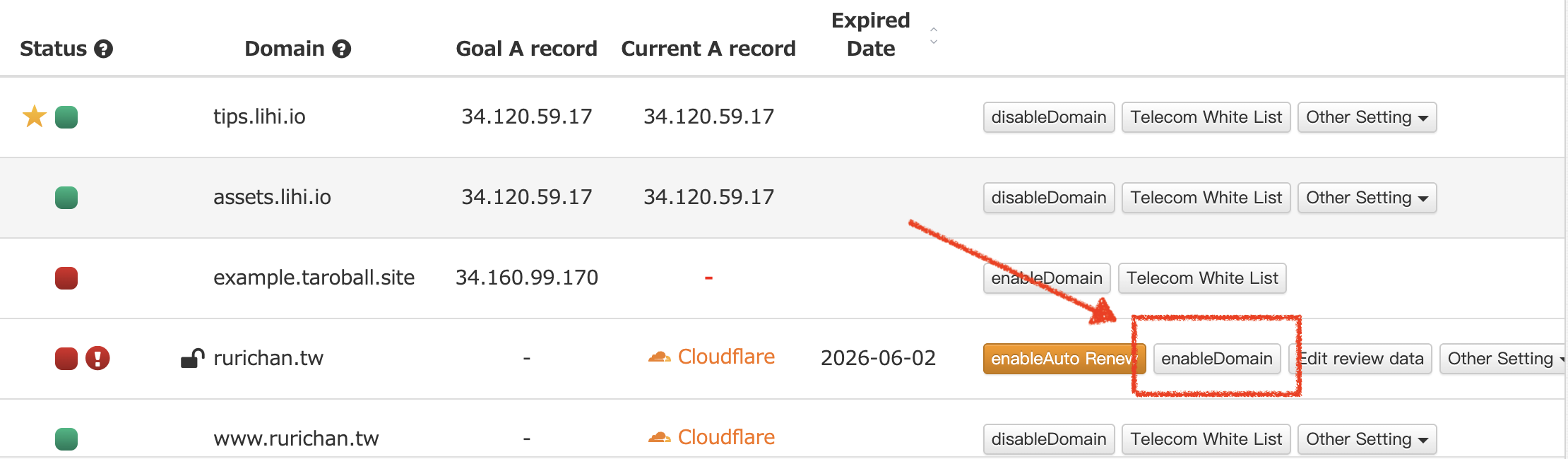
Find your newly added domain in the lihi list.
-
Click Enable Domain.
-
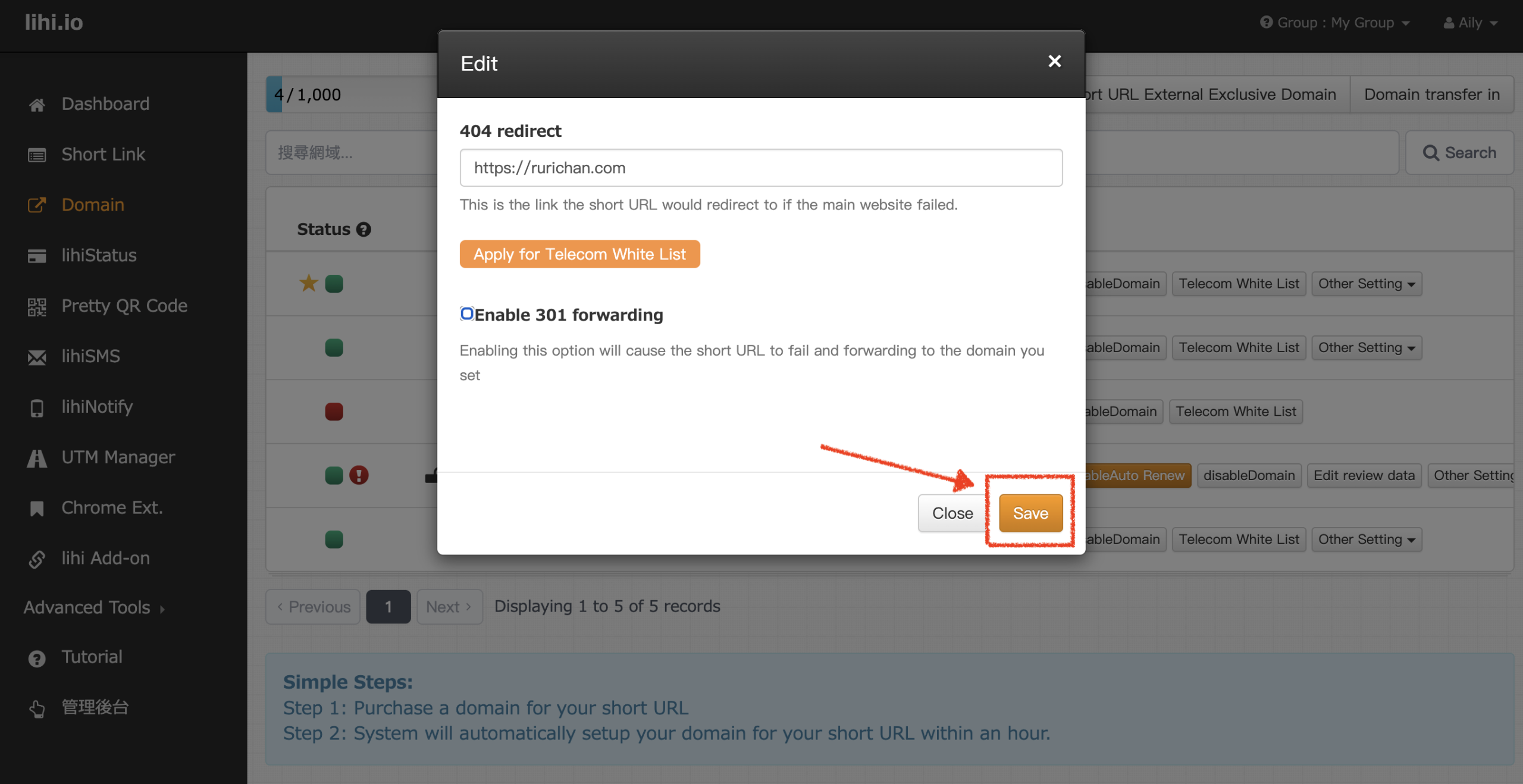
Ensure the 301 Redirect checkbox is unchecked unless you specifically need all root traffic to redirect elsewhere.
-
Click Save.
If the status shows as Active, you are ready to go!
How long does it take?
DNS changes don’t happen instantly. Depending on the TTL settings and global propagation, it usually takes 60 minutes, but in some cases, it can take up to 48 hours.
Start using lihi for free ⇒ Click Here!